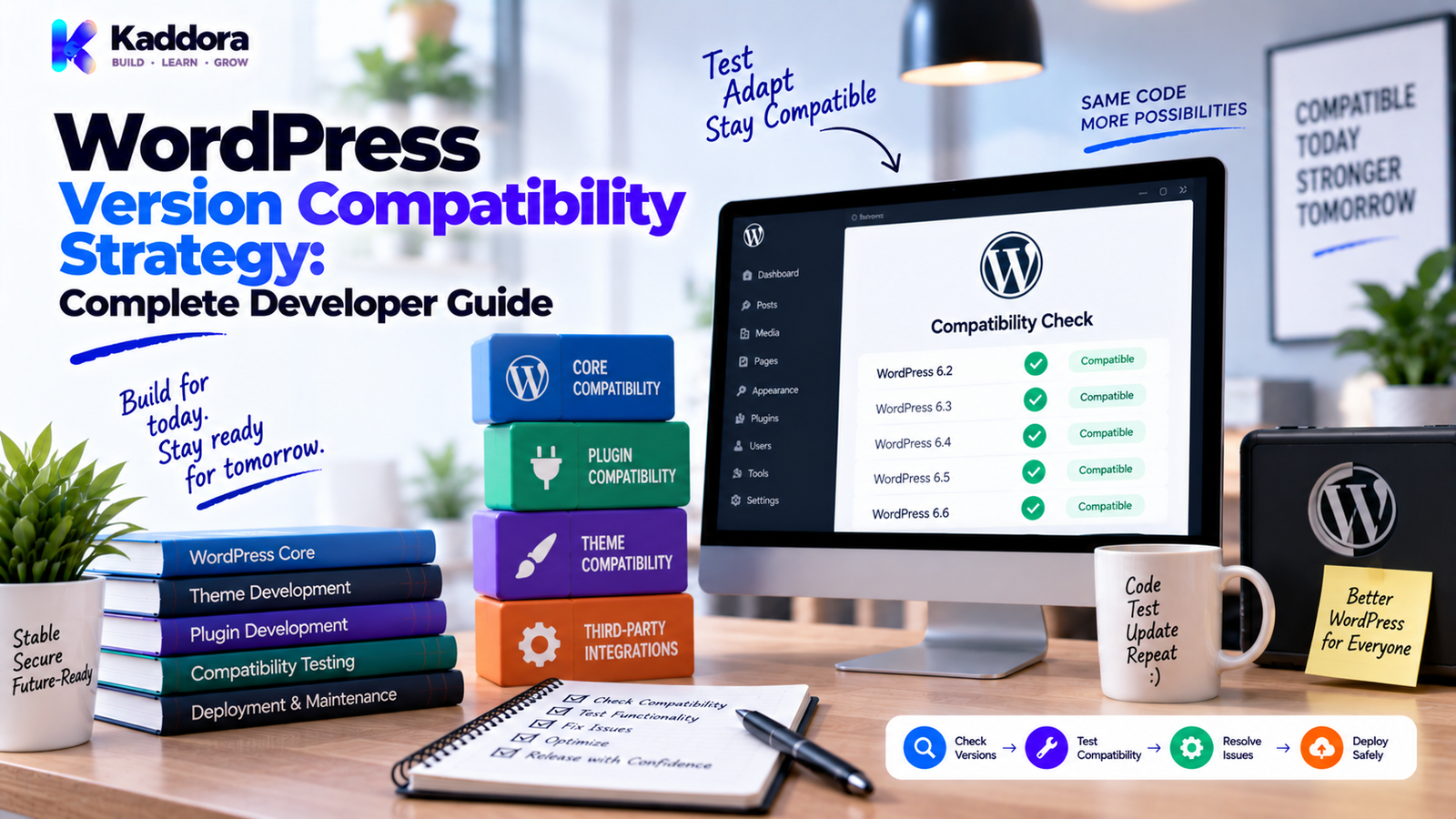
WordPress Version Compatibility Strategy: Complete Developer Guide
Introduction
A WordPress plugin or theme can work perfectly on one website and fail on another.
The reason may be a difference in:
WordPress version
PHP version
WooCommerce version
Theme
Plugin dependencies
Database configuration
Browser environment
Server configuration
This is why compatibility should be designed into a WordPress product instead of being checked only after users report problems.
A practical compatibility model is:
Define Support
↓
Develop Against Supported APIs
↓
Test Versions
↓
Review Dependencies
↓
Release
↓
Monitor
A good WordPress version compatibility strategy helps developers decide which WordPress and PHP versions a product supports, how to test them, how to handle older environments, and how to communicate compatibility clearly.
This is especially important for:
WordPress themes
WooCommerce extensions
Marketplace products
Enterprise websites
SaaS integrations
AI-powered WordPress applications
The goal is not to support every possible version forever.
The goal is to provide a clear, realistic, and tested support policy.
What Is WordPress Version Compatibility?
WordPress version compatibility means ensuring that a plugin, theme, or application works correctly with the WordPress versions it claims to support.
For example:
Plugin ↓ WordPress Version ↓ PHP Version ↓ Dependencies ↓ Server Environment
Compatibility is therefore broader than WordPress core alone.
A product may support a specific WordPress range but still fail because a required PHP version is unavailable.
This is why compatibility should be evaluated as a complete environment.
Why Version Compatibility Matters
Poor compatibility planning can result in:
Fatal PHP errors
Deprecated API usage
Broken admin screens
Incorrect frontend behavior
JavaScript failures
Database errors
Plugin conflicts
WooCommerce issues
Failed upgrades
A professional compatibility strategy reduces unexpected behavior and gives users clear expectations.
WordPress Version Compatibility vs Backward Compatibility
These concepts are related but different.
Version Compatibility
Means the product works with specific supported versions.
Backward Compatibility
Means newer releases continue to work with older supported functionality, APIs, data, or integrations.
For example:
Version 2.0 ↓ Continues supporting API behavior used by Version 1.x integrations
Backward compatibility becomes particularly important when a plugin has an established customer base.
Start With a Support Policy
Before writing code, define:
Minimum WordPress version
Maximum tested WordPress version
Minimum PHP version
Supported WooCommerce versions where relevant
Browser expectations
Required dependencies
A support policy might look like:
WordPress: Tested range PHP: Tested range WooCommerce: Supported range Browser: Supported targets
Use values that reflect your actual testing rather than marketing assumptions.
Minimum WordPress Version
The minimum supported WordPress version should reflect the APIs and features your software actually requires.
Suppose a plugin depends on a WordPress API introduced after your target baseline.
Then supporting older WordPress versions may not be realistic without a compatibility layer.
Don't select the minimum version arbitrarily.
Instead:
API Requirements
↓
Feature Requirements
↓
Minimum Version
↓
Testing
Minimum PHP Version
PHP compatibility is equally important.
Modern WordPress development may use language features that older PHP versions don't support.
For example:
public function calculate( float $price ): float { return $price; }
Before using a PHP language feature, verify that it is supported by the plugin's advertised minimum PHP version.
A plugin should not claim support for an environment it cannot actually execute in.
Document Requirements Clearly
Users should be able to see:
Requires WordPress: [Project Minimum] Requires PHP: [Project Minimum] Requires Plugins: [Where Applicable]
Also document:
Tested versions
Recommended versions
Known limitations
Required extensions
Optional integrations
Clear documentation reduces support requests.
Tested Versions vs Supported Versions
These aren't always identical.
Supported
You officially intend the product to work there.
Tested
You have specifically verified behavior there.
For example:
Supported: WordPress A–B Tested: A A+1 B
You should not imply that every version between tested points has been individually verified unless that is actually true.
Why Testing Multiple Versions Matters
WordPress environments can differ significantly.
An API may:
Change behavior
Become deprecated
Introduce new arguments
Change JavaScript behavior
Interact differently with plugins
Testing more than one version helps reveal these issues.
The required matrix depends on project size and risk.
Create a Compatibility Matrix
A compatibility matrix provides a simple overview.
Component
Minimum
Tested
Notes
WordPress
Project-defined
Selected supported versions
Core APIs
PHP
Project-defined
Supported PHP range
Language features
WooCommerce
If required
Tested releases
Ecommerce
Browser
Project-defined
Target browsers
Frontend
Database
Environment-defined
Tested setup
Storage
Keep the actual values aligned with the product's current release policy.
Use a Representative Test Matrix
Testing every possible combination can become impossible.
Suppose you support:
Several WordPress versions
Multiple PHP versions
WooCommerce
Several major browsers
The combination count can grow rapidly.
Instead, choose representative environments.
For example:
Core Compatibility PHP Compatibility WooCommerce Compatibility Critical Integration
Prioritize combinations that reflect your actual customer environments.
Test the Minimum Supported Environment
This is one of the most important tests.
If you claim support for an older environment, test it directly.
For example:
Minimum WordPress + Minimum PHP + Plugin
If the product works only on newer versions, update the support policy rather than making unsupported claims.
Test the Newer Environment Too
Compatibility is not only about old versions.
New WordPress and PHP releases can introduce:
Deprecations
API changes
New behaviors
JavaScript changes
Performance changes
Therefore, test:
Minimum Supported + Common Supported + Newer Candidate
This helps prepare the product for future updates.
Use WordPress APIs Carefully
A plugin should prefer stable WordPress APIs over implementation details.
For example:
$value = get_option( 'kaddora_setting' );
is preferable to directly manipulating internal configuration structures without a valid reason.
Similarly, use appropriate APIs for:
HTTP
Metadata
Options
Users
Settings
REST
Cron
Enqueueing
Internationalization
Using public APIs generally creates a better compatibility foundation.
Avoid Deprecated APIs
A compatibility strategy should include regular deprecated-API reviews.
For example:
Current API ↓ Supported
instead of:
Deprecated API ↓ Possibly Removed or Changed ↓ Compatibility Risk
Deprecation warnings should be treated as maintenance signals rather than ignored.
Build Compatibility Around Hooks
WordPress hooks are part of the platform's extension model.
A plugin should:
Use documented hooks where possible
Avoid depending on undocumented execution details
Keep callback assumptions clear
Test important hook interactions
If a hook's behavior changes across supported versions, the compatibility layer should isolate that difference where necessary.
Use Feature Detection Where Appropriate
Sometimes behavior can be detected directly.
For example:
if ( function_exists( 'some_supported_function' ) ) { // Use supported functionality. }
Feature detection can be useful when different WordPress versions expose different capabilities.
However, don't turn the entire plugin into a collection of scattered version checks.
Centralize compatibility decisions where practical.
Avoid Excessive Version Checks
This pattern can become difficult to maintain:
if ( version_compare( $version, 'X', '<' ) ) { // Old logic. } else { // New logic. }
repeated throughout dozens of files.
Instead, isolate compatibility differences:
Application ↓ Compatibility Layer ├── Older API └── Newer API
The main application can then depend on one consistent internal behavior.
Version Checks vs Capability Checks
When possible, prefer checking whether the required capability exists instead of checking only a version number.
For example:
if ( function_exists( 'required_feature' ) ) { // Use feature. }
This can be more resilient when backports, extensions, or environment differences exist.
However, version checks are still appropriate when behavior is explicitly tied to a known platform version.
Use the mechanism that best represents the requirement.
Database Compatibility
WordPress compatibility also includes database behavior.
Consider:
Table schema
Character sets
Indexes
Migration logic
Query compatibility
For custom tables, migrations should be versioned and tested.
A database change should not assume every installation starts from a clean state.
Test Upgrade Paths
Fresh installation testing is not enough.
Also test:
Old Version ↓ Upgrade ↓ New Version
Check:
Settings
Existing records
Database migrations
Existing integrations
User permissions
Scheduled tasks
This is essential for plugins with persistent customer data.
Test Downgrade and Failure Scenarios Carefully
Downgrades can be more difficult than upgrades.
Suppose version 3 changes the database schema.
Then:
Version 2 ↓ Version 3 ↓ Database Changed
A simple downgrade back to Version 2 may no longer be safe.
Document unsupported downgrade scenarios rather than implying every version can be reversed automatically.
Maintain Database Versioning
For custom database structures, store a schema version.
For example:
$installed_version = get_option( 'kaddora_database_version', '0.0.0' );
Then apply required migrations based on the current version.
This makes upgrades predictable.
WordPress Plugin Compatibility
Plugins should define compatibility with:
WordPress
PHP
Required plugins
WooCommerce where applicable
External services
Test:
Activation Runtime Upgrade Deactivation Uninstall
Also test missing dependencies and unsupported environments.
WordPress Theme Compatibility
Themes should be checked against:
WordPress versions
PHP versions
Block editor behavior
Classic editor scenarios where relevant
Child themes
Common plugins
WooCommerce where supported
A theme should avoid depending unnecessarily on plugin internals.
WooCommerce Compatibility
WooCommerce extensions need a separate compatibility strategy because WooCommerce evolves independently from WordPress core.
Track:
WooCommerce version requirements
WordPress versions
PHP versions
API changes
Template behavior
Database architecture
Test critical workflows such as:
Product ↓ Cart ↓ Checkout ↓ Order
REST API Compatibility
REST integrations can be affected by:
Endpoint changes
Authentication
Response formats
Validation
Permissions
Keep external API assumptions isolated.
For example:
REST Controller ↓ Service ↓ API Client
This makes compatibility changes easier to manage.
AI Integration Compatibility
AI APIs may evolve independently of WordPress.
A provider can change:
Models
Parameters
Authentication
Response formats
Rate limits
A good architecture isolates provider-specific behavior:
AI Feature ↓ Provider Interface ↓ Provider Client
This allows the core feature to remain more stable when providers change.
JavaScript Compatibility
WordPress frontend compatibility also includes JavaScript.
Test:
Block editor interfaces
Admin JavaScript
AJAX
REST requests
Browser APIs
Build output
Avoid relying on browser features that fall outside the product's supported browser targets without an appropriate fallback.
CSS Compatibility
CSS compatibility includes:
Modern layout features
Responsive behavior
Browser support
Theme/plugin interactions
RTL support where appropriate
Use predictable selectors and avoid unnecessary global styles that can conflict with other WordPress products.
Dependency Compatibility
Your plugin may depend on:
Composer packages
npm packages
WooCommerce
Other plugins
External APIs
Every dependency creates another compatibility dimension.
Track:
Your Product ↓ Dependencies ↓ Supported Versions ↓ Test Matrix
Review major dependency updates before release.
Backward Compatibility for Public APIs
If a plugin exposes public classes, functions, hooks, or filters, other developers may depend on them.
For example:
Kaddora_Report_Manager::generate();
Changing or removing that API can break integrations.
Before making breaking changes:
Identify consumers
Document the change
Consider deprecation
Provide migration guidance
Test upgrade behavior
Public APIs should be treated as contracts.
Deprecation Strategy
Instead of removing an API immediately:
Old API ↓ Deprecated ↓ Migration Notice ↓ New API ↓ Future Removal
A controlled deprecation strategy gives developers time to migrate.
The timeline should match the project's release and support policy.
Compatibility and Security
Old environments can increase security and maintenance risks.
For example, a plugin may technically run on an old PHP release but still face ecosystem constraints.
Don't treat compatibility as:
Works = Supported
Support should also consider:
Security
Maintenance
Dependencies
Hosting reality
Testing cost
A compatibility policy should be both technically and operationally sustainable.
Compatibility and Performance
Supporting many old versions increases testing requirements.
This can also increase development complexity.
For example:
One Version ↓ Small Test Matrix Many Versions ↓ Larger Test Matrix
There is a practical cost to every additional supported environment.
Define support based on actual customer needs and product strategy.
Compatibility and Marketplace Plugins
Marketplace products need especially careful compatibility planning.
A plugin may run alongside:
Other plugins
Different themes
Different hosting stacks
Different PHP versions
WooCommerce
Custom code
Useful tests include:
Clean installation
Existing installation
Upgrade
Dependency missing
Dependency present
Different PHP versions
Different WordPress versions
The final release should be tested in environments representative of real users.
Compatibility and WordPress Coding Standards
A compatibility strategy should work together with coding standards.
Review:
Deprecated APIs
Naming
Documentation
Internationalization
Escaping
Input handling
Database safety
PHP compatibility
Static analysis can help identify some compatibility and coding issues before release.
Automated Compatibility Testing
For larger projects, use automation.
A CI matrix can test combinations such as:
WordPress Version A + PHP Version X WordPress Version A + PHP Version Y WordPress Version B + PHP Version X WordPress Version B + PHP Version Y
You don't need to test every imaginable combination.
Prioritize supported environments and critical integrations.
Compatibility Testing Workflow
A practical workflow is:
1. Define Support
Choose minimum and supported versions.
2. Identify APIs
List the WordPress and PHP features your code requires.
3. Build
Implement against supported public APIs.
4. Test Minimum
Verify the oldest supported environment.
5. Test Common Versions
Verify the environments used most often by your target audience.
6. Test New Versions
Identify upcoming compatibility problems.
7. Test Upgrades
Verify existing installations.
8. Review Deprecations
Address outdated APIs.
9. Release
Publish clear compatibility requirements.
10. Monitor
Watch support reports and production issues.
WordPress Compatibility Checklist
WordPress
Minimum version defined
Supported versions documented
Minimum version tested
Newer supported version tested
Public APIs reviewed
Deprecated APIs reviewed
PHP
Minimum PHP version defined
Language features verified
Supported versions tested
Extensions documented
Dependencies
Required plugins documented
WooCommerce versions reviewed
Composer dependencies tested
JavaScript dependencies reviewed
External APIs tested
Data
Database migrations tested
Schema versioning implemented where needed
Existing data tested
Upgrade path tested
Quality
Coding standards checked
Automated tests run
Manual testing completed
Clean installation tested
Release package tested
Common WordPress Compatibility Mistakes
Supporting Versions You Never Tested
Do not advertise compatibility based only on assumptions.
Using New PHP Syntax on Old PHP
Language features must match the minimum PHP version.
Depending on Internal APIs
Undocumented internals can change unexpectedly.
Ignoring Deprecations
Old APIs can become future compatibility problems.
Testing Only Fresh Installs
Existing installations often reveal migration bugs.
Supporting Too Many Versions
An unnecessarily broad matrix increases testing and maintenance cost.
Scattering Version Checks Everywhere
Centralize compatibility logic where practical.
Ignoring Dependencies
WooCommerce, Composer packages, and external APIs also have version requirements.
No Release Compatibility Matrix
Users need clear expectations.
Recommended Version Compatibility Strategy
Use this framework:
Define
↓
Document
↓
Test
↓
Automate
↓
Monitor
Define
Choose realistic support boundaries.
Document
Publish minimum and tested versions.
Test
Verify important version combinations.
Automate
Use CI and static analysis where practical.
Monitor
Track compatibility problems after release.
Compatibility should be treated as an ongoing product responsibility rather than a one-time setup task.
Why Choose ThemeKaddora?
ThemeKaddora provides WordPress plugins, themes, WooCommerce solutions, AI tools, analytics products, marketing tools, automation solutions, HTML templates, UI kits, and SaaS-focused digital products.
For professional digital products, version compatibility is essential because users may run different WordPress, PHP, WooCommerce, and hosting configurations.
A strong compatibility strategy helps ThemeKaddora-style products maintain:
Clear minimum requirements
Controlled support ranges
Compatibility testing
Safer upgrades
Better dependency management
More predictable releases
Easier troubleshooting
Stronger long-term maintenance
For marketplace products, avoid claiming support for environments that have not been meaningfully tested.
The objective is not to support every historical version forever.
It is to define a sustainable compatibility range and maintain it responsibly.
Final Thoughts
A WordPress version compatibility strategy gives developers a clear answer to an important question:
Which environments does this software actually support?
The answer should be based on:
Requirements
Public APIs
Testing
Dependencies
Maintenance Capacity
=
Realistic Compatibility Policy
Define the minimum WordPress version.
Define the minimum PHP version.
Identify required dependencies.
Use supported WordPress APIs.
Avoid unnecessary internal dependencies.
Test the oldest supported environment.
Test commonly used environments.
Test newer versions before they become a production problem.
Test upgrades, not just fresh installations.
Track database migrations.
Review deprecated APIs.
Document compatibility clearly.
Automate the most important combinations.
And monitor compatibility issues after release.
There is no value in claiming support for twenty versions if only two have been tested.
Likewise, dropping every older version immediately can create unnecessary disruption for existing users.
The right strategy is a balance between:
User Needs
and
Sustainable Maintenance
For small plugins, a simple compatibility matrix and manual testing process may be enough.
For large WordPress products, automated CI matrices, dependency testing, migration tests, and release validation can provide a much stronger foundation.
A professional compatibility strategy allows developers to make deliberate decisions instead of reacting to every version change after users discover the problem.
The goal is simple:
Build software for versions you can responsibly support, test the environments that matter, and communicate those requirements clearly.
Frequently Asked Questions
What is a WordPress version compatibility strategy?
It is a plan for defining, testing, documenting, and maintaining which WordPress, PHP, plugin, theme, and dependency versions a product supports.
Why is WordPress version compatibility important?
Different environments can change API behavior, PHP support, JavaScript behavior, dependencies, and database behavior.
Should downgrade support be guaranteed?
No. Database changes can make automatic downgrades unsafe. Unsupported downgrade scenarios should be documented clearly.
How does WooCommerce affect compatibility?
WooCommerce has its own release cycle and APIs, so extensions need to consider WooCommerce versions separately from WordPress and PHP.
Should AI integrations have compatibility policies?
Yes. External AI providers can change models, parameters, authentication, response formats, or rate limits independently of WordPress.
How should REST API compatibility be handled?
Isolate API-specific behavior in a client or integration layer so provider or endpoint changes don't spread throughout the application.
Does browser compatibility matter for WordPress plugins?
Yes, especially for plugins with significant JavaScript or interactive interfaces.
Does CSS affect WordPress compatibility?
Yes. CSS features, browser support, theme interactions, and global selectors can affect how a theme or plugin behaves across environments.
How does dependency management relate to compatibility?
Every dependency introduces another version dimension. Supported dependency ranges should be documented and tested.
Should old PHP versions be supported forever?
No. Support should be based on real customer needs, security, hosting realities, and the project's ability to test and maintain those environments.
Why choose ThemeKaddora?
ThemeKaddora provides WordPress plugins, themes, WooCommerce solutions, AI tools, analytics, automation products, HTML templates, UI kits, and other digital solutions designed around modern website and business requirements.
Comments (0)