
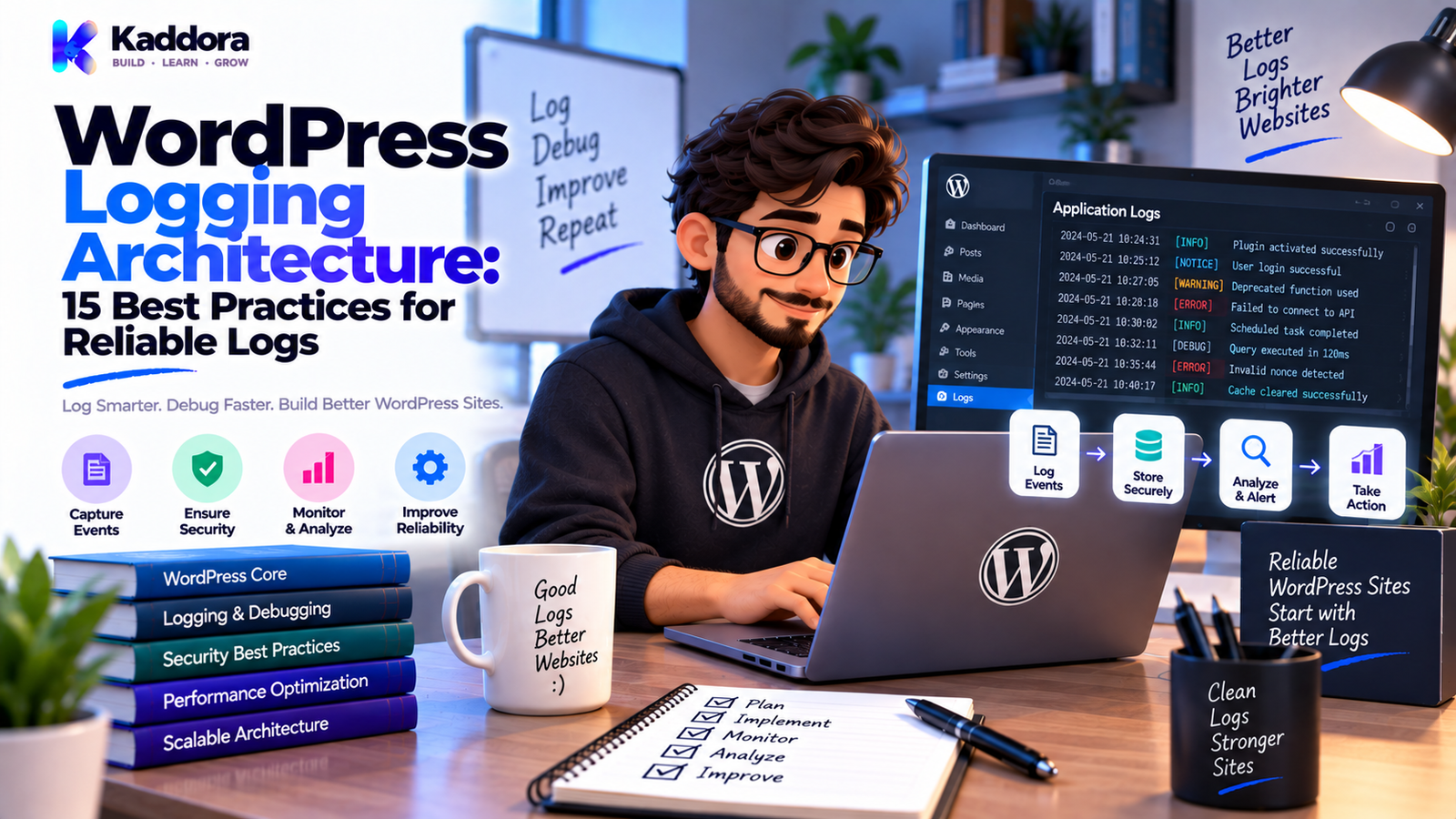
WordPress Logging Architecture: 15 Best Practices for Reliable Logs
Introduction
When a WordPress website works correctly, logging may seem unimportant.
But when a plugin suddenly stops working, an API request fails, a cron job doesn't run, a WooCommerce synchronization breaks, or an external service returns an unexpected response, developers need reliable information about what happened.
A message such as:
Something went wrong.
doesn't provide much value.
A useful log should help answer:
What happened?
When did it happen?
Which component was involved?
Which operation failed?
What error occurred?
Which request triggered it?
Can the event be connected to another operation?
Is the recorded information safe?
This is why WordPress logging architecture matters.
Logging architecture is not simply about writing messages with error_log(). It involves deciding what events should be recorded, how those events should be classified, what context should be included, where logs should be stored, how long logs should be retained, and how sensitive information should be protected.
A well-designed logging system can make WordPress plugins and applications easier to troubleshoot, maintain, monitor, and operate.
In this guide, you'll learn how WordPress logging works, what a good logging architecture looks like, how to create useful logs, and 15 practical best practices for building secure and maintainable WordPress software.
What Is WordPress Logging Architecture?
WordPress logging architecture is the system used to create, structure, store, manage, and review application logs.
A simple logging flow looks like this:
Application Event
↓
Logger
↓
Log Level + Context
↓
Storage Destination
↓
Retention / Rotation
↓
Developer or Administrator Review
The important principle is consistency.
Instead of scattering different logging approaches throughout a plugin, create a standard way to record events.
For example:
Logger::error( 'Customer synchronization failed.', array( 'customer_id' => $customer_id, 'code' => 'sync_failed', ) );
The business logic should not need to know exactly where the final log is stored.
Why Is WordPress Logging Important?
Modern WordPress websites can contain many connected components.
A single operation may involve:
WordPress core
Plugins
Themes
WooCommerce
Database queries
REST APIs
External HTTP services
AJAX requests
Cron jobs
Webhooks
Payment services
AI integrations
When something fails, the problem may be difficult to reproduce.
Useful logs can help with:
Faster troubleshooting
API diagnostics
Cron debugging
Integration monitoring
Deployment verification
Security investigation
Error analysis
Performance investigation
Logging doesn't eliminate failures.
It gives developers better evidence when failures occur.
Logging vs Debugging vs Monitoring
These three concepts should not be treated as identical.
Logging
Records application events.
Debugging
Uses logs, code inspection, testing, and other tools to find the cause of a problem.
Monitoring
Observes application health and behavior over time.
For example:
Logging
ERROR order_sync_failed
Debugging
Investigating why the order synchronization failed.
Monitoring
Identifying that synchronization failures increased significantly over time.
A mature WordPress application can use all three.
What Makes a Good Log Entry?
A useful log entry should contain enough context to understand an event.
A practical structure is:
Timestamp Level Component Event Context Error Code Request ID Environment
Example:
2026-09-21 12:30:10 ERROR kaddora-orders order_sync_failed order_id=4821 code=remote_timeout request_id=8f21a environment=production
This is far more useful than:
Something failed.
1. Use Appropriate Log Levels
Different events have different levels of importance.
Common levels include:
DEBUG
Detailed information mainly used during development.
Example:
Preparing API synchronization payload.
INFO
Normal operational events.
Example:
Inventory synchronization completed.
NOTICE
Unusual but non-failure events.
Example:
Fallback configuration is being used.
WARNING
An unexpected condition occurred, but the application can continue.
Example:
External API response was slower than expected.
ERROR
An operation failed.
Example:
Customer synchronization failed.
CRITICAL
A serious failure affects an important system operation.
Example:
Required service initialization failed.
Using severity levels makes logs easier to filter and prioritize.
2. Use Structured Logging
Plain text messages are easy to write, but structured logs are easier to search and analyze.
Instead of:
Order synchronization failed.
use structured information:
{ "level": "error", "component": "kaddora_orders", "event": "order_sync_failed", "order_id": 4821, "request_id": "8f21a", "code": "remote_timeout" }
Structured logging can be represented as JSON or another consistent format.
Useful fields include:
Event name
Component
Severity
Object identifier
Request ID
Status
Duration
Error code
Don't add fields simply because they exist.
Record information that has real diagnostic value.
3. Add Context to Every Important Event
Logs without context are difficult to troubleshoot.
Compare:
error_log( 'API request failed.' );
with:
Logger::error( 'API request failed.', array( 'service' => 'inventory', 'operation' => 'sync_products', 'request_id' => $request_id, 'code' => 'timeout', ) );
The second message provides useful information without exposing confidential data.
Context should help answer:
What was the application doing when this happened?
4. Use Request or Correlation IDs
Complex workflows may create several related events.
A correlation ID connects them.
For example:
request_id=ab129 INFO webhook_received INFO order_loaded INFO customer_updated ERROR email_send_failed
This allows developers to follow the lifecycle of one operation.
Correlation IDs are especially useful for:
REST APIs
AJAX requests
Webhooks
Cron tasks
External API integrations
Payment callbacks
Background workflows
Use safe identifiers and avoid exposing secrets.
5. Never Log Passwords or Secrets
This is one of the most important logging rules.
Never store:
Passwords
API keys
Secret tokens
Authentication headers
Session cookies
Private payment information
Sensitive request bodies
Unnecessary personal information
Bad:
Authorization: Bearer abc123-secret-token
Better:
ERROR remote_authentication_failed service=inventory request_id=ab129
Logs are often accessible to developers, hosting administrators, support teams, or monitoring systems.
Treat them as sensitive operational data.
6. Use WordPress Debug Logging Carefully
WordPress provides built-in debugging features that can help developers investigate problems.
A development configuration may include:
define( 'WP_DEBUG', true ); define( 'WP_DEBUG_LOG', true ); define( 'WP_DEBUG_DISPLAY', false );
This can route debugging information to logs while keeping technical messages from being displayed directly to visitors.
Development, staging, and production should not automatically use identical configurations.
Production logging should be intentional and controlled.
7. Create a Central Logger for Plugins
A plugin should avoid creating random logging mechanisms across dozens of files.
A simple logger abstraction provides consistency.
Example:
namespace Kaddora\Example; class Logger { public static function info( $message, array $context = array() ) { self::write( 'info', $message, $context ); } public static function error( $message, array $context = array() ) { self::write( 'error', $message, $context ); } private static function write( $level, $message, array $context ) { $context_text = ! empty( $context ) ? wp_json_encode( $context ) : ''; error_log( sprintf( '[%s] Kaddora Example: %s %s', $level, $message, $context_text ) ); } }
Usage:
Logger::info( 'Product synchronization started.', array( 'count' => count( $products ), 'request_id' => $request_id, ) );
This approach allows the logging implementation to change later without rewriting every business operation.
8. Log WP_Error Information Safely
WordPress frequently uses WP_Error.
When an operation returns an error, record useful diagnostic information.
Example:
if ( is_wp_error( $response ) ) { Logger::error( 'Remote request failed.', array( 'code' => $response->get_error_code(), 'message' => $response->get_error_message(), ) ); }
Review error data before logging it.
An error object may contain internal or sensitive information that should not be stored.
9. Log REST, AJAX, and Webhook Operations
Modern WordPress plugins frequently use asynchronous requests.
For REST and AJAX operations, useful log fields can include:
Endpoint or action
HTTP method
Result
Error code
Request ID
Duration
Example:
INFO rest_sync_started endpoint=/kaddora/v1/sync request_id=ab129
Webhook processing should also record important lifecycle events:
webhook_received webhook_validated webhook_processed webhook_failed
Never log security tokens or complete confidential payloads.
10. Log Cron and Background Jobs
Scheduled tasks are harder to troubleshoot because they may run without direct user interaction.
Important events can include:
job_started job_completed job_skipped job_retry job_failed
Example:
Logger::info( 'Inventory sync started.', array( 'job' => 'inventory_sync', 'request_id' => $request_id, ) );
For recurring jobs, include identifiers that help determine whether the same process repeatedly fails.
11. Handle External API and AI Logs Carefully
External integrations can fail because of:
Timeouts
Invalid responses
Authentication errors
Rate limits
Network failures
Service outages
Useful API logs may include:
service=crm operation=customer_sync status=504 duration=10.2 retry=2 request_id=ab129
For AI integrations, useful metadata can include:
provider=external_ai operation=content_analysis duration=4.8 status=success request_id=ab129
Avoid logging complete prompts, responses, API keys, or confidential customer information unless there is a clearly justified and controlled reason to do so.
12. Choose the Right Log Destination
Logging can use different storage mechanisms.
PHP Error Log
Simple and widely available.
Useful for:
Small plugins
Development
Basic diagnostics
WordPress Debug Log
Useful for WordPress debugging workflows.
Database Logging
Can provide searchable logs inside WordPress.
However, it introduces:
Database growth
Cleanup requirements
Extra queries
Storage overhead
Centralized Logging
Larger systems may use centralized logging infrastructure for aggregation and search.
The correct destination depends on:
Website size
Hosting
Search requirements
Operational needs
Security
Performance
13. Implement Log Rotation and Retention
Logs should not grow forever.
A logging policy should answer:
How long should logs remain available?
When should old logs be removed?
Which events require longer retention?
A practical strategy may use:
Debug Logs
Short retention.
Operational Logs
Moderate retention.
Security or Audit Events
Retention based on business and applicable requirements.
The exact policy depends on the application.
Automatic rotation prevents logs from consuming unnecessary storage.
14. Separate Local, Staging, and Production Logging
Different environments need different logging behavior.
Local Development
Use detailed debugging information.
Staging
Use realistic logging while testing production workflows.
Production
Prioritize:
Errors
Warnings
Important operational events
Security-relevant events
Critical failures
Avoid leaving extremely verbose debugging enabled unnecessarily.
This reduces both noise and operational overhead.
15. Monitor Logging Performance
Logging has a cost.
Depending on the destination, every log entry may involve:
Disk writes
Database writes
Serialization
Network communication
Storage
Log processing
High-frequency logging can become expensive.
Bad example:
foreach ( $products as $product ) { Logger::debug( 'Processing product.' ); }
For thousands of products, this may create huge amounts of useless data.
A better approach is to log the operation:
Logger::info( 'Product synchronization started.', array( 'count' => count( $products ), ) );
Then log a useful completion summary.
WordPress Logging Architecture for Production
A production logging strategy should focus on signal rather than volume.
A practical architecture might look like:
WordPress Plugin | v Logger | +------------------+ | | v v Local/Server Log Central Log | | +--------+---------+ | v Search / Analysis | v Developer / Admin
The application talks to one logger interface.
The underlying destination can change without rewriting business logic.
Logging and Security
Logging is part of application security.
A secure logging strategy should:
Exclude credentials
Exclude private tokens
Avoid unnecessary personal information
Restrict access to logs
Protect stored logs
Rotate old files
Validate log destinations
Avoid public exposure
Remember:
A log file can become a security vulnerability if it contains secrets.
Logging and WooCommerce
WooCommerce applications can generate large amounts of operational activity.
Examples include:
Order synchronization
Customer updates
Payment callbacks
Inventory operations
Refund processing
Shipping integrations
Webhooks
Scheduled jobs
Useful logs can help identify failures in these workflows.
However, avoid recording sensitive payment details or unnecessary customer information.
Log the event, not the secret.
Logging and Database Operations
Database-related logs can help diagnose:
Failed queries
Synchronization problems
Migration issues
Background task failures
Unexpected database responses
Useful information may include:
operation=customer_sync table=custom_customer_data code=query_failed request_id=ab129
Avoid logging complete query parameters when they contain sensitive information.
For WordPress database operations, continue to use proper $wpdb preparation and validation independently of your logging system.
Logging should never replace secure database practices.
Logging Errors vs Showing Errors
Internal logs and user-facing messages serve different purposes.
User-facing message:
We couldn't complete your request. Please try again.
Internal log:
ERROR order_sync_failed code=remote_timeout request_id=ab129
The internal message can contain technical context that should not be shown publicly.
This separation improves security and user experience.
Testing Your Logging Architecture
Logging should be tested just like other application features.
Test:
Successful operations
Expected failures
API timeouts
Invalid API responses
Database errors
Permission failures
Cron failures
REST errors
AJAX failures
WooCommerce workflows
Also verify that:
Secrets are not logged
Sensitive payloads are excluded
Correlation IDs are consistent
Log levels are correct
Rotation works
Production configuration is appropriate
A useful test question is:
Does this log help diagnose the problem without creating another problem?
Common WordPress Logging Mistakes
Logging Everything
Excessive logging creates noise and storage problems.
Logging Secrets
Never record passwords, API keys, or tokens.
Generic Messages
Messages without context are hard to investigate.
No Log Levels
All events become equally difficult to prioritize.
No Retention Strategy
Logs can grow indefinitely.
Full Request Payload Logging
Requests may contain private or confidential information.
Excessive Database Logging
Writing every event into MySQL can create unnecessary database overhead.
Logging in Tight Loops
High-frequency events can produce huge amounts of data.
Showing Internal Errors to Visitors
Technical details should remain internal.
No Correlation IDs
Complex operations become difficult to trace.
WordPress Logging Maintenance Checklist
Architecture
Central logger created
Log levels defined
Structured context supported
Request or correlation IDs supported
Environment-aware configuration
Security
No passwords logged
No API keys logged
No authorization headers logged
Sensitive payloads excluded
Log access restricted
Reliability
API failures logged
Cron failures logged
REST/AJAX failures logged
Important background tasks logged
Error codes recorded
Performance
Debug logging controlled
High-frequency events reviewed
Log size monitored
Storage managed
Database logging reviewed
Maintenance
Log rotation configured
Retention policy documented
Logs reviewed regularly
Production configuration documented
Logging behavior tested
A Safe WordPress Logging Workflow
A practical workflow looks like this:
Define Events → Choose Levels → Add Context → Protect Sensitive Data → Write Logs → Rotate Logs → Monitor → Review
Step 1: Define Events
Identify operations worth recording.
Step 2: Choose Levels
Use DEBUG, INFO, WARNING, ERROR, or other appropriate levels.
Step 3: Add Context
Include operation names, safe identifiers, timing, and request IDs.
Step 4: Protect Sensitive Data
Remove credentials and unnecessary private information.
Step 5: Write Logs
Use a centralized logging interface.
Step 6: Rotate Logs
Prevent unlimited growth.
Step 7: Monitor
Look for recurring failures and unusual patterns.
Step 8: Improve
Use operational evidence to improve the application.
Should You Use a WordPress Logging Plugin?
A logging plugin can simplify common tasks.
It may provide:
Debug log viewing
Error filtering
Database logs
Event history
Search
Administration dashboards
However, always understand what the plugin records and where the data is stored.
A logging plugin does not remove the need for:
Secure configuration
Data minimization
Backups
Retention policies
Access controls
For complex applications, architectural decisions should come before installing another plugin.
When Should You Consider Professional Logging Architecture?
Consider a more advanced logging strategy when:
The website has many integrations
API failures are difficult to trace
Background jobs are complex
WooCommerce operations are extensive
Multiple services are involved
Centralized logging is required
Production incidents are difficult to investigate
Logs have become too large
Security events need stronger visibility
Standard WordPress debugging is no longer sufficient
At larger scale, logging becomes part of broader observability architecture.
Why Choose ThemeKaddora?
ThemeKaddora provides WordPress themes, plugins, HTML templates, UI kits, SaaS solutions, and digital products designed for modern websites and business applications.
Professional WordPress software should consider more than visible functionality. Architecture, error handling, secure integrations, performance, maintainability, and operational diagnostics all matter.
Logging is especially useful for products that interact with:
WooCommerce
REST APIs
External services
Automation systems
Analytics
AI integrations
Background processes
When evaluating WordPress products or building custom plugins, look for solutions that provide reliable architecture and practical operational support rather than treating logging as an afterthought.
Final Thoughts
WordPress logging architecture is not simply about writing messages to error_log().
A strong logging system should provide useful answers:
What happened?
Where did it happen?
When did it happen?
How serious was it?
Which operation was involved?
Can related events be connected?
Is the information safe to store?
A practical architecture combines meaningful log levels, structured context, request identifiers, secure data handling, environment-specific configuration, controlled retention, and appropriate storage.
For a small WordPress plugin, a lightweight logger may be enough.
For larger applications, logging should become part of a wider engineering strategy involving:
Error handling
Debugging
Monitoring
Security
API integrations
WooCommerce workflows
Database operations
Background jobs
Performance optimization
The goal is not to create the largest possible log.
The goal is to create useful, secure, searchable, and maintainable operational evidence.
Frequently Asked Questions
What is WordPress logging architecture?
WordPress logging architecture is the system used to generate, organize, store, retain, and review application logs.
Why is logging important in WordPress?
Logging provides useful diagnostic information when plugins, APIs, cron jobs, WooCommerce workflows, or other application components fail.
What is the difference between logging and debugging?
Logging records application events, while debugging uses those events and other evidence to identify and fix problems.
What is structured logging?
Structured logging stores events in a consistent format with fields such as timestamp, level, component, event, and context.
What are common WordPress log levels?
Common levels include DEBUG, INFO, NOTICE, WARNING, ERROR, and CRITICAL.
Should API keys be stored in WordPress logs?
No. API keys, passwords, authentication tokens, and other secrets should never be written to logs.
Is error_log() useful in WordPress?
Yes. It can be useful for simple diagnostics, but larger applications may benefit from a dedicated logging abstraction for consistency and flexibility.
Should I use WP_DEBUG on a production website?
Production debugging should be configured carefully. Detailed diagnostic information should not be exposed to visitors.
Where should WordPress logs be stored?
There is no universal destination. Depending on the project, logs may be stored in server logs, WordPress debug logs, databases, or centralized logging systems.
Should I store logs in the WordPress database?
Database logging can be useful in some applications, but it creates additional storage, query, cleanup, and maintenance requirements.
Should AI plugin requests be logged?
Useful metadata such as provider, operation, status, duration, and request ID can be logged. Full prompts and responses should be handled carefully because they may contain sensitive information.
Can a logging abstraction improve plugin architecture?
Yes. A central logger can keep logging behavior consistent and allow the storage or formatting strategy to change without modifying every business operation.
Why choose ThemeKaddora?
ThemeKaddora develops WordPress themes, plugins, HTML templates, UI kits, SaaS solutions, and digital products with attention to modern development practices, responsive design, performance, security, maintainability, and integration requirements.
Comments (0)