
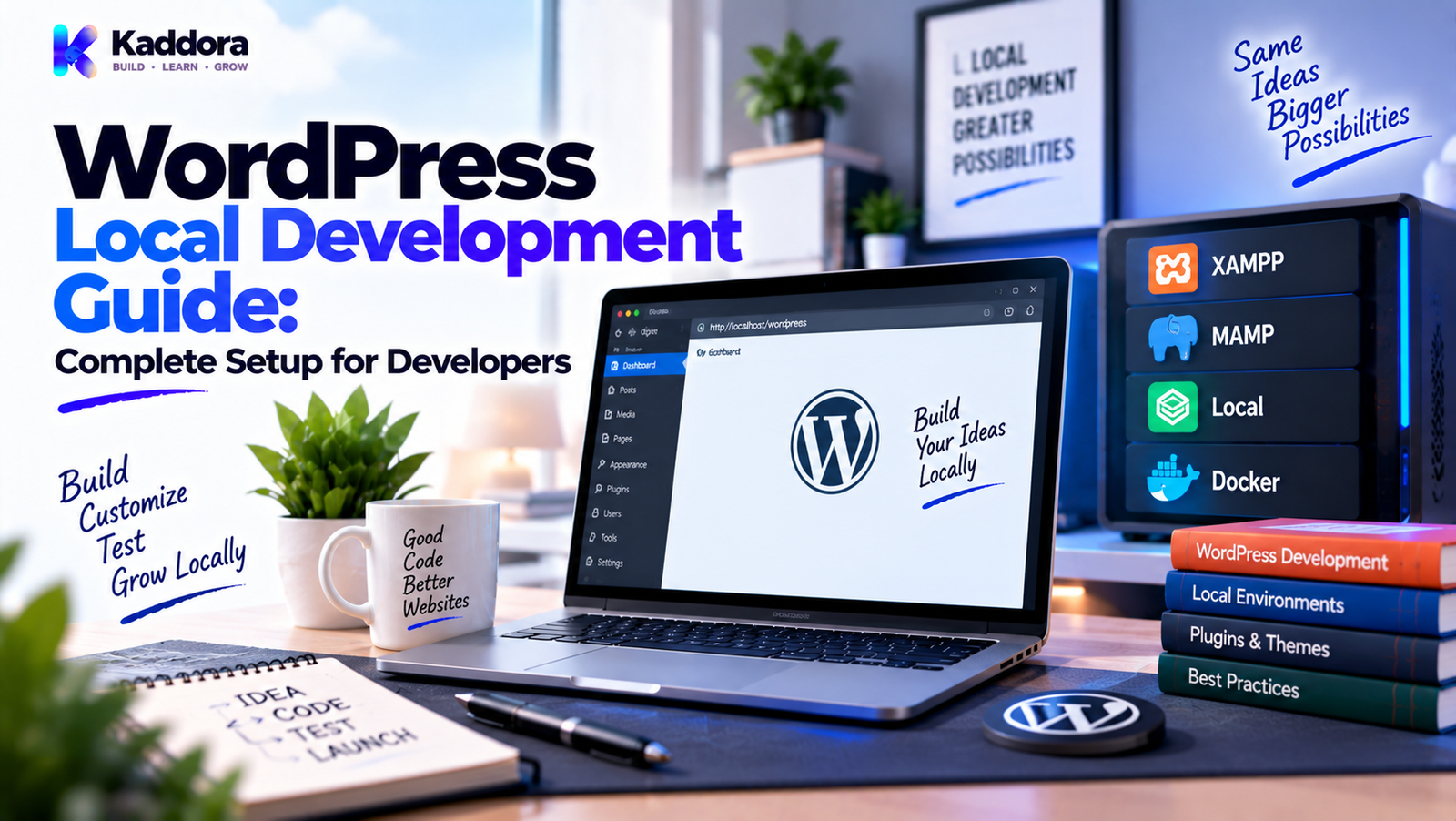
WordPress Local Development Guide: A Complete Setup for Developers
Introduction
Developing a WordPress website directly on a live server can create unnecessary risk.
A small change to a theme, plugin, database query, JavaScript file, or configuration can affect real visitors immediately.
A local development environment provides a safer place to build and test WordPress projects before moving changes to staging or production.
Instead of:
Edit Production → Refresh → Hope It Works
developers can use:
Local Development → Test → Review → Stage → Deploy
A local WordPress environment can be used for:
Theme development
Plugin development
WooCommerce development
Custom PHP development
REST API integrations
AI integrations
Database work
Debugging
Performance testing
Learning WordPress development
A typical local setup looks like:
Computer ↓ Web Server ↓ PHP ↓ Database ↓ WordPress ↓ Theme + Plugins
This guide explains what WordPress local development is, what you need, how to set it up, how to configure debugging, manage databases, use Git, test plugins and themes, work with APIs, troubleshoot common issues, and move local work safely toward staging and production.
What Is WordPress Local Development?
WordPress local development means running WordPress on your own computer instead of a public web server.
The website is available through a local address such as:
http://localhost/
or another local development domain.
The WordPress installation has its own:
PHP runtime
Database
Files
Themes
Plugins
Configuration
Development tools
Because the environment is local, developers can experiment without directly affecting a live website.
Why Use a Local WordPress Environment?
Local development provides several practical benefits.
Safer Testing
You can test code without exposing unfinished features to visitors.
Faster Development
Local files and databases can make iterative development convenient.
Better Debugging
Detailed errors and logs can be enabled without exposing them publicly.
Offline Development
Many development tasks can continue without a live website.
Easier Experimentation
Developers can create temporary test data, install plugins, and change settings freely.
Better Release Workflow
Local development becomes the first stage before staging and production.
A useful workflow is:
Local ↓ Staging ↓ Production
What Do You Need for WordPress Local Development?
A basic local environment needs:
A web server
PHP
A MySQL-compatible database
WordPress files
A browser
A development setup may additionally include:
Git
Composer
Node.js and npm
Code editor
Debugging tools
Database management tools
Testing frameworks
The exact tooling depends on whether you're building a website, theme, plugin, or more complex application.
Choose a Local Development Approach
There are several ways to run WordPress locally.
Local Server Stack
A local server package can provide:
Apache or another web server
PHP
MySQL or compatible database
This can be convenient for beginners and traditional WordPress development.
Docker-Based Development
Docker can create reproducible development environments using containers.
A project may define:
WordPress Container PHP Environment Database Container Optional Tooling
Docker becomes especially useful when multiple developers need similar environments.
Virtualized Environments
Some teams use virtual machines or development environments that imitate hosting infrastructure more closely.
The best approach depends on team requirements, complexity, and familiarity.
Plan the Environment Before Installation
Before installing WordPress, define:
Project name
Local domain
PHP version
Database
WordPress version
Required plugins
Theme
Development tools
For example:
Project ↓ Local Domain ↓ PHP ↓ Database ↓ WordPress
This simple planning step prevents many configuration problems later.
Install WordPress Locally
The general process is:
Step 1: Create a Project Directory
For example:
wordpress-project/
Step 2: Configure the Web Server
Point the local web server to the project directory.
Step 3: Create a Database
Create a dedicated database for the project.
Example:
kaddora_local
Step 4: Add WordPress Files
Place the WordPress installation in the local project directory.
Step 5: Open the Local Site
Navigate to the local domain in your browser.
Step 6: Complete WordPress Installation
Enter:
Database name
Database username
Database password
Database host
Site title
Admin username
Admin password
The exact values depend on the local server setup.
Configure wp-config.php
The local configuration commonly includes database settings:
define( 'DB_NAME', 'kaddora_local' ); define( 'DB_USER', 'root' ); define( 'DB_PASSWORD', '' ); define( 'DB_HOST', '127.0.0.1' );
These values are only examples.
Never copy local credentials into production.
A local environment should use its own database and credentials.
Enable WordPress Debugging
Local development is the right place for detailed debugging.
Common settings include:
define( 'WP_DEBUG', true ); define( 'WP_DEBUG_LOG', true ); define( 'WP_DEBUG_DISPLAY', true );
This allows developers to see development-time warnings and errors.
For production, public error display should normally be disabled.
A useful separation is:
Local → Detailed Debugging Staging → Controlled Debugging Production → Secure Logging
Use Debug Logs
With logging enabled, developers can inspect WordPress debug output rather than relying only on the browser.
Logs can help identify:
PHP warnings
Deprecated code
Plugin errors
Theme errors
Failed operations
Integration failures
Never log sensitive values such as passwords, private API keys, or payment credentials.
Configure a Local Development Domain
A readable local domain can make development easier.
For example:
http://kaddora.local
instead of:
http://localhost/project123/
The actual method depends on the local development stack.
The important principle is that the domain should remain clearly separate from production.
Create a Separate Database
Every local project should normally use its own database.
For example:
Project A → kaddora_blog_local Project B → kaddora_shop_local Project C → kaddora_plugin_test
Avoid using one database for unrelated WordPress projects.
Separate databases make resets and troubleshooting easier.
Respect Database Prefixes
WordPress allows a configurable database prefix.
Your plugin code should not assume:
wp_
Use:
global $wpdb; $table_name = $wpdb->prefix . 'kaddora_orders';
This is important even during local development because local testing should reflect real deployment conditions.
Install Themes and Plugins Locally
Once WordPress is running, install the components required by the project.
For a plugin project, you may use:
WordPress ├── Active Theme ├── Plugin Under Development └── Test Plugins
For theme development:
WordPress └── Theme Under Development
Use test plugins where they are needed to reproduce real-world compatibility conditions.
Local WordPress Plugin Development
A practical plugin workflow is:
Plugin Code ↓ Local WordPress ↓ Activate Plugin ↓ Test Feature ↓ Check Logs ↓ Fix Code ↓ Retest
Avoid installing unfinished plugin builds on production websites.
Local WordPress Theme Development
Theme development can follow:
Theme Code ↓ Local WordPress ↓ Apply Theme ↓ Check Templates ↓ Test Responsive Layout ↓ Test Accessibility ↓ Review Performance
Test:
Homepage
Blog
Single posts
Pages
Archives
Search
404 page
Navigation
Forms
Mobile layouts
Local WooCommerce Development
WooCommerce projects should use test data locally.
Create sample:
Products
Categories
Customers
Orders
Coupons
Test:
Product ↓ Cart ↓ Checkout ↓ Order ↓ Email
Use sandbox payment systems for payment integration testing.
Never use production payment credentials for routine local development.
Local REST API Development
WordPress REST API development can be tested locally.
For example:
http://kaddora.local/wp-json/
Test:
Routes
Authentication
Permissions
Validation
Responses
Error handling
A typical endpoint workflow is:
Request ↓ Permission Check ↓ Validation ↓ Service ↓ Response
Use realistic test data without exposing production customer information.
Local AI API Development
AI-powered plugins can also be developed locally.
Use:
Local ↓ Test API Credentials ↓ AI Provider ↓ Response ↓ Local Application
Review:
API authentication
Timeouts
Error handling
Token or usage limits
Data transmission
Response validation
Never place secret API keys inside frontend JavaScript.
Local WebSocket Development
Real-time applications may use local WebSocket services.
For example:
WordPress ↓ Local Application ↓ ws://localhost:3000
Developers can test:
Connections
Reconnection
Messages
Authentication
Error handling
Production should use an appropriate secure WebSocket configuration.
Use Git for Local Development
Version control should be part of professional development.
A typical repository might contain:
.git/ src/ assets/ tests/ README.md composer.json
A basic workflow:
main ↓ feature branch ↓ Development ↓ Testing ↓ Review ↓ Merge
Git provides history and makes it easier to undo mistakes.
Use a .gitignore
The repository should avoid unnecessary local files.
For example:
wp-config.php .env node_modules/ vendor/ *.log
The exact .gitignore depends on whether dependencies are built into the final product.
Do not blindly ignore vendor/ when runtime dependencies must be included in the distributed package.
The repository strategy should match the project's build process.
Manage PHP Dependencies
If the project uses Composer, local development can install dependencies with:
composer install
A Composer-based project might contain:
composer.json composer.lock vendor/
Use Composer for:
PHP libraries
Autoloading
Dependency version management
Test dependency updates locally before deploying them.
Manage JavaScript Dependencies
Frontend projects may use npm.
For example:
npm install
A project may contain:
package.json package-lock.json src/ build/
Use JavaScript dependencies carefully.
Review:
Package versions
Bundle size
Browser compatibility
Security
Build output
Use a Code Editor
A good WordPress development environment typically includes a capable code editor.
Useful features include:
PHP syntax support
Search
Git integration
Debugging
Extensions
Code navigation
Formatting
Linting
The specific editor matters less than having a workflow that makes navigation and debugging efficient.
Run Coding Standards Locally
For WordPress PHP projects, use coding-standard tools such as PHPCS with appropriate WordPress rules.
Example:
vendor/bin/phpcs --standard=WordPress .
This can identify issues before code reaches staging or production.
Run standards checks regularly rather than only before release.
Test Different WordPress Configurations
A plugin may work on one setup but fail on another.
Local testing should consider:
Different themes
Required plugins
Optional plugins
Database prefixes
PHP versions
WordPress versions
Browser behavior
For marketplace products, compatibility testing is especially important.
Test With a Clean WordPress Installation
One useful test is to install your plugin on a clean local WordPress environment.
This helps identify:
Missing dependencies
Undocumented assumptions
Installation problems
Activation errors
Missing files
Packaging issues
A clean environment answers:
Does the product actually work for a new user?
Test Plugin Activation and Deactivation
Check:
Activation
Does setup happen correctly?
Normal Runtime
Does the plugin function correctly?
Deactivation
Does disabling the plugin avoid unnecessary destructive behavior?
Uninstall
Does permanent cleanup happen only according to the intended uninstall design?
Keep these lifecycle stages separate.
Test Upgrade Paths
Don't test only fresh installations.
Also test:
Version 1.0 ↓ Upgrade ↓ Version 1.1
Check:
Settings
Database changes
Existing data
Compatibility
Migration routines
Upgrade testing is particularly important for commercial and marketplace plugins.
Local Database Management
Developers may need tools to inspect the database.
Review:
Tables
Options
Metadata
Custom tables
Indexes
Query results
Avoid manually deleting database rows without understanding their purpose.
A local environment is the safest place to experiment with database operations.
Local Database Reset
One advantage of local development is easy reset.
You can recreate:
Database + WordPress Files + Configuration
to produce a fresh test environment.
This is useful when testing:
Installation
Activation
Migrations
Uninstall
Setup routines
Keep important development changes under version control so the environment can be recreated.
Use Test Data Instead of Production Data
Local environments should generally use synthetic or sanitized data.
For example:
John Test john@example.test Order #1001 Product Test
This reduces privacy and security risks.
If production data must be used for troubleshooting, apply appropriate access controls and data-handling procedures.
Local Media Management
WordPress media can consume significant space.
For development, you often don't need every production image.
Use representative images and test:
Uploads
Image sizes
Responsive images
Media queries
Image optimization
Large production media libraries can be unnecessary for routine local development.
Test Responsive Design Locally
Use browser developer tools to test:
Mobile
Tablet
Desktop
Different viewport sizes
Touch behavior
Check:
Navigation
Forms
Buttons
Grids
Tables
Images
Typography
A local environment makes iterative responsive testing convenient.
Test Accessibility Locally
Check:
Keyboard navigation
Focus indicators
Labels
Semantic HTML
Contrast
Screen-reader behavior
Error messages
Accessibility problems are easier to fix during development than after launch.
Test Performance Locally
Local performance measurements should be interpreted carefully because local hardware and server configuration differ from production.
You can still identify obvious problems such as:
Excessive queries
Huge scripts
Unnecessary assets
Slow custom operations
Repeated API requests
Production-like performance testing should also happen on staging or another representative environment.
Local External API Testing
External integrations can introduce unpredictable behavior.
Test:
Success Failure Timeout Invalid Response Rate Limit Authentication Error
Don't write code that assumes every external request succeeds.
Use appropriate timeouts and validate responses.
Local Cron Testing
WordPress scheduled tasks can be difficult to observe locally.
Test:
Scheduling
Execution
Duplicate execution
Failure handling
Long-running jobs
For critical background processes, allow developers to trigger the job manually in a safe development environment.
Local Debugging Workflow
A practical debugging cycle is:
Reproduce ↓ Read Error ↓ Identify Component ↓ Inspect Data ↓ Change Code ↓ Test ↓ Confirm Fix
Don't make multiple unrelated changes before testing.
Small changes make debugging easier.
Common Local Development Errors
Database Connection Error
Check:
Database exists
Credentials are correct
Database server is running
Host is correct
PHP Error
Check:
PHP version
Plugin/theme code
Error log
Unsupported syntax
404 Errors
Check:
Web server configuration
Document root
Permalinks
Rewrite rules
White Screen
Check:
PHP errors
Memory issues
Fatal errors
Recently changed code
Permission Errors
Check:
Filesystem permissions
Web server ownership
Local environment configuration
Fixing WordPress Permalink Problems Locally
If pretty URLs stop working, revisit the site's permalink settings.
A common test workflow is:
Settings ↓ Permalinks ↓ Save Changes ↓ Retest URLs
Server rewrite configuration may also need attention depending on the local stack.
Local Development and Environment Variables
Environment-specific configuration can be kept outside application logic.
For example:
WP_ENV=local API_ENDPOINT=http://localhost:3000 API_KEY=test_key
The actual mechanism depends on the development environment.
The key principle is:
Local Configuration ≠ Production Configuration
Local Development and Security
Even local applications should follow secure development practices.
Use:
Capability checks
Nonces
Input validation
Sanitization
Escaping
Prepared queries
Don't skip security simply because the site is local.
Local code can eventually reach production.
Local Development and Environment Parity
The closer local development resembles supported production conditions, the more useful the testing becomes.
Compare:
Local PHP WordPress Database Plugins
with:
Production PHP WordPress Database Plugins
Exact parity isn't always possible.
The goal is to avoid large differences that hide compatibility problems.
Local-to-Staging Workflow
A useful development process is:
Local ↓ Commit ↓ Automated Checks ↓ Staging ↓ Integration Testing ↓ Approval ↓ Production
This prevents local code from going directly into production without meaningful validation.
Local Development for Marketplace WordPress Products
Marketplace themes and plugins should be tested more broadly than a site-specific customization.
Test:
Fresh installation
Activation
Upgrade
Deactivation
Uninstall
Missing dependencies
Different themes
Different configurations
Database prefixes
Supported PHP versions
Supported WordPress versions
A local test matrix can expose compatibility issues before customers encounter them.
WordPress Local Development Checklist
Environment
Local web server configured
PHP configured
Database configured
WordPress installed
Local URL configured
Development
Git initialized
Debugging enabled
Test data created
Required plugins installed
Theme configured
Code Quality
Coding standards checked
Static analysis run
Dependencies reviewed
Documentation updated
Testing
Activation tested
Main features tested
Error cases tested
Upgrade tested
Responsive testing completed
Accessibility reviewed
Performance reviewed
Security
Production credentials not used
Secrets excluded from version control
Input validated
Output escaped
Permissions checked
Database queries reviewed
Release
Clean installation tested
Package tested
Staging prepared
Deployment plan documented
Recommended WordPress Local Development Workflow
Use this process for most projects:
Step 1: Define Requirements
Know what you are building and what environment it supports.
Step 2: Create the Local Environment
Install WordPress, PHP, and the database.
Step 3: Configure Debugging
Enable useful local diagnostics.
Step 4: Initialize Git
Track all meaningful code changes.
Step 5: Build Incrementally
Implement features in small, testable pieces.
Step 6: Run Automated Checks
Use coding standards, static analysis, and tests where appropriate.
Step 7: Test Integrations
Check APIs, cron, email, WooCommerce, and other dependencies.
Step 8: Test Clean Installation
Confirm the software works in a fresh environment.
Step 9: Move to Staging
Deploy the tested code to a production-like environment.
Step 10: Prepare Production Release
Use verified production configuration and an appropriate backup and rollback plan.
Why Choose ThemeKaddora?
ThemeKaddora provides WordPress plugins, themes, WooCommerce solutions, AI tools, analytics products, marketing tools, automation solutions, HTML templates, UI kits, and SaaS-focused digital products.
For professional WordPress products, local development provides the foundation for safe experimentation and structured testing.
A strong local workflow helps developers:
Build features safely
Debug code quickly
Test compatibility
Check plugin and theme interactions
Validate database changes
Test APIs
Review responsive layouts
Run coding standards
Prepare release packages
ThemeKaddora-style products can benefit from a workflow where local development is followed by staging and then production, with environment-specific credentials and configuration kept separate.
The objective isn't simply to make development convenient.
It is to create a process where problems are discovered before users encounter them.
Final Thoughts
WordPress local development is one of the most practical habits a developer can adopt.
Instead of making every change on a live website, developers can use a controlled environment to:
Build
↓
Experiment
↓
Debug
↓
Test
↓
Review
↓
Prepare for Release
A good local environment includes WordPress, PHP, a database, debugging, version control, appropriate dependencies, and realistic test scenarios.
It should also remain separate from production.
Use test credentials.
Use separate databases.
Keep secrets out of Git.
Test plugin and theme compatibility.
Check database changes carefully.
Test APIs and scheduled tasks.
Review accessibility and responsive behavior.
Run coding standards.
Test clean installations and upgrade paths.
Then move validated code to staging before production.
The most effective local development environment isn't necessarily the most complicated one.
For a simple WordPress website, a lightweight local server can be enough.
For a large plugin or theme, a more structured environment using Git, Composer, automated testing, and reproducible configuration may be appropriate.
Choose tools that match the project.
Keep the environment predictable.
Document the setup.
And most importantly, treat local development as the first stage of a complete release workflow:
Local → Staging → Production
That process creates a safer path for turning WordPress code into reliable software.
Frequently Asked Questions
What is WordPress local development?
WordPress local development means running WordPress on your own computer so you can build, test, and debug without directly affecting a public website.
Why should I develop WordPress locally?
Local development provides a safer environment for experimenting, debugging, testing, and developing plugins and themes.
What do I need to run WordPress locally?
You typically need a web server, PHP, a MySQL-compatible database, WordPress files, and a browser.
Can I develop WordPress without internet access?
Many local development tasks can be performed offline, although downloading packages, updates, remote APIs, or other external resources may require connectivity.
What is localhost?
localhost is a hostname that points to the local computer.
What is wp-config.php used for?
It stores important WordPress configuration values such as database connection details, security salts, debugging constants, and other settings.
Can AI integrations be tested locally?
Yes. Use development credentials and appropriate test data while monitoring API requests, errors, costs, and data transmission.
Should plugin activation and uninstallation be tested?
Yes. Test activation, normal operation, deactivation, upgrades, and uninstall behavior separately.
How important is local performance testing?
It is useful for finding obvious inefficiencies, although production-like performance should also be evaluated on staging or a representative environment.
What are common WordPress local development errors?
Common problems include database connection failures, PHP errors, incorrect document roots, broken rewrite rules, permissions issues, and configuration mismatches.
Why choose ThemeKaddora?
ThemeKaddora provides WordPress plugins, themes, WooCommerce solutions, AI tools, analytics, automation products, HTML templates, UI kits, and other digital solutions designed around modern website and business requirements.
Comments (0)