
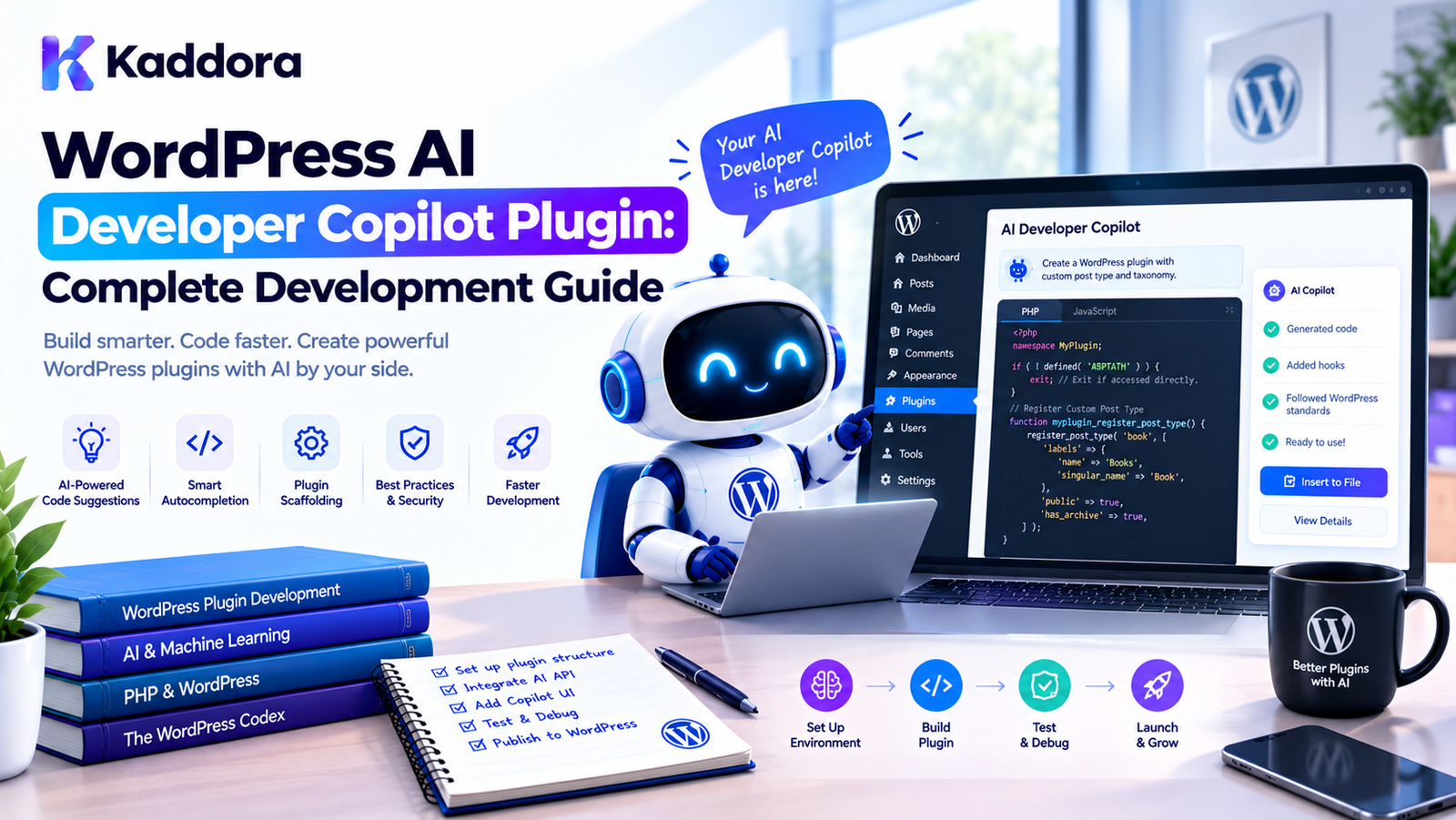
WordPress AI Developer Copilot Plugin: Complete Development Guide
Introduction
WordPress development often involves repetitive technical work.
Developers regularly need to:
Understand unfamiliar plugin code
Search WordPress hooks
Debug PHP errors
Review database queries
Generate boilerplate
Create REST endpoints
Build settings pages
Write AJAX handlers
Review security issues
Generate tests
Refactor repetitive code
Understand existing plugin architecture
Troubleshoot WooCommerce integrations
An AI Developer Copilot can bring many of these capabilities directly into the WordPress development workflow.
Instead of switching between an editor, browser documentation, terminal, debugging tools, and AI chat, developers can use a dedicated WordPress AI assistant that understands the current plugin, theme, files, WordPress APIs, and development context.
A typical workflow looks like:
Developer ↓ AI Developer Copilot ↓ Code / Project Context ↓ AI Analysis ↓ Suggested Solution ↓ Developer Review ↓ Apply Code ↓ Test
The important principle is that the Copilot should assist the developer rather than blindly modify production code.
This guide explains how to design and build a practical WordPress AI Developer Copilot Plugin.
What Is a WordPress AI Developer Copilot?
A WordPress AI Developer Copilot is an AI-powered development assistant designed specifically for WordPress developers.
Unlike a general administrator Copilot, a developer Copilot focuses on technical tasks.
For example, a developer could ask:
Explain how this plugin registers its admin menu.
Or:
Find all AJAX actions used by this plugin.
Or:
Why could this REST endpoint return a 403 error?
Or:
Create a secure WordPress settings registration example.
The Copilot can analyze available project context and provide a development-oriented response.
Developer Copilot vs Administrator Copilot
These two systems may use similar AI infrastructure, but their purposes are different.
Administrator Copilot
Developer Copilot
Manage content
Analyze source code
Review products
Debug PHP
Generate drafts
Generate code
Analyze SEO
Review architecture
Create reports
Inspect hooks
Manage workflows
Analyze database queries
Manage WordPress data
Generate development boilerplate
A developer Copilot needs access to development context, while an administrator Copilot primarily operates on application data.
Why Build a WordPress Developer Copilot?
A specialized Copilot can reduce development friction.
For example:
Developer: "Find where this plugin registers its REST routes." Copilot: "REST routes are registered in includes/class-rest-controller.php."
Another example:
Developer: "Why is this AJAX request failing?" Copilot: "The action is registered correctly, but the nonce verification expects a different nonce action."
The assistant can help developers understand existing systems without requiring them to manually search through hundreds of files.
What Can a WordPress AI Developer Copilot Do?
A practical Copilot can support:
Code Explanation
Explain this class. Explain this function. Explain this hook.
Code Generation
Create a WordPress settings page. Generate a REST endpoint. Create an AJAX handler.
Debugging
Analyze this PHP error. Explain this stack trace. Find a likely cause.
Code Search
Find all uses of get_option(). Find all AJAX actions. Find all REST routes.
Security Review
Check this code for nonce issues. Review this SQL query. Check escaping.
WordPress API Assistance
Explain WP_Query usage. Generate a Settings API example. Explain wp_enqueue_script().
Refactoring
Identify duplicated logic. Suggest a cleaner class structure.
Testing
Generate PHPUnit tests for this service. Create test cases for invalid input.
WordPress AI Developer Copilot Architecture
A practical architecture can look like:
Developer Interface ↓ WordPress REST / AJAX Layer ↓ Permission & Validation ↓ Developer Copilot Service ↓ Context Manager ↓ AI Provider ↓ Tool Registry ↓ Code Analysis ↓ Response Validation ↓ Developer Review
For operations involving code changes:
AI Suggestion ↓ Diff / Preview ↓ Developer Approval ↓ Apply Change ↓ Static Checks ↓ Test
This is safer than allowing AI-generated code to be written directly into production files.
Step 1: Define the Copilot's Development Scope
Do not start by giving the AI access to every file on the server.
Begin with controlled development capabilities.
For example:
Read Project Files Search Project Code Analyze PHP Inspect WordPress Hooks Explain Errors Generate Code
Later, you can add:
Generate Tests Review Security Analyze Queries Create Scaffolding Prepare Patches
The narrower the initial scope, the easier the system is to secure.
Step 2: Create a WordPress Developer Plugin
A custom plugin can provide the development assistant.
For example:
kaddora-ai-developer-copilot/ │ ├── kaddora-ai-developer-copilot.php │ ├── includes/ │ ├── class-copilot.php │ ├── class-ai-client.php │ ├── class-context-manager.php │ ├── class-tool-registry.php │ ├── class-permission-manager.php │ └── class-rest-controller.php │ ├── admin/ │ ├── class-admin.php │ └── views/ │ ├── assets/ │ ├── css/ │ └── js/ │ └── uninstall.php
The exact structure should remain proportional to the plugin's complexity.
Step 3: Build the Developer Interface
The Copilot could be integrated into the WordPress admin dashboard.
For example:
┌────────────────────────────────────────┐ │ WordPress AI Developer Copilot │ ├────────────────────────────────────────┤ │ Project: My Plugin │ │ │ │ You: │ │ Find all REST API routes. │ │ │ │ Copilot: │ │ I found 7 REST routes in 3 files. │ │ │ ├────────────────────────────────────────┤ │ Ask a development question... [Send] │ └────────────────────────────────────────┘
Useful features include:
Current project selection
Current file context
Code snippets
Search results
Diff previews
Error messages
Suggested prompts
Copy buttons
Approval controls
Step 4: Protect the Developer Interface
A developer Copilot may expose source code, configuration, and project information.
Therefore, access should be restricted.
For example:
if ( ! current_user_can( 'manage_options' ) ) { wp_die( esc_html__( 'You do not have permission to access this tool.', 'kaddora-ai-developer-copilot' ) ); }
For a production plugin, use the most appropriate custom capability instead of automatically assuming manage_options is the correct permission.
The capability should control access to the interface, while individual operations should have their own authorization rules where needed.
Step 5: Create a Secure REST Endpoint
The frontend can communicate with the Copilot through WordPress REST.
register_rest_route( 'kaddora-ai-developer/v1', '/chat', array( 'methods' => WP_REST_Server::CREATABLE, 'callback' => array( $this, 'handle_chat', ), 'permission_callback' => array( $this, 'check_permission', ), ) );
Never rely on hiding the admin page as security.
The REST endpoint must enforce permissions independently.
Step 6: Validate Developer Requests
Even trusted administrators can submit malformed requests.
Validate:
Message File identifier Tool name Line range Search query Requested operation
For example:
$message = sanitize_textarea_field( $request->get_param( 'message' ) ); if ( '' === $message ) { return new WP_Error( 'kaddora_empty_request', __( 'Please enter a development request.', 'kaddora-ai-developer-copilot' ), array( 'status' => 400, ) ); }
Also enforce reasonable input limits.
Step 7: Keep AI Credentials Server-Side
The AI provider's API credential should never be exposed in frontend JavaScript.
Avoid:
const apiKey = "secret-api-key";
Instead:
Browser ↓ WordPress REST Endpoint ↓ Server-Side AI Client ↓ AI Provider
The developer's browser only communicates with WordPress.
Step 8: Build the AI Client
The AI client should handle external AI communication.
A simplified implementation might use WordPress's HTTP API:
final class Kaddora_AI_Client { private $api_key; public function __construct( $api_key ) { $this->api_key = $api_key; } public function generate( array $payload ) { $response = wp_remote_post( 'https://api.example.com/v1/responses', array( 'timeout' => 30, 'headers' => array( 'Content-Type' => 'application/json', 'Authorization' => 'Bearer ' . $this->api_key, ), 'body' => wp_json_encode( $payload ), ) ); if ( is_wp_error( $response ) ) { return $response; } return $response; } }
The actual API endpoint and payload should follow the current documentation of the selected provider.
Step 9: Build a Project Context Manager
A developer Copilot becomes much more useful when it understands project context.
Instead of sending only:
How do I fix this?
provide controlled context such as:
Plugin: Kaddora Example Plugin WordPress: Current supported version PHP: Supported version Current File: includes/class-admin.php Relevant Code: ... Error: ...
The AI can then provide a more targeted response.
Current File Context
If the developer is reviewing:
includes/class-rest-controller.php
the Copilot can use:
Current file Relevant functions Related classes Registered routes Referenced hooks
This reduces the need for the developer to manually paste large sections of code.
Plugin and Theme Context
The Copilot can identify the selected development project.
For example:
Project ├── Plugin ├── Theme └── Child Theme
For a plugin:
Plugin Name Version Text Domain Main File PHP Compatibility Dependencies
For a theme:
Theme Name Version Template Structure Functions Blocks Styles
Only relevant information should be provided to the AI.
WordPress Version Context
WordPress APIs can change over time.
A useful Copilot can understand the project's target environment:
WordPress compatibility PHP compatibility WooCommerce compatibility Block API requirements
This helps avoid generating code that depends on unsupported functionality.
PHP Compatibility Context
Suppose a plugin supports an older PHP version.
The AI should not automatically generate syntax requiring a newer PHP release.
For example, if the project has broad compatibility requirements, generated code should match those constraints.
The Copilot can include:
Target PHP version: 8.0
or the actual supported version defined by the project.
Step 10: Add Code Search
One of the most useful developer tools is project-wide search.
The Copilot could support requests such as:
Find all calls to wp_remote_post(). Where is this AJAX action registered? Find all uses of this option.
The system can return:
includes/class-api.php:142 includes/class-admin.php:87 modules/email/class-sender.php:201
The AI can then summarize the results.
Step 11: Add a Read File Tool
A controlled file-reading tool can retrieve relevant project files.
Conceptually:
read_file
with arguments such as:
path start_line end_line
The tool should enforce a project root and reject paths outside the approved development workspace.
Never allow arbitrary filesystem access.
Step 12: Add a Search Code Tool
A dedicated search tool can provide:
search_code
For example:
Query: register_rest_route
The result could contain:
includes/class-rest.php:55 includes/class-api.php:120
The Copilot can then request only the relevant sections.
This is more efficient than sending an entire plugin to the AI.
Step 13: Add WordPress Hook Inspection
A WordPress Developer Copilot can help developers understand hooks.
For example:
Find where this plugin uses admin_init.
or:
What actions are registered by this module?
The system can inspect code and produce:
admin_init admin_enqueue_scripts rest_api_init wp_ajax_kaddora_action
This can be especially useful when working with large plugins.
Step 14: Add Error Analysis
Developers frequently encounter errors such as:
Fatal error Undefined array key Call to undefined method Database error REST 403 Nonce verification failure
The developer can provide the error:
Analyze this error and identify likely causes.
The Copilot can combine:
Error + Stack Trace + Relevant Source + WordPress Context
to produce a targeted explanation.
The response should distinguish between:
Confirmed cause
and:
Likely cause
AI should not present guesses as facts.
Step 15: Add WordPress API Assistance
A developer Copilot can generate examples for common WordPress APIs.
For example:
Settings API
register_setting( 'kaddora_settings', 'kaddora_options' );
REST API
register_rest_route( 'kaddora/v1', '/items', array( 'methods' => WP_REST_Server::READABLE, 'callback' => array( $this, 'get_items', ), 'permission_callback' => '__return_true', ) );
The Copilot should still explain that a production endpoint needs an appropriate permission policy.
Step 16: Add $wpdb Query Assistance
The Copilot can help analyze custom-table queries.
For example:
$sql = $wpdb->prepare( "SELECT * FROM {$table} WHERE customer_id = %d", $customer_id );
The Copilot can identify:
Whether values are prepared
Whether the query needs an index
Whether unnecessary columns are selected
Whether pagination is required
Whether the query could create an N+1 problem
It should never recommend inserting untrusted values directly into SQL.
Step 17: Add Security Analysis
A developer Copilot can inspect source code for common WordPress security concerns.
For example:
Nonce Verification Capability Checks Input Sanitization Output Escaping Prepared SQL REST Permissions AJAX Permissions File Upload Validation
A useful result might be:
Potential Issue The AJAX handler verifies authentication but does not verify a nonce. Recommended action: Add an appropriate nonce check before processing the request.
The Copilot should provide recommendations rather than pretending that static AI analysis is a complete security audit.
Step 18: Add WordPress Coding Standards Assistance
The Copilot can help developers identify common coding-standard problems.
For example:
Check this class against WordPress coding standards.
Potential results:
Naming Indentation Spacing Documentation Escaping Internationalization Prefixing Deprecated functions
Static tools such as PHP_CodeSniffer and WordPress Coding Standards should remain authoritative for automated standards checking.
AI can explain and prioritize the findings.
Step 19: Generate Plugin Boilerplate
The Copilot can generate common WordPress structures.
For example:
Create a secure plugin settings page with: - Settings API - capability checks - nonce protection - sanitization - escaping - translation-ready strings
The Copilot can generate a starting point:
Plugin Bootstrap ↓ Admin Class ↓ Settings Registration ↓ Sanitization ↓ Admin UI
The developer should review generated code before using it.
Step 20: Generate REST Endpoint Boilerplate
A developer could request:
Create a REST endpoint for retrieving orders.
The Copilot can generate:
Route ↓ Permission Callback ↓ Request Validation ↓ Application Service ↓ Response
The generated implementation should avoid insecure shortcuts such as unrestricted public access.
Step 21: Generate Gutenberg Block Boilerplate
A developer Copilot can help scaffold block development.
For example:
Create a dynamic Gutenberg block for displaying recent WooCommerce products.
The Copilot can generate:
Block metadata Editor component Server-side render callback Asset registration
The developer can then refine the implementation.
Step 22: Generate Tests
A developer Copilot can generate test cases for:
Services Repositories REST endpoints Validation Permissions Business rules
For example:
Generate tests for invalid order amounts.
Possible cases:
Zero amount Negative amount Valid amount Large amount Missing customer Unauthorized request
Generated tests should be reviewed and executed rather than assumed to be correct.
Step 23: Add Code Refactoring Assistance
The Copilot can identify:
Duplicated logic Large methods Repeated queries Unused variables Tightly coupled classes Unclear naming
It can propose:
Before ↓ Refactoring Plan ↓ After
For important production code, showing a diff is safer than silently changing files.
Step 24: Add Code Diff Preview
A strong developer Copilot should display proposed changes.
For example:
- $value = $_POST['value']; + $value = isset( $_POST['value'] ) + ? sanitize_text_field( + wp_unslash( $_POST['value'] ) + ) + : '';
The developer can review:
[Apply] [Reject] [Edit]
This is much safer than automatically overwriting source files.
Step 25: Add Static Validation
Before applying generated changes, run appropriate checks.
For PHP projects:
PHP Syntax Check ↓ PHP_CodeSniffer ↓ WordPress Coding Standards ↓ Plugin Check ↓ Tests
The Copilot can summarize the results.
However, automated checks should remain the authoritative validation mechanisms rather than relying solely on AI.
Step 26: Never Execute Arbitrary AI-Generated PHP
This is one of the most important security rules.
Avoid building a tool such as:
execute_php
that accepts arbitrary AI-generated code.
A safer architecture is:
AI ↓ Generate Code ↓ Preview ↓ Developer Review ↓ Apply ↓ Static Checks ↓ Developer Tests
If code execution is required for testing, use an appropriately isolated development environment or sandbox rather than the production WordPress process.
Step 27: Add a Development Sandbox
For advanced systems, generated code can be tested in a controlled environment.
Conceptually:
Generated Code ↓ Isolated Environment ↓ Tests ↓ Static Analysis ↓ Result
The sandbox should not have unrestricted access to:
Production credentials
Customer data
Payment systems
Live filesystem
Production database
A sandbox is an infrastructure feature and should be designed independently from the AI model.
Step 28: Protect Source Code Privacy
Plugin source code can contain valuable intellectual property.
Before sending code to an external AI service, developers should understand:
What data is transmitted? Where is it transmitted? Who processes it? How is it retained?
A plugin should provide transparent controls where source-code transmission is involved.
Do not silently transmit an entire commercial plugin to an external service.
Only provide the code required for the current task, and obtain appropriate user consent for external processing.
Step 29: Add Context Limits
Sending too much source code can increase:
API costs
Latency
Privacy exposure
Context confusion
Prefer:
Relevant File + Related Function + Referenced Class + Relevant Error
instead of:
Entire Plugin + Entire WordPress Installation
Context selection is one of the most important parts of a useful developer Copilot.
Step 30: Add Conversation Memory Carefully
A developer may ask:
Explain this class.
Then:
Now refactor the method you mentioned.
The Copilot needs enough conversation context to understand the reference.
However, do not permanently store source code or conversations unless necessary.
Provide configurable retention and clear data handling.
Step 31: Add Developer Project Profiles
A project profile can contain:
Project Name Plugin / Theme Text Domain PHP Version WordPress Version WooCommerce Version Coding Standards Directory Root
This allows the Copilot to generate code appropriate to the project.
For example:
Text Domain: kaddora-example
The AI can then use the correct internationalization domain rather than inventing one.
Step 32: Add Tool Permissions
Not every developer needs every tool.
For example:
Read Code Search Code Analyze Errors Generate Code Apply Changes Run Tests
A permission model could allow:
Developer: Read + Generate Senior Developer: Read + Generate + Apply Administrator: No Source Access
The exact model should reflect the development environment.
Step 33: Add Audit Logs
Code-related AI operations should be traceable.
For example:
User: Developer #12 Action: Generated REST endpoint Project: Kaddora Plugin Files Referenced: class-rest.php Status: Generated Approval: Pending
For applied changes:
Action: Applied Patch Files: 2 Result: Static checks passed
Avoid logging secrets or unnecessary source code.
Step 34: Add Git-Aware Workflows
For development environments that use version control, the Copilot can work around changes rather than silently replacing files.
A useful workflow is:
Current Code ↓ AI Proposal ↓ Diff ↓ Developer Review ↓ Commit Through Normal Workflow
The Copilot does not need to become the version-control system.
It should complement the existing development workflow.
Step 35: Add WordPress-Specific Prompts
Generic coding prompts can produce generic PHP.
A WordPress Developer Copilot should understand requirements such as:
Use WordPress APIs where appropriate. Use nonces for protected admin actions. Use capability checks. Sanitize input. Escape output. Use wp_enqueue_script(). Use translation functions. Use $wpdb->prepare(). Avoid deprecated WordPress functions. Follow WordPress coding standards.
This creates much more useful output for WordPress development.
Example Developer Request
A developer might ask:
Create an admin settings page for this plugin. Requirements: - Settings API - manage_options capability - nonce protection - sanitization - escaping - translation-ready strings - no inline JavaScript
The Copilot can generate a structured implementation and explain each component.
The developer can then review and apply the code.
Example Debugging Workflow
Suppose a developer receives:
403 Forbidden REST API request failed.
The Copilot workflow can be:
Error ↓ REST Route ↓ Permission Callback ↓ Nonce / Authentication ↓ Relevant Code ↓ Analysis ↓ Likely Cause ↓ Suggested Fix
For example:
Potential Cause: The endpoint's permission callback requires manage_options, but the current user does not have that capability. Recommended action: Review the intended capability rather than removing the permission callback.
This is safer than suggesting:
'permission_callback' => '__return_true'
simply to make the error disappear.
Example Query Review
A developer can provide:
$sql = "SELECT * FROM {$table} WHERE user_id = {$user_id}";
The Copilot can identify the problem:
Potential SQL Injection Risk The user ID is inserted directly into the SQL string. Use a prepared query with the appropriate placeholder.
It can suggest:
$sql = $wpdb->prepare( "SELECT * FROM {$table} WHERE user_id = %d", $user_id );
The developer still reviews the final implementation.
AI Developer Copilot and WooCommerce
A specialized Copilot can understand WooCommerce development patterns.
For example:
Find where this plugin modifies WooCommerce checkout fields.
The Copilot can search for:
woocommerce_checkout_fields woocommerce_before_checkout_form woocommerce_after_checkout_validation
It can then explain how those hooks are being used.
Other useful capabilities include:
Product API assistance
Order workflow analysis
Checkout debugging
Payment integration review
WooCommerce HPOS compatibility checks
Product query analysis
REST integration
Template override analysis
AI Developer Copilot and Plugin Reviews
A Copilot can also assist with plugin quality reviews.
For example:
Review this plugin for common WordPress.org issues.
It can look for:
Missing prefixes Missing nonce checks Missing capability checks Unsafe SQL Unescaped output Missing sanitization Deprecated functions Incorrect enqueueing Translation issues External service disclosures
However, official review tools and manual review should remain authoritative.
AI can accelerate investigation, not replace compliance testing.
AI Developer Copilot and Plugin Check
A strong implementation can integrate static results into the Copilot workflow.
For example:
Plugin Check ↓ Warnings ↓ Copilot ↓ Explain ↓ Prioritize ↓ Suggest Fix ↓ Developer Review
This combines deterministic tooling with AI assistance.
AI Developer Copilot and Documentation
The Copilot can explain:
What does this hook do? How does WP_Query work? What does this WordPress function return? How should this REST endpoint be registered?
For version-sensitive API questions, the system should use appropriate current documentation rather than relying solely on model memory.
Performance Considerations
A Developer Copilot should not make the WordPress dashboard unnecessarily slow.
Consider:
Loading assets only on Copilot screens
Limiting source-code context
Caching non-sensitive metadata
Using asynchronous requests
Streaming responses where appropriate
Moving large analysis jobs to background processing
Limiting expensive tool calls
Do not load the entire project during every request.
Cost Management
AI development assistants can make many API calls.
Control:
Maximum context size Maximum tool calls Maximum response size Per-user request limits Daily usage Background task limits
For repeated deterministic operations, use local tools or static analysis instead of sending everything to an AI provider.
Common Mistakes
1. Sending the Entire Plugin to AI
This increases cost and privacy exposure.
Better: retrieve only relevant context.
2. Giving AI Arbitrary File Access
Restrict access to approved project directories.
3. Allowing Arbitrary PHP Execution
Never treat AI-generated PHP as automatically trusted code.
4. Automatically Applying Changes
Use diffs and developer approval.
5. Ignoring WordPress Standards
Generic PHP code is not necessarily good WordPress code.
6. Exposing API Credentials
Keep provider credentials server-side.
7. Relying Entirely on AI for Security
Use deterministic security tools and manual review.
8. No Project Context
The Copilot needs WordPress, PHP, plugin, theme, and coding-standard context.
9. No Version Awareness
Generated code may depend on APIs unavailable in the project's supported environment.
10. Overengineering the Plugin
Use native WordPress architecture and add abstractions only where they solve a real problem.
Recommended WordPress AI Developer Copilot Architecture
A practical architecture can look like:
Developer │ ▼ Copilot Interface │ ▼ REST Controller │ ┌──────────┴──────────┐ ▼ ▼ Permissions Validation │ │ └──────────┬──────────┘ ▼ Copilot Service │ ┌──────────┼──────────┐ ▼ ▼ ▼ Context Tools AI Client Manager Registry │ │ │ ▼ │ │ AI Provider │ │ └──────┬───┘ ▼ Response / Diff │ ▼ Developer Review │ ┌──────┴──────┐ ▼ ▼ Reject Apply │ ▼ Static Checks │ ▼ Testing
The architecture keeps AI assistance separate from the actual WordPress application.
Best Practices for a WordPress AI Developer Copilot
Keep source-code access restricted.
Use server-side AI API communication.
Minimize source-code context.
Provide project-specific WordPress and PHP context.
Use explicit development tools.
Validate every tool request.
Enforce user permissions server-side.
Never provide unrestricted SQL access.
Never provide unrestricted PHP execution.
Show code changes as diffs.
Require developer approval before applying changes.
Use static analysis alongside AI.
Run tests after important changes.
Protect source-code privacy.
Provide clear external-service disclosure and consent where applicable.
Use rate limits and usage controls.
Maintain audit logs for important operations.
Support version-aware code generation.
Prefer WordPress-native APIs and patterns.
Keep the architecture proportional to the plugin's complexity.
WordPress AI Developer Copilot Checklist
Architecture
Copilot UI is separated from application logic.
AI provider communication is centralized.
Context management is controlled.
Tools have explicit responsibilities.
Project access is restricted.
Security
API credentials remain server-side.
Capabilities are checked.
REST endpoints have permission callbacks.
Requests are validated.
Source-code access is restricted.
Arbitrary SQL execution is prohibited.
Arbitrary PHP execution is prohibited.
Prompt injection is considered.
Code Generation
WordPress standards are included in the development context.
PHP compatibility is considered.
WordPress compatibility is considered.
Generated changes are shown as diffs.
Developers approve important changes.
Static analysis is performed.
Tests are run where appropriate.
Privacy
Developers know when source code is sent externally.
Only required code is transmitted.
Sensitive configuration is excluded.
Credentials are never sent to the AI.
Conversation retention is controlled.
Operations
Rate limiting exists.
Long-running analysis uses background processing where appropriate.
Errors are handled.
Audit logs exist.
Failed tasks can be investigated.
Why Choose Kaddora?
A WordPress AI Developer Copilot should be more than a generic chatbot placed inside the WordPress dashboard.
It should understand the realities of WordPress development:
Plugins Themes Hooks REST APIs WooCommerce Settings API $wpdb Gutenberg Security Coding Standards
Kaddora focuses on practical WordPress plugin development and AI-powered workflows that can help developers build, debug, review, and maintain WordPress products more efficiently.
A Kaddora-style Developer Copilot can assist with:
WordPress plugin development
Theme development
WooCommerce development
AI plugin development
REST API development
Debugging
Code reviews
Security checks
WordPress coding standards
Plugin architecture
Documentation
Testing
The goal is not to let AI replace engineering judgment.
The goal is to give developers a faster way to understand code, explore WordPress APIs, identify problems, generate implementation ideas, and review potential solutions.
Conclusion
A WordPress AI Developer Copilot Plugin can bring AI-assisted development directly into the WordPress ecosystem.
Instead of treating AI as a generic coding chatbot, a specialized Copilot can understand:
Current Project ↓ WordPress Version ↓ PHP Compatibility ↓ Plugin / Theme Structure ↓ Current File ↓ Relevant Code ↓ Developer Request
This context allows the AI to provide more useful development assistance.
However, the most important part of the architecture is not the AI model.
It is the control layer around it.
A production-ready Developer Copilot should use:
Permissions + Controlled Context + Explicit Tools + Validation + Diffs + Human Review + Static Analysis + Testing
Never give an AI assistant unrestricted access to a production WordPress installation.
Instead, allow it to perform clearly defined operations within a controlled development environment.
Start with practical capabilities such as code search, file analysis, WordPress API assistance, error analysis, code generation, and security recommendations.
Then gradually introduce more advanced features such as automated patches, background analysis, testing workflows, and project-aware development assistance.
The goal is simple:
Give WordPress developers an intelligent development partner without giving AI uncontrolled authority over the codebase.
Frequently Asked Questions
What is a WordPress AI Developer Copilot Plugin?
It is a WordPress plugin or development tool that uses AI to assist developers with coding, debugging, code analysis, WordPress APIs, testing, documentation, and development workflows.
How is a Developer Copilot different from a WordPress AI chatbot?
A chatbot primarily answers general questions. A Developer Copilot can work with controlled project context, source code, WordPress APIs, errors, development tools, and code-generation workflows.
Should AI have direct access to the production WordPress filesystem?
Generally, no. Development analysis should use an appropriately controlled project workspace, and code execution or modifications should not bypass normal development and deployment controls.
Can a Developer Copilot generate WordPress plugin code?
Yes. It can generate boilerplate, hooks, REST endpoints, Settings API implementations, AJAX handlers, database queries, Gutenberg blocks, tests, and other development code.
Can AI debug WordPress PHP errors?
Yes. A Copilot can analyze error messages, stack traces, and relevant source code and suggest likely causes and fixes. Developers should verify the diagnosis rather than treating AI output as definitive.
Can a Developer Copilot review WordPress security?
Yes. It can identify potential issues involving nonces, capabilities, sanitization, escaping, prepared SQL, REST permissions, and other common patterns. AI review should supplement, not replace, deterministic security testing and manual review.
Should generated code be trusted automatically?
No. Generated code should be reviewed, tested, and checked against WordPress coding, security, compatibility, and project requirements.
How should AI-generated code be tested?
A useful workflow is:
Generate ↓ Review Diff ↓ PHP Syntax Check ↓ Coding Standards ↓ Plugin / Static Checks ↓ Automated Tests ↓ Developer Review
Can the Copilot run PHP code?
A production Developer Copilot should not provide unrestricted arbitrary PHP execution. If code execution is needed for testing, use an appropriately isolated development environment or sandbox.
How can source-code privacy be protected?
Transmit only the code required for the task, exclude credentials and sensitive configuration, provide appropriate disclosure and consent for external processing, and avoid unnecessary long-term retention.
Can the Copilot understand the current plugin's coding standards?
Yes. The project profile can provide information such as text domain, prefixes, supported PHP version, WordPress version, coding standards, and architectural conventions.
Can a Developer Copilot support multiple AI providers?
Yes. A provider abstraction can separate the application from provider-specific API communication when multi-provider support is genuinely useful.
Why choose Themekaddora?
Themekaddora provides lightweight, responsive, SEO-friendly WordPress themes with fast performance, WooCommerce compatibility, flexible customization, accessibility-conscious design, modern templates, regular updates, and professional support—providing a strong foundation for businesses building digital products and product-focused websites.
Comments (0)