Introduction
Website speed plays an important role in how visitors experience a WordPress website. Slow pages can make navigation frustrating, delay access to important content, and create unnecessary friction for customers trying to complete a purchase.
For website owners, performance optimization can become complicated because loading speed depends on multiple factors, including caching, image sizes, database efficiency, CSS and JavaScript delivery, server configuration, fonts, third-party scripts, and theme or plugin behavior.
Installing a caching plugin alone may not address every bottleneck. Images may still be unnecessarily large, stylesheets may delay rendering, or database maintenance may be overdue.
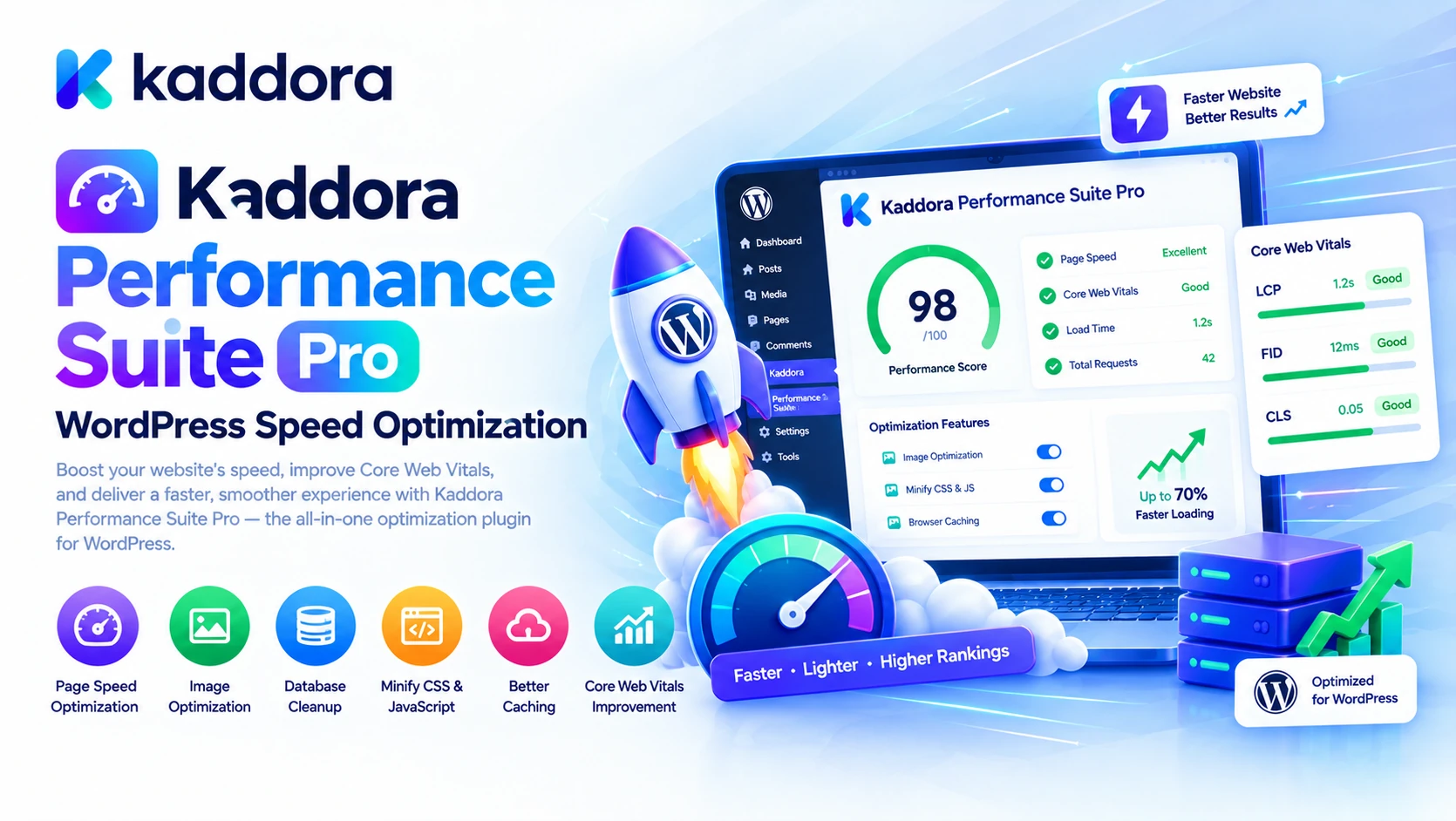
Kaddora Performance Suite Pro is an all-in-one WordPress performance optimization plugin designed to help website owners manage multiple optimization activities through a centralized dashboard.
Its listed features include AI-powered performance recommendations, page and browser caching, image optimization, WebP and AVIF conversion, lazy loading, CSS and JavaScript optimization, critical CSS generation, database cleanup, asset management, font optimization, resource hints, and Core Web Vitals monitoring.
In this guide, we'll explore the plugin's key capabilities, explain how performance optimization works, and show how to approach website speed improvements systematically.
What Is Kaddora Performance Suite Pro?
Kaddora Performance Suite Pro is a WordPress speed and performance optimization plugin developed for business websites, blogs, agencies, portfolios, corporate sites, and WooCommerce stores.
Instead of focusing on just one optimization technique, it combines tools for several areas of website performance.
The advertised feature set includes:
AI-powered performance analysis and recommendations
Core Web Vitals monitoring and optimization guidance
Page caching and browser caching
Object cache integration
Image compression and optimization
WebP and AVIF conversion
Lazy loading
CSS optimization and minification
JavaScript optimization
Critical CSS generation
Font optimization
Database cleanup and optimization
Resource preloading, preconnect, prefetch, and DNS prefetch
HTML minification
WooCommerce performance optimization
Performance dashboard and reports
Scheduled optimization and background tasks
CDN support
REST API and WP-CLI support
Developer hooks, white-label features, and multisite compatibility
The goal is to help administrators identify performance opportunities and manage supported optimization tasks from one WordPress-oriented environment.
Explore the official Kaddora Performance Suite Pro product page for the full feature list and current compatibility information.
Why Is WordPress Performance Optimization Important?
A WordPress website can become slower as it grows. More posts, products, plugins, scripts, images, integrations, and database records can increase the amount of work required to display a page.
Common performance problems include:
Large images: High-resolution images can consume unnecessary bandwidth when delivered without appropriate resizing or compression.
Repeated database work: Pages may trigger expensive queries or repetitive processing that could be reduced through caching or better query design.
Unoptimized CSS and JavaScript: Stylesheets and scripts can delay rendering or increase the amount of work performed by the browser.
Too many third-party requests: Analytics, advertising, chat widgets, and external integrations can introduce additional network activity.
Inefficient caching: Without appropriate caching, the website may repeatedly generate the same output for visitors.
Unused resources: Some pages may load scripts, styles, fonts, or other assets that they do not actually need.
Poorly configured hosting: Limited server resources or slow application processing can affect performance even after front-end optimization.
A well-designed performance strategy evaluates these factors instead of relying on a single score or one optimization switch.
Key Features of Kaddora Performance Suite Pro
1. AI Performance Optimization Engine
Identifying the most important performance problems is often more difficult than applying an optimization setting.
Kaddora Performance Suite Pro advertises an AI Performance Optimization Engine designed to provide analysis, diagnostics, optimization recommendations, and performance insights.
These capabilities can support questions such as:
Which performance areas may need attention?
Are images contributing to unnecessary page weight?
Could caching improve repeated page requests?
Are CSS or JavaScript optimizations worth investigating?
Which maintenance tasks should be prioritized?
The plugin also lists website speed scoring and intelligent optimization recommendations.
AI-generated recommendations should be treated as guidance rather than guaranteed fixes. The most appropriate solution depends on the actual bottleneck, site configuration, hosting environment, and enabled features.
2. Core Web Vitals Optimization
Core Web Vitals measure aspects of real-world user experience. They include three important metrics:
Metric
What It Measures
Largest Contentful Paint (LCP)
How quickly the largest relevant content element becomes visible
Interaction to Next Paint (INP)
How responsive a page is to user interactions
Cumulative Layout Shift (CLS)
How much unexpected visual movement occurs during loading and use
Kaddora Performance Suite Pro lists Core Web Vitals monitoring, diagnostics, and optimization recommendations.
For example, improving LCP may require optimizing the main image, reducing server response time, or improving the delivery of critical resources. Better INP may require reducing expensive JavaScript execution, while improved CLS may require reserving space for images, embeds, and dynamic elements.
No single optimization setting automatically resolves every Core Web Vitals problem. Measure the page, identify the cause, apply an appropriate fix, and test again.
3. Page Cache and Browser Cache
Caching can reduce repeated processing and improve the delivery of website content.
Page caching stores generated page output so that eligible requests can be served without rebuilding the entire page each time.
Browser caching allows suitable resources to be reused by a visitor's browser according to their caching instructions.
Kaddora Performance Suite Pro includes page caching and browser caching features intended to support faster repeat visits and more efficient delivery.
Caching should be configured according to the type of website.
For example, public blog posts and product category pages may benefit from caching, while personalized account pages, cart contents, and checkout information require appropriate exclusions or cache handling.
Test login states, shopping cart behavior, and other personalized experiences before enabling aggressive caching.
4. Advanced Database Optimization
WordPress stores content, metadata, options, comments, and other information in its database. Over time, unnecessary records can accumulate.
Kaddora Performance Suite Pro includes database cleanup and optimization features designed to help maintain database health.
Its listed cleanup operations include:
Removing post revisions
Deleting auto-drafts
Cleaning trashed posts
Removing spam and trashed comments
Clearing expired transients
Removing orphaned metadata
Cleaning orphaned relationships
Optimizing database tables
Scheduling database maintenance
Generating database health reports
Database cleanup should be handled carefully. Some revisions, transient values, and records may still be useful to a website's workflow or its installed extensions.
Back up the database before destructive cleanup, review the available options, and avoid deleting records unless their purpose and eligibility are understood.
5. Image Optimization and Modern Image Formats
Images often account for a substantial portion of a webpage's transferred data.
Kaddora Performance Suite Pro lists image optimization, WebP conversion, AVIF conversion, and image-related statistics as part of its feature set.
These capabilities can help reduce image file sizes while maintaining suitable visual quality.
A practical image optimization workflow includes:
Original Image ↓ Resize for the Actual Display ↓ Compress ↓ Convert When Appropriate ↓ Verify Visual Quality ↓ Serve Responsive Variants
WebP and AVIF can provide efficient image delivery when supported by the browser and configured correctly.
Keep original images or a reliable recovery copy when appropriate. After conversion, verify that generated files load correctly, image quality remains acceptable, and responsive image behavior still works.
6. Lazy Loading
Lazy loading delays the loading of eligible resources until they are closer to entering the visitor's viewport.
This can reduce initial page-loading work, particularly on long pages with many images.
Kaddora Performance Suite Pro includes lazy-loading functionality as part of its image and performance optimization features.
However, lazy loading should not be applied indiscriminately. The main image or other content responsible for the page's LCP may need to load promptly.
Review the above-the-fold layout and test image loading behavior after enabling lazy loading.
7. CSS Optimization and Critical CSS
CSS controls how a webpage is styled and presented.
Large stylesheets or poorly managed delivery can delay rendering, while unnecessary CSS increases transferred data and browser work.
Kaddora Performance Suite Pro lists CSS optimization, CSS minification, critical CSS generation, and related optimization features.
Critical CSS focuses on the styles needed to render the initial visible portion of a page. Delivering these styles efficiently may help reduce rendering delays.
A useful workflow is to generate or configure critical CSS, test different page templates, and then inspect the result across desktop and mobile layouts.
CSS optimization can create visual issues when themes or plugins depend on specific style-loading behavior. Always check navigation, forms, menus, product pages, and responsive layouts after applying changes.
8. JavaScript Optimization
JavaScript powers many interactive WordPress features, including menus, sliders, forms, shopping carts, analytics, and page builders.
Kaddora Performance Suite Pro lists JavaScript minification, optimization, and asset management capabilities.
Depending on the scripts involved, suitable optimization may reduce file size or unnecessary browser work.
However, combining, delaying, or deferring scripts can affect execution order and dependencies.
After enabling JavaScript optimization, test important site interactions, especially:
Navigation menus
Search functionality
Contact forms
Login and registration
WooCommerce variations
Add-to-cart behavior
Cart and checkout
Interactive page-builder elements
Resolve any errors before applying the same settings across the entire website.
9. Asset Manager and Resource Hints
A WordPress website may load assets that are unnecessary for a particular page.
Kaddora Performance Suite Pro lists an Asset Manager along with resource hints such as DNS prefetch, preconnect, preload, and prefetch.
Resource hints can help the browser prepare for certain future or required requests, depending on how they are configured.
For example, preconnecting to an essential external origin may reduce connection setup time, while preloading a genuinely critical resource may help the browser discover it earlier.
Use hints selectively. Preloading too many resources can compete for bandwidth, and unloading a script without understanding its dependencies may break functionality.
10. Font Optimization
Web fonts affect both visual presentation and page-loading behavior.
Loading excessive font families or weights can increase network requests and delay text rendering.
Kaddora Performance Suite Pro includes font optimization tools intended to help improve resource delivery.
Useful practices include reducing unnecessary font variants, serving appropriate font formats, configuring caching, and reviewing when fonts should be loaded.
Test typography across different devices and languages after making changes. Font optimization should preserve readability and layout stability rather than simply minimizing the number of files.
11. HTML Optimization
HTML minification removes certain unnecessary characters, whitespace, or comments from the generated markup.
Kaddora Performance Suite Pro includes HTML optimization features intended to reduce unnecessary output.
The performance improvement from HTML minification varies by page and hosting environment, so it should be measured rather than assumed.
Test generated pages, forms, menus, and dynamic WooCommerce content to confirm that markup remains valid and that functionality is unaffected.
12. Scheduled Optimization and Background Tasks
Performance maintenance is not necessarily a one-time activity. Websites continually generate content, add products, update plugins, create database records, and change their assets.
Kaddora Performance Suite Pro lists scheduled optimization options covering daily, weekly, and monthly tasks, including database cleanup, cache clearing, image optimization, and background processing.
A useful maintenance process might look like this:
Scheduled Task ↓ Run the Configured Optimization ↓ Record the Result ↓ Review Errors ↓ Monitor Performance
Choose schedules that suit the website's workload and hosting resources. Large optimization tasks should not run so frequently that they compete with normal visitors or essential business operations.
13. WooCommerce Performance Optimization
WooCommerce stores have additional performance requirements because shopping carts, sessions, product variations, filtering, and checkout introduce dynamic behavior.
Kaddora Performance Suite Pro advertises WooCommerce performance optimization support.
A WooCommerce performance review can include:
Optimizing product images
Reviewing product page assets
Caching eligible public pages
Reviewing database performance
Improving CSS and JavaScript delivery
Managing unnecessary scripts
Checking mobile performance
Testing cart and checkout functionality
Never assume that a caching or asset-management setting is safe simply because it improves a public product page. Test account-specific and transactional workflows carefully, and exclude sensitive or personalized output from inappropriate caching.
14. Performance Dashboard, Analytics, and Reports
Optimization is more effective when changes can be measured.
Kaddora Performance Suite Pro includes a dashboard that lists website speed scoring, Core Web Vitals information, optimization status, image statistics, cache statistics, database health, CSS and JavaScript optimization status, recommendations, and AI insights.
The plugin also lists performance reports, optimization history, database reports, cache reports, image reports, and website health reporting.
Use these reports to review which tasks have been completed and identify issues that need further attention.
For reliable comparison, record baseline measurements, test comparable pages, and measure after each significant optimization change. Remember that a dashboard's internal score is not the same as a real-user performance measurement or a guarantee of improved search visibility.
How to Install and Configure Kaddora Performance Suite Pro
Step 1: Check System Requirements
Review the current product documentation and ensure your hosting environment meets the supported requirements.
The product listing specifies WordPress 5.8 or later, PHP 7.4 or higher, and MySQL 5.7+ or compatible MariaDB, with HTTPS recommended. Confirm these details against the version you download.
Step 2: Install the Plugin
From the WordPress dashboard:
Go to Plugins → Add New → Upload Plugin.
Select the downloaded Kaddora Performance Suite Pro ZIP file.
Click Install Now.
Activate the plugin.
Open the Kaddora Performance Suite dashboard.
Step 3: Run an Initial Performance Scan
Use the available performance analysis and reporting features to establish a starting point.
Record the results before enabling multiple optimization settings. This helps you evaluate which changes make a measurable difference.
Step 4: Enable Optimizations Gradually
Begin with suitable optimizations, such as caching for public pages or image optimization.
Enable CSS, JavaScript, critical CSS, font, and resource-delivery options incrementally. Test the website after each major change.
Step 5: Review Database Cleanup Settings
Inspect the available cleanup options and create a database backup before removing records.
Schedule maintenance based on the website's actual needs rather than enabling every cleanup task automatically.
Step 6: Test WooCommerce and Interactive Pages
If your site uses WooCommerce, page builders, membership features, or dynamic forms, test the full workflow.
Check login, product variations, cart updates, checkout, forms, and account pages.
Step 7: Monitor and Refine
Re-run performance measurements and review the dashboard. Keep changes that improve performance without breaking functionality, and reverse settings that create errors or regressions.
Best Practices for WordPress Speed Optimization
Measure before optimizing. Use a consistent baseline and test comparable pages before and after making changes.
Optimize images at the correct dimensions. Avoid serving unnecessarily large image files when smaller responsive variants are suitable.
Cache selectively. Cache public content where appropriate, while protecting personalized and transactional information.
Avoid excessive JavaScript. Review unnecessary scripts and third-party integrations rather than simply applying aggressive minification.
Protect layout stability. Reserve space for images, ads, embeds, and dynamic elements where necessary to reduce unexpected layout shifts.
Test Core Web Vitals individually. LCP, INP, and CLS describe different aspects of user experience and may require different fixes.
Keep backups before destructive operations. Database cleanup and file transformations should have a recovery strategy.
Check compatibility after updates. Theme, plugin, and WordPress updates may change asset-loading behavior or introduce new requirements.
Use scheduled jobs thoughtfully. Avoid running resource-intensive tasks too frequently or during peak business periods.
Treat AI recommendations as guidance. Confirm the underlying issue before applying a suggested fix.
Common WordPress Performance Mistakes to Avoid
1. Enabling Every Optimization at Once
Aggressive optimization can break styles, scripts, forms, or ecommerce workflows.
Better approach: Enable settings gradually and test after each significant change.
2. Caching Sensitive Pages
Cart, checkout, account, or personalized pages may contain user-specific information.
Better approach: Use the appropriate cache exclusions and verify behavior with multiple user sessions.
3. Deleting Database Records Without a Backup
A cleanup operation can remove information that a website still needs.
Better approach: Review cleanup options, back up the database, and verify functionality after maintenance.
4. Lazy Loading the Main Content Image Incorrectly
Delaying a key above-the-fold image can negatively affect the perceived loading experience.
Better approach: Review loading behavior for the main content element and optimize it appropriately.
5. Optimizing for a Single Speed Score
A high score on one test does not guarantee that all users experience fast pages.
Better approach: Evaluate multiple page types and combine laboratory diagnostics with real-user data where available.
6. Ignoring Third-Party Scripts
Chat widgets, advertising tags, analytics, and external integrations may contribute to loading delays.
Better approach: Review their necessity, loading behavior, and effect on user experience.
Who Can Benefit From Kaddora Performance Suite Pro?
Kaddora Performance Suite Pro may be useful for:
Bloggers and publishers
Business and corporate websites
WooCommerce stores
Agencies managing client websites
WordPress developers
Membership websites
Educational websites
News and content-heavy websites
Portfolio websites
Multisite environments
The right fit depends on the website's performance challenges, hosting setup, current optimization stack, and required compatibility.
Why Choose Kaddora?
Kaddora focuses on practical WordPress solutions designed to help website owners and developers manage important digital workflows more efficiently.
Kaddora Performance Suite Pro combines caching, image optimization, database maintenance, CSS and JavaScript optimization, Core Web Vitals monitoring, critical CSS, asset management, font optimization, resource hints, WooCommerce performance features, scheduled optimization, and reporting in one plugin.
For website owners, this provides a centralized way to review and manage supported performance tasks. For developers and agencies, the listed REST API, WP-CLI support, developer hooks, white-label features, and multisite compatibility may be useful for supported maintenance workflows.
The objective is not to promise a particular speed score or search ranking. It is to help users identify performance problems, apply appropriate optimizations, and monitor their results while preserving website functionality.
Conclusion
WordPress performance optimization requires attention to caching, images, database health, CSS and JavaScript delivery, fonts, assets, and dynamic application behavior.
Kaddora Performance Suite Pro is designed to bring these activities together through AI-powered performance recommendations, Core Web Vitals monitoring, page and browser caching, database cleanup, image optimization, WebP and AVIF conversion, lazy loading, CSS and JavaScript optimization, critical CSS generation, font optimization, WooCommerce support, and performance reporting.
Whether you manage a business website, content-heavy blog, agency portfolio, or online store, the most effective optimization strategy begins with measurement and proceeds through carefully tested changes.
Start by recording baseline performance, identifying the largest bottlenecks, applying suitable optimizations incrementally, and checking for regressions. Use scheduled maintenance and reporting to keep the website healthy over time.
A well-managed performance workflow can make a website more responsive and easier to maintain, while helping visitors access content and complete important tasks with less friction.
Frequently Asked Questions
What is Kaddora Performance Suite Pro?
Kaddora Performance Suite Pro is an all-in-one WordPress performance optimization plugin designed to support caching, image optimization, database cleanup, CSS and JavaScript optimization, Core Web Vitals monitoring, and performance reporting.
Can Kaddora Performance Suite Pro improve Core Web Vitals?
The plugin lists Core Web Vitals monitoring, diagnostics, and optimization recommendations. Actual results depend on the site's bottlenecks, hosting, theme, plugins, configuration, and the changes applied.
Does it include page caching?
Yes. Page caching and browser caching are listed features. Configure caching carefully, especially on websites with user accounts, personalized content, shopping carts, and checkout workflows.
Does the plugin support WebP and AVIF images?
Yes. WebP conversion and AVIF conversion are included in the advertised image optimization features. Test file delivery, image quality, and browser compatibility after configuration.
Can it optimize WooCommerce websites?
The plugin advertises WooCommerce performance optimization support. Test product variations, cart behavior, checkout, account pages, and dynamic integrations after enabling performance settings.
Does Kaddora Performance Suite Pro include database cleanup?
Yes. Listed operations include cleanup of revisions, auto-drafts, trashed content, spam comments, expired transients, orphaned metadata, and other supported records. Back up your database and review cleanup settings before deleting data.
Will installing the plugin guarantee a 100/100 speed score?
No. Performance scores depend on the website, hosting, page structure, test conditions, third-party scripts, and optimization configuration. A score should be treated as a diagnostic signal rather than a guarantee of real-world performance.
Is the plugin suitable for developers and agencies?
The product listing includes REST API support, WP-CLI support, developer hooks, white-label functionality, and multisite compatibility. Review the current documentation to confirm the features supported by your version and workflow.
What is the best way to begin optimizing a website?
Start by measuring the current performance, identify the most significant bottleneck, apply one appropriate change at a time, and test both performance and functionality after each change.
Why choose ThemeKaddora?
ThemeKaddora provides a marketplace for WordPress plugins, themes, and website templates. Website owners, agencies, and developers can explore products that fit their project requirements and technical needs.
Comments (0)