Introduction
Customer expectations have changed. Website visitors want quick answers, product information, personalized assistance, and support without having to wait for an email response or navigate multiple pages.
For businesses running WordPress websites, providing this experience manually can become difficult as website traffic, product catalogs, and customer inquiries grow.
An AI-powered virtual assistant can help simplify these interactions by answering common questions, providing information from business knowledge, supporting product discovery, and assisting visitors through conversations directly on the website.
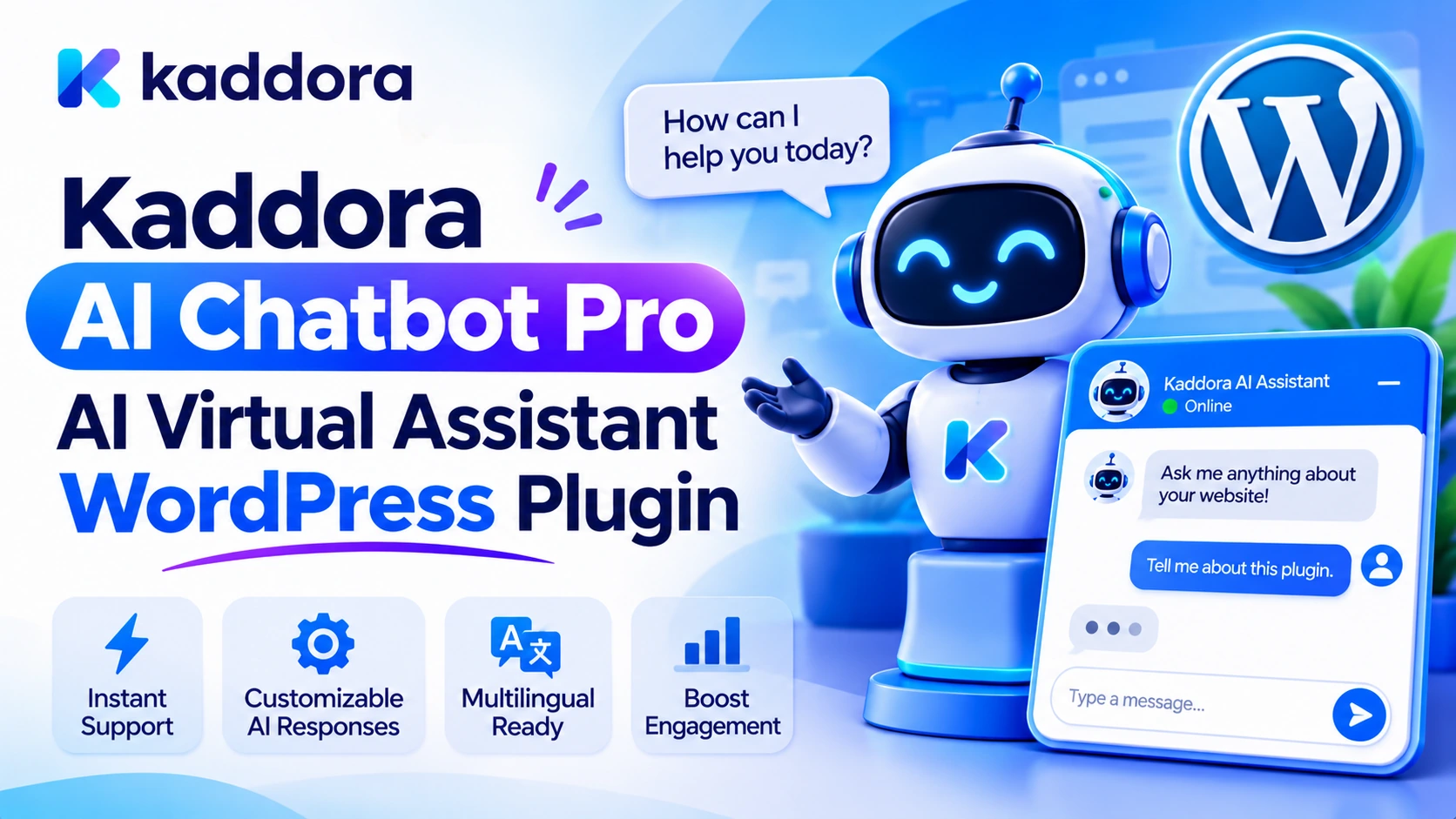
Introducing Kaddora - AI Chatbot Pro & Virtual Assistant WordPress Plugin, a powerful chatbot solution designed to help businesses create, customize, and manage multiple AI-powered assistants directly from their WordPress dashboard.
Whether you operate an online store, business website, educational platform, hospitality website, or service-based business, Kaddora gives you the flexibility to build specialized virtual assistants for different purposes.
With support for OpenAI, Google Gemini, and OpenRouter, a flexible knowledge base, WooCommerce catalog context, visitor file attachments, customizable chat widgets, and conversation management, Kaddora provides an integrated environment for creating intelligent website conversations.
Instead of using the same generic chatbot for every requirement, you can create multiple assistants with different personalities, instructions, knowledge sources, and appearance settings.
Let's explore how Kaddora can help transform the way your WordPress website communicates with visitors.
What Is Kaddora AI Chatbot Pro?
Kaddora AI Chatbot Pro is a WordPress plugin that allows website owners to build and manage AI-powered chatbots and virtual assistants without developing a chatbot system from scratch.
The plugin provides a centralized dashboard where you can create multiple chatbots, configure their behavior, connect AI providers, manage knowledge sources, and customize the frontend experience.
Each chatbot can be designed for a specific business objective.
For example:
A customer support assistant can answer frequently asked questions.
A sales assistant can guide visitors through product information.
A WooCommerce assistant can provide information using available product catalog context.
An education assistant can answer questions using learning materials.
A hospitality assistant can provide information about services and facilities.
A lead-generation assistant can guide visitors through lead-capture conversations.
The plugin also allows you to use your own business information as chatbot knowledge, helping assistants provide more relevant answers about your website.
Kaddora brings chatbot creation, configuration, knowledge management, and conversation tools together inside WordPress.
Build Multiple AI Chatbots From One Dashboard
Different website visitors have different requirements. A single chatbot may not be suitable for every department or business function.
Kaddora allows you to create and manage multiple AI chatbots from one WordPress installation.
You can create separate assistants for:
Customer Support: Help visitors understand services, website features, policies, and common questions.
Sales Assistance: Guide potential customers through product and service information.
eCommerce Assistance: Support product discovery and answer questions using available WooCommerce catalog context.
Marketing Assistance: Help visitors understand campaigns, offers, and business services.
Education Assistance: Provide information using educational content and learning materials.
Hospitality Assistance: Answer questions about accommodation, facilities, and hospitality services using configured knowledge.
Each chatbot can have its own configuration, allowing you to organize virtual assistants according to your website's requirements.
This flexibility is particularly useful for businesses that manage multiple products, departments, or customer support workflows.
Customize AI Personas and Chatbot Instructions
An effective virtual assistant should reflect the purpose and communication style of the business.
Kaddora provides customizable AI persona settings so you can configure how each assistant communicates with visitors.
You can customize:
Chatbot name.
AI use case.
Personality.
System instructions.
Welcome message.
Input placeholder.
Avatar.
Visual appearance.
For example, a customer support chatbot might use a helpful and professional communication style, while a sales assistant might use a conversational approach to explain products and services.
System instructions help define the assistant's expected behavior, its knowledge boundaries, and its response style.
You can create specialized instructions for each chatbot instead of relying on one general instruction set for the entire website.
This makes it easier to build assistants that serve distinct purposes.
Connect OpenAI, Google Gemini, and OpenRouter
Different businesses may prefer different AI providers depending on their requirements, model availability, infrastructure, and usage preferences.
Kaddora supports three AI provider integrations:
<box gap={3}>
<row align=start gap={3}>
<AsyncImage query="OpenAI logo black green official" aspectRatio="1:1" maxWidth="64px" fit="contain"/>
<box flex="1" gap={1}>
**OpenAI Integration**
Connect compatible OpenAI models using your own API credentials to generate chatbot responses. </box>
</row>
<divider color="subtle"/>
<row align=start gap={3}>
<AsyncImage query="Google Gemini AI logo official" aspectRatio="1:1" maxWidth="64px" fit="contain"/>
<box flex="1" gap={1}>
**Google Gemini Integration**
Connect Google Gemini to create AI-powered conversations using compatible models. </box>
</row>
<divider color="subtle"/>
<row align=start gap={3}>
<AsyncImage query="OpenRouter AI logo official" aspectRatio="1:1" maxWidth="64px" fit="contain"/>
<box flex="1" gap={1}>
**OpenRouter Integration**
Connect OpenRouter and select compatible models according to your provider account and configuration. </box>
</row>
</box>
The plugin allows you to connect your own provider credentials and configure compatible models.
This gives website owners flexibility over their AI infrastructure and provider usage.
Kaddora also includes local knowledge matching as a fallback for basic knowledge-based responses, allowing supported knowledge matching without requiring an external AI provider.
Important: AI provider accounts, API usage, quotas, and provider billing are managed separately by the provider you connect. They are not included with the plugin purchase.
Create Your Own AI Knowledge Base
A virtual assistant becomes more useful when it can reference information about your actual business.
Kaddora includes a flexible knowledge base that allows you to add and manage business information for chatbot responses.
Supported knowledge sources include:
Text content.
Question-and-answer pairs.
Website URLs.
Documents.
Images.
Videos.
Video URLs.
Training notes and transcripts.
For example, an online store could add product information, shipping explanations, return policies, and frequently asked questions.
A training institute could add course descriptions, admission information, and learning materials.
A service business could provide information about its services, processes, and support topics.
By using these sources, you can create knowledge-based chatbot experiences that reference your own content instead of relying exclusively on general AI knowledge.
You can organize knowledge according to the chatbot's intended purpose and update it as your business information changes.
This is especially useful for websites with frequently updated products, services, and support documentation.
Make Your WooCommerce Store More Interactive
Online shoppers often have questions before purchasing a product.
They may want to understand product specifications, available options, features, or other product information.
Kaddora includes WooCommerce catalog context for supported chatbot interactions.
When WooCommerce is installed and configured, your virtual assistant can use available product information to provide more relevant shopping assistance.
For example, visitors can ask questions such as:
What features does this product offer?
Which product matches my requirements?
Can you explain the product specifications?
What is the difference between these products?
Where can I find more information about this item?
The chatbot can use available WooCommerce product context when preparing responses.
This creates an additional way for customers to discover products and understand your catalog without manually searching through multiple product pages.
For WooCommerce businesses, this functionality can complement existing product navigation and customer support.
Turn Your Chatbot Into a Lead Generation Assistant
Not every website conversation is about customer support.
Some visitors want to understand services, compare solutions, ask about business requirements, or explore a potential purchase.
A chatbot can help guide these conversations and support lead-generation activities.
Kaddora includes lead-capture guidance capabilities that can be configured through the chatbot's purpose and instructions.
For example, a service website can create an assistant that guides visitors through questions about:
The service they need.
Their business requirements.
Their preferred solution.
Project-related questions.
Information they need before contacting the business.
A separate sales assistant can provide relevant business information and guide visitors toward the next step.
This helps businesses make their websites more interactive and provides visitors with another communication channel.
The chatbot should be configured with clear instructions about what information it may request and how any collected information is handled.
Allow Visitors to Upload Images, Videos, and Files
Some customer questions are easier to understand when visitors can share visual information or supporting documents.
For example:
A customer may upload a product image to ask a question about it.
A visitor may share a screenshot showing a website issue.
A customer may attach a supported document to provide additional context.
Kaddora supports visitor attachments through its chatbot interface.
Supported attachment capabilities include:
Image uploads.
Video uploads.
File uploads.
Attachment previews.
Configurable upload limits.
Visitor upload controls.
Stored conversation attachments.
The plugin also supports multimodal image input for compatible AI providers.
This creates additional possibilities for customer support, image-related questions, and document-assisted conversations.
Administrators should configure supported file formats and upload limits according to their website's hosting capabilities and security requirements. Images and documents should also be treated as untrusted inputs when they are processed by AI models.
Customize the Floating Chat Widget
Your chatbot should feel like a natural part of your website rather than an unrelated third-party interface.
Kaddora includes a customizable floating chat widget that allows visitors to communicate with an assistant directly from your website.
You can customize:
Customization
Available Control
Chatbot avatar
Built-in or custom avatar
Theme
Chat appearance
Button colors
Launcher and interface styling
Background colors
Chat panel appearance
Text colors
Readability and branding
Font family
Typography
Greeting message
First visitor interaction
Input placeholder
Message field text
Chat launcher
Floating widget appearance
Desktop visibility
Device display control
Mobile visibility
Device display control
The plugin includes 10 built-in Kaddora avatars and a live preview experience.
You can adjust the chatbot's visual style to match your brand identity before publishing it.
This is useful for agencies, online stores, service providers, and businesses that want a consistent website experience.
Control Where Your Chatbots Appear
Not every chatbot needs to appear on every page.
For example, a WooCommerce assistant may be useful on product and shop pages, while a business support assistant may be more appropriate on service and contact pages.
Kaddora provides page and device visibility settings that help administrators control where individual chatbots appear.
You can configure desktop and mobile visibility and use page-targeting rules for relevant website locations.
This allows you to create different chatbot experiences for different website sections.
A well-planned configuration can keep the visitor experience focused and prevent unnecessary chatbot widgets from appearing where they are not needed.
Manage Conversations and View Chatbot Analytics
Understanding how visitors interact with your virtual assistants can help you improve chatbot instructions and knowledge sources.
Kaddora includes conversation management and a local analytics dashboard.
Depending on the configured settings, you can review saved conversations, inspect chatbot interactions, and manage conversation records.
The analytics dashboard provides locally stored chatbot and conversation statistics to help administrators understand usage.
These insights can be useful for identifying:
Frequently discussed topics.
Common visitor questions.
Areas where knowledge content needs improvement.
Chatbot usage patterns.
Opportunities to improve instructions.
Conversation storage is configurable, allowing administrators to control whether chatbot conversations are saved.
The plugin also supports privacy notice configuration.
Website owners should explain relevant AI processing and external provider usage in their privacy information. They should establish appropriate retention and access rules before enabling conversation storage.
Configure AI Response Behavior
Different chatbot use cases require different response styles.
For example, a technical support assistant may need detailed explanations, while a product FAQ assistant may benefit from shorter answers.
Kaddora provides configurable AI response controls, including:
Model Selection: Choose a compatible model through the connected provider.
Response Temperature: Adjust the configured response temperature to influence response variability.
Maximum Response Tokens: Set the maximum response length according to your requirements and provider support.
These controls help administrators configure chatbot behavior for different website applications.
For example, a support assistant may be configured for clear, structured answers, while a general information assistant may use a more conversational style.
The actual behavior and available limits depend on the selected AI model and provider.
How to Get Started With Kaddora AI Chatbot Pro
Getting started involves a straightforward WordPress installation and configuration process.
Install and Activate the Plugin
Download the Kaddora AI Chatbot Pro plugin ZIP package.
Open your WordPress dashboard and navigate to:
Plugins → Add New Plugin → Upload Plugin
Select the downloaded ZIP file, install it, and activate the plugin.
After activation, open the Kaddora AI Chat Bot menu in your WordPress dashboard.
Connect Your AI Provider
Open the plugin settings and select your preferred provider:
OpenAI.
Google Gemini.
OpenRouter.
Enter the required API credentials, select a compatible model, and save your settings.
Make sure your provider account is active and has the necessary API access.
Create Your First Chatbot
Open the chatbot management section.
You can start with a ready-to-use chatbot template or create a chatbot from a blank configuration.
Define the assistant's name, purpose, personality, system instructions, welcome message, and avatar.
Add Your Business Knowledge
Open the knowledge base and add relevant business information.
You can use text, Q&A entries, website URLs, supported documents, images, and videos.
Organize the information according to the chatbot's intended responsibilities.
Customize and Preview the Widget
Choose the chatbot colors, background, typography, avatar, greeting message, and launcher settings.
Use the live preview to review its appearance before publishing.
Configure Visibility and Privacy
Set where the chatbot should appear and configure desktop and mobile visibility.
Review the privacy notice, conversation storage options, visitor attachment controls, and relevant upload limits.
Test Before Publishing
Ask questions based on your knowledge base and review whether the assistant provides appropriate responses.
Also test unsupported questions, incomplete information, attachment handling, and website display across desktop and mobile devices.
Once the configuration is ready, publish the chatbot and monitor its interactions.
Who Can Benefit From Kaddora AI Chatbot Pro?
Kaddora is suitable for different types of WordPress websites.
Online Stores: Use WooCommerce product context to help visitors understand product information.
Business Websites: Create assistants for company information, service questions, and customer support.
Digital Agencies: Configure specialized assistants for different services and website sections.
Educational Websites: Build knowledge-based assistants using course material and educational content.
Hotels and Hospitality Businesses: Provide information about facilities, services, and common guest questions.
Service Providers: Guide visitors through service information and lead-generation conversations.
Content Websites: Help visitors discover information through a knowledge-based chatbot.
The flexibility of multiple chatbots makes it possible to create separate assistants for different departments and audiences.
Why Choose Kaddora AI Chatbot Pro?
Choosing a WordPress chatbot plugin involves more than looking for an attractive chat window.
Businesses need flexibility, provider choice, knowledge management, customization, and practical administration tools.
Kaddora AI Chatbot Pro brings these capabilities together.
Multiple Chatbots: Create different virtual assistants for different business purposes.
Flexible AI Providers: Connect OpenAI, Google Gemini, or OpenRouter using your own credentials.
Business Knowledge Base: Add text, Q&A entries, URLs, documents, images, and videos.
WooCommerce Context: Support product-related conversations using available catalog information.
Custom AI Personas: Configure assistant personalities, instructions, greetings, and avatars.
Visitor Attachments: Allow supported images, videos, and files to be shared through the chat interface.
Floating Chat Widget: Give visitors an accessible way to communicate with your website assistant.
Conversation Management: Review and manage saved chatbot conversations when storage is enabled.
Local Analytics: Understand chatbot usage through locally stored statistics.
Flexible Display Settings: Control chatbot appearance and visibility across devices and website pages.
Together, these features provide a flexible foundation for building AI-powered customer communication directly within WordPress.
Important Things to Know Before Using the Plugin
Kaddora AI Chatbot Pro uses external AI providers for generative responses when those integrations are configured.
You need your own compatible provider account and API credentials. Provider usage, billing, quotas, and account limits are managed separately.
The plugin does not include third-party AI provider credits.
Some functionality, such as WooCommerce catalog context, depends on the relevant WordPress integration being installed and configured.
AI-generated answers can also be inaccurate or incomplete. Review important business information and test your chatbot instructions before making the assistant available to visitors.
For privacy and security, use appropriate upload restrictions, review external provider data handling, configure conversation storage carefully, and avoid submitting unnecessary confidential information.
Common Mistakes to Avoid When Setting Up an AI Chatbot
Using generic instructions: Give each assistant a clearly defined purpose and business context.
Adding incomplete knowledge: Keep frequently requested information accurate and updated.
Choosing the wrong model settings: Test response behavior and adjust available configuration controls.
Ignoring mobile display: Preview the chatbot on different screen sizes.
Saving every conversation without a retention plan: Configure conversation storage according to your website's privacy requirements.
Expecting AI to know private business details automatically: Add appropriate knowledge sources.
Not testing provider credentials: Verify API access and provider configuration before publishing.
Best Practices Checklist
Define the purpose of each chatbot.
Choose a suitable AI provider and compatible model.
Configure API credentials correctly.
Create clear chatbot personas and instructions.
Add accurate business knowledge.
Organize information for individual assistants.
Configure WooCommerce context where needed.
Customize the widget to match website branding.
Set desktop and mobile visibility.
Configure visitor file attachment limits.
Review privacy notices and conversation storage settings.
Test responses before publishing.
Review saved conversations and usage statistics.
Update knowledge sources when business information changes.
Why Choose Kaddora?
Kaddora focuses on developing practical WordPress plugins, themes, and digital solutions that help businesses improve their online operations.
With Kaddora AI Chatbot Pro, the goal is to make AI-powered website conversations easier to create and manage directly from WordPress.
The plugin brings together multiple chatbot configurations, flexible AI provider integrations, business knowledge management, WooCommerce context, visitor attachments, customization, and conversation analytics.
Whether you are creating a customer support assistant, a sales virtual assistant, or a knowledge-powered website chatbot, Kaddora provides flexible tools for building an experience around your business requirements.
Conclusion
AI-powered communication is becoming an important part of modern websites. Businesses need flexible ways to answer questions, share product information, guide visitors, and provide support through their WordPress websites.
Kaddora - AI Chatbot Pro & Virtual Assistant WordPress Plugin brings multiple AI chatbot capabilities into one centralized WordPress solution.
With OpenAI, Google Gemini, and OpenRouter integrations, multiple chatbot management, a flexible knowledge base, WooCommerce catalog context, customizable floating widgets, visitor attachments, and local analytics, it provides a practical foundation for creating intelligent website assistants.
Instead of relying on a single general-purpose chatbot, you can build specialized virtual assistants for customer support, sales, eCommerce, education, hospitality, and other business requirements.
Give your WordPress website a more interactive communication experience with Kaddora AI Chatbot Pro.
Frequently Asked Questions
Which AI providers does Kaddora AI Chatbot Pro support?
The plugin supports OpenAI, Google Gemini, and OpenRouter. You can connect your own compatible provider credentials and configure supported models.
Can I create multiple chatbots with Kaddora?
Yes. You can create, edit, duplicate, manage, and publish multiple chatbots from one WordPress dashboard, with individual personas, instructions, knowledge sources, and appearance settings.
Can I add my own business information to the chatbot?
Yes. The knowledge base supports text, Q&A entries, website URLs, documents, images, videos, video URLs, training notes, and transcripts.
Does Kaddora AI Chatbot Pro support WooCommerce?
Yes. The plugin includes WooCommerce catalog context for supported chatbot interactions, allowing assistants to use available product information when answering relevant questions.
Can visitors upload images and documents through the chatbot?
Yes. Visitors can attach supported images, videos, and files to chat messages. Attachment functionality includes previews, configurable upload limits, and visitor upload controls.
Can I customize the appearance of the AI chatbot?
Yes. You can customize the assistant's avatar, colors, backgrounds, typography, greeting message, input placeholder, and floating launcher. The plugin includes 10 built-in Kaddora avatars and a live preview.
Do I need an external AI API subscription to use Kaddora AI Chatbot Pro?
You need your own compatible OpenAI, Google Gemini, or OpenRouter API credentials for generative AI responses. Provider usage and billing are separate. The plugin also offers local knowledge matching for basic knowledge-based responses without an external AI provider.
Why choose ThemeKaddora?
ThemeKaddora develops WordPress plugins, themes, and templates designed to address practical website and business requirements. Its products focus on useful functionality, flexible customization, and maintainable digital solutions.
Comments (0)