
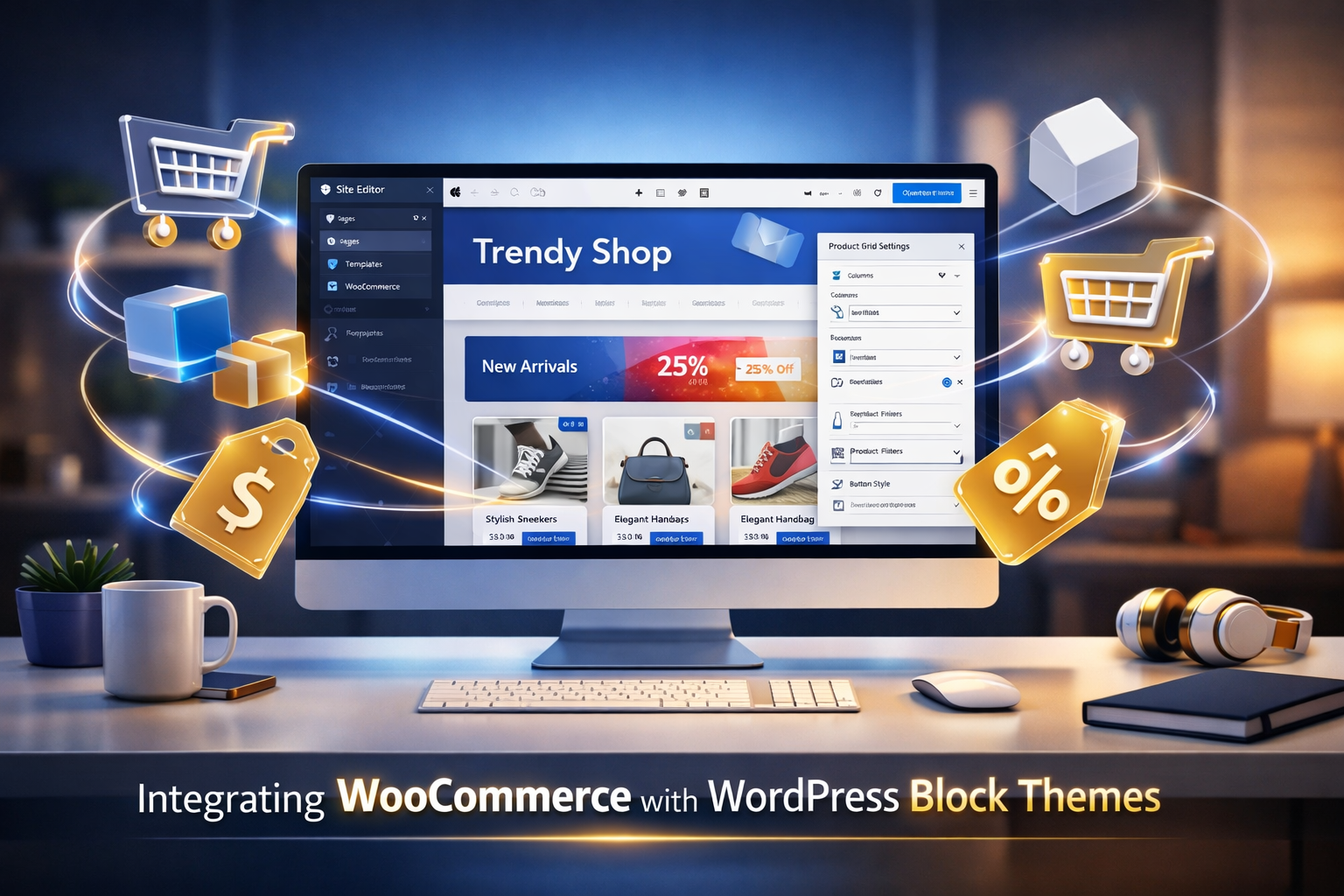
WooCommerce continues to dominate as the go-to e-commerce solution for WordPress, powering over 5 million active stores worldwide.
But as WordPress moves toward a block-first and Full Site Editing (FSE) ecosystem, integrating WooCommerce into a block theme requires a more modular and future-proof approach.
In this comprehensive guide, you’ll learn exactly how to integrate WooCommerce with your custom block theme — the right way — with best practices aligned for WordPress 6.8 + WooCommerce 9.x (2025 standards).
1. Understanding WooCommerce and Block Themes in 2025
The WordPress ecosystem has evolved from classic PHP templates to a block-based architecture. Block themes rely on the site editor, theme.json, and block templates instead of header.php, footer.php, and page.php.
When you integrate WooCommerce with a block theme, you’re essentially merging dynamic product templates (like single-product and archive-product) into this new block-driven world.
Key Differences
Classic Themes
Block Themes
PHP-based templates (woocommerce/single-product.php)
Block-based templates (templates/single-product.html)
Hooks and shortcodes for layout
Visual editing with template parts
CSS in style.css
Style rules defined in theme.json
Manual updates for WooCommerce compatibility
Native block patterns and global style control
By adopting WooCommerce’s block templates, you can visually design product archives, carts, and checkout pages within the Site Editor — no child theme or PHP editing required.
2. Setting Up WooCommerce in a Block Theme Environment
Before you start designing templates, ensure your theme and environment are correctly configured.
a) Essential Requirements
- WordPress 6.3 or later
- WooCommerce 8.5 or higher
- Block theme with a valid theme.json
- add_theme_support( 'woocommerce' ); in your functions.php
add_action( 'after_setup_theme', function() {
add_theme_support( 'woocommerce' );
add_theme_support( 'woocommerce-block-templates' );
});
b) Recommended Folder Structure
your-theme/
├── theme.json
├── templates/
│ ├── single-product.html
│ ├── archive-product.html
│ ├── cart.html
│ ├── checkout.html
│ └── myaccount.html
├── parts/
│ ├── header.html
│ ├── footer.html
│ └── sidebar.html
├── functions.php
└── style.css
This structure ensures WooCommerce templates are editable in the Site Editor and remain compatible with updates.
3. Working with WooCommerce Block Templates
WooCommerce now provides blockified versions of its templates that integrate seamlessly with FSE.
Common Templates You Can Blockify
Template
Description
single-product.html
Layout for individual product pages
archive-product.html
Main shop page showing all products
cart.html
Shopping cart with live update blocks
checkout.html
Block-based checkout process
myaccount.html
Customer account area
Each template uses blocks like:
- Product Title
- Product Image
- Add to Cart Button
- Product Meta
- Product Rating
- Mini Cart
- Checkout Form
Example:
<!-- wp:template-part {"slug":"header"} /-->
<!-- wp:woocommerce/product-image /-->
<!-- wp:woocommerce/product-title {"fontSize":"x-large"} /-->
<!-- wp:woocommerce/add-to-cart-form /-->
<!-- wp:template-part {"slug":"footer"} /-→
4. Using theme.json for WooCommerce Styling
The theme.json file acts as the design control center for your entire theme — including WooCommerce blocks.
You can manage typography, colors, spacing, borders, and shadows globally.
Example snippet:
{
"settings": {
"color": {
"palette": [
{ "slug": "primary", "color": "#198754", "name": "Primary" },
{ "slug": "secondary", "color": "#F8F9FA", "name": "Secondary" }
]
},
"typography": {
"fontFamilies": [
{ "fontFamily": "Inter, sans-serif", "slug": "inter", "name": "Inter" }
]
}
},
"styles": {
"blocks": {
"woocommerce/product-title": {
"typography": {
"fontSize": "1.5rem",
"fontWeight": "700"
}
}
}
}
}
This ensures every WooCommerce block inherits consistent styling — no need for extra CSS overrides.
5. Creating Custom Block Patterns for WooCommerce Sections
Patterns let you create reusable layouts for product sections, banners, or call-to-actions.
Example pattern for a “Featured Products” grid:
register_block_pattern(
'kaddora/featured-products',
[
'title' => __( 'Featured Products', 'kaddora' ),
'content' => '
<!-- wp:heading {"textAlign":"center"} -->
<h2 class="has-text-align-center">Featured Products</h2>
<!-- /wp:heading -->
<!-- wp:woocommerce/product-collection {"columns":4,"query":{"featured":true}} /-->'
]
);
You can display this block pattern anywhere — homepage, shop page, or even footer promotions.
6. Optimizing the Shop Experience
a) Responsive Layouts
Use grid and flex blocks to design responsive product sections that adapt to mobile.
<!-- wp:columns {"columns":3,"isStackedOnMobile":true} -→
b) Add a Dynamic Mini-Cart
Use the Mini Cart block inside your header template for real-time updates:
<!-- wp:woocommerce/mini-cart {"showTotal":true} /-→
c) Custom Shop Button
Add a dynamic shop link using:
<a href="<?php echo esc_url( get_permalink( wc_get_page_id( 'shop' ) ) ); ?>" class="wp-block-button__link">Shop Now</a>
7. Handling WooCommerce Hooks and Compatibility
Even though block themes minimize PHP hooks, you might still need them for dynamic logic — e.g., badges, metadata, or third-party plugins.
Common hooks:
add_action( 'woocommerce_before_main_content', 'your_custom_banner' );
add_filter( 'woocommerce_product_single_add_to_cart_text', 'custom_cart_text' );
However, prefer block variations or block filters for UI control when possible.
8. Performance & SEO Best Practices
To make your WooCommerce block theme lightning fast:
- Use lightweight block CSS via theme.json instead of custom CSS files.
- Optimize images and enable lazy loading.
- Use global spacing and font presets to minimize inline styles.
- Test Core Web Vitals using Lighthouse.
- Generate an XML sitemap and add Schema markup for products.
- Integrate WooCommerce Blocks Caching for cart/checkout speed.
9. Testing and Debugging WooCommerce in FSE
Enable debug mode in wp-config.php:
define( 'WP_DEBUG', true );
And use browser dev tools to inspect block CSS conflicts.
Also verify:
- Product blocks appear correctly in the Editor preview
- Global colors/fonts apply properly.
- Templates load via FSE (not legacy PHP templates)
- Checkout and My Account pages render with the correct block.s
10. Real-World Use Case: Kaddora Multipurpose WooCommerce Block Theme
In your own Kaddora Multipurpose Theme, this integration allows:
- Block templates for Organic, Grocery, Healthcare, and Fashion stores
- Global WooCommerce support (add_theme_support)
- Reusable block patterns for product sections
- Ready-made cart, checkout, and myaccount templates
This modular setup lets your users build any niche store visually without touching code — all while maintaining performance and WooCommerce compatibility.
Future of WooCommerce Block Integration (2025 +)
Expect WooCommerce to continue “blockifying” its components:
- Full block-based Email Templates
- Cart Fragments replaced by block hydration.
- AI-assisted Store Builder via WooCommerce AI
- Deeper integration with the Global Styles System for unified design control
Block themes that adapt early will stay ahead of the competition and need less refactoring as WordPress 7.0 + evolves.
Conclusion
Integrating WooCommerce with your block theme is no longer a complex task — it’s an essential skill for every modern theme developer.
By leveraging block templates, theme.json, and WooCommerce blocks, you can craft seamless, visually editable stores ready for the future of WordPress.
Start today by experimenting with a lightweight block theme, registering custom patterns, and evolving toward a no-code, high-performance e-commerce experience.
Top 10 FAQs
1. Can I use WooCommerce with any block theme?
Yes. As long as your theme supports WooCommerce and WooCommerce-block-templates, it will work seamlessly.
2. Do I still need template overrides in PHP?
No, unless you require advanced custom logic. Use HTML templates instead of PHP files.
3. How do I style WooCommerce blocks in block themes?
Use theme.json for global styling — this ensures consistent colors and typography.
4. Can I use WooCommerce shortcodes with block themes?
Yes, but prefer native blocks for better compatibility and future support.
5. How do I add a custom shop page link in a block theme?
Use wc_get_page_id( 'shop' ) to dynamically fetch the shop URL.
6. Is it possible to customize cart and checkout pages visually?
Absolutely. WooCommerce now provides dedicated Cart and Checkout blocks editable via the Site Editor.
7. What’s the difference between classic and block WooCommerce themes?
Classic themes rely on PHP templates; block themes use HTML templates with global style control.
8. How can I import demo content for my WooCommerce block theme?
Use a starter template importer (like Kaddora Starter Templates) to import demo JSON files and WXR content.
9. Does theme.json support WooCommerce typography settings?
Yes. You can define specific styles for WooCommerce blocks (product title, price, etc.).
10. Will my block theme remain compatible with future WooCommerce updates?
If you follow WooCommerce block-based template standards, your theme will stay future-proof.
Comments (0)