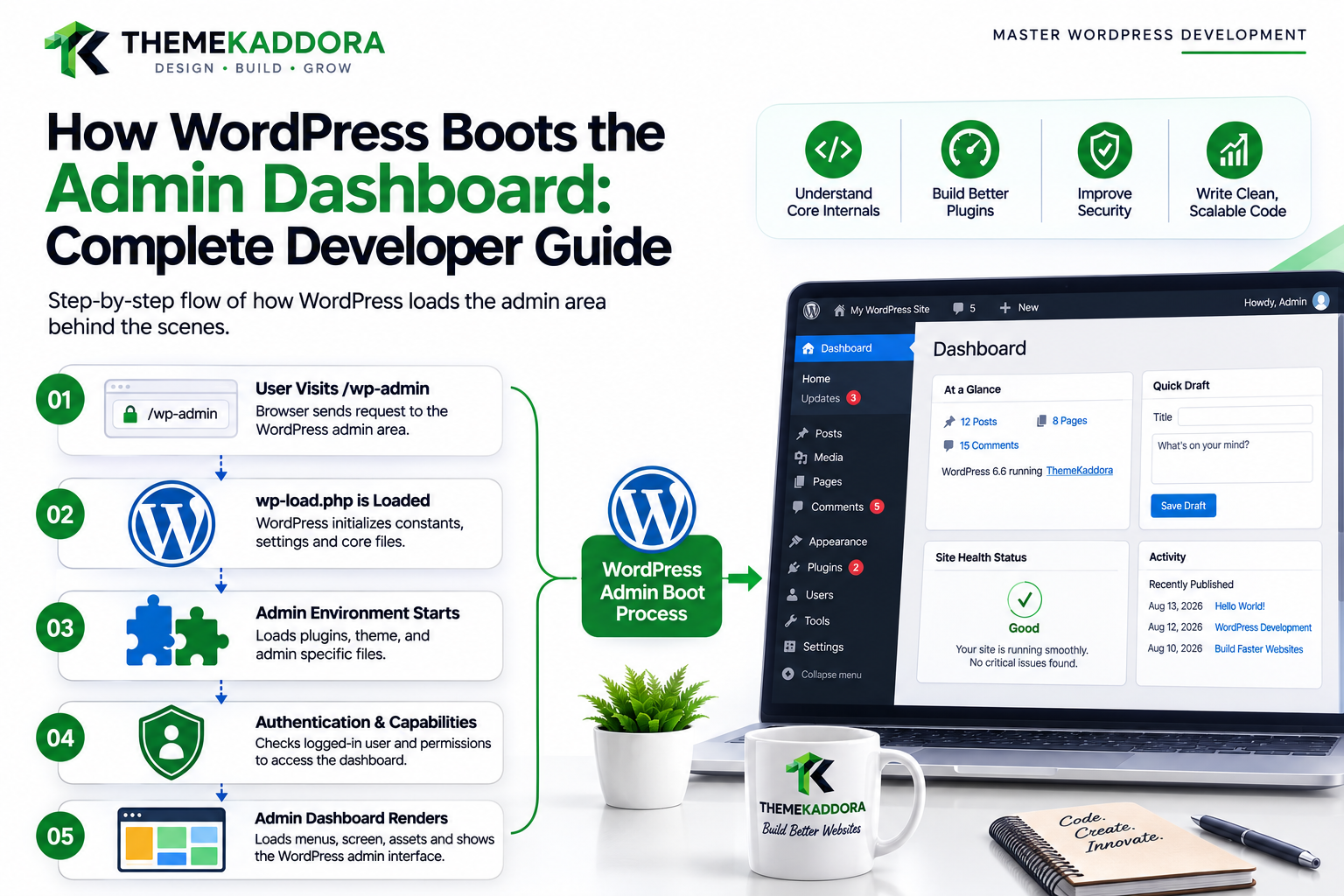
How WordPress Boots the Admin Dashboard
Introduction
The WordPress administration dashboard looks like a collection of menus, tables, forms, notices, and settings screens.
Behind that interface is a complete request lifecycle.
When an administrator opens:
/wp-admin/
WordPress has to:
Load its core environment
Load plugins
Load the active theme where appropriate
Establish the current user
Check authentication
Determine capabilities
Initialize the admin environment
Detect the requested admin screen
Register menus and hooks
Enqueue required assets
Load screen-specific functionality
Query the database
Render the final HTML response
A simplified architecture is:
Browser ↓ /wp-admin/ ↓ WordPress Bootstrap ↓ Plugin Initialization ↓ Admin Initialization ↓ Authentication ↓ Capability Checks ↓ Admin Screen ↓ Queries / Services ↓ HTML
The dashboard is therefore not a single page.
It is a framework of administrative screens built on top of WordPress's core application lifecycle.
For plugin developers, understanding this lifecycle is essential.
A plugin might need to:
Add an admin menu
Add a settings page
Add custom columns
Register screen-specific JavaScript
Add notices
Modify an admin list
Add a dashboard widget
Process form submissions
Provide custom reports
Restrict access by capability
All of these operations need to happen at the correct point in the admin lifecycle.
A plugin that runs too early may not know which screen is active.
A plugin that runs too late may miss an opportunity to alter the screen.
A plugin that checks only is_admin() may accidentally execute on every dashboard request.
And a plugin that assumes every admin user has the same privileges can create security problems.
In this guide, you'll learn how WordPress boots the admin dashboard, how an /wp-admin/ request is processed, how authentication and capabilities are established, how admin hooks work, how screen detection works, how admin menus are registered, how assets are loaded, how settings screens differ from list screens, how AJAX and REST requests relate to the admin environment, how performance should be handled.
What Is the WordPress Admin Dashboard?
The WordPress admin dashboard is the authenticated administrative environment used to manage a WordPress site.
It includes screens for:
Posts
Pages
Media
Users
Comments
Themes
Plugins
Settings
Tools
Custom plugin interfaces
The underlying environment is commonly associated with:
/wp-admin/
but not every WordPress admin request is literally the dashboard homepage.
There are many different admin screens.
Admin Dashboard vs Admin Area
These terms are often used interchangeably.
Technically, the WordPress administration area contains many screens:
Dashboard Posts Pages Media Users Settings Plugins Custom Plugin Screens
The dashboard homepage is only one part of the larger admin environment.
The Admin Request Lifecycle
A simplified lifecycle is:
Browser Request ↓ Web Server ↓ WordPress Bootstrap ↓ Admin Bootstrap ↓ Authentication ↓ User / Capability Context ↓ Screen Initialization ↓ Plugin Hooks ↓ Queries / Processing ↓ Assets ↓ HTML
The exact internal order contains many additional steps, but this model is useful for developers.
Step 1: The Browser Requests an Admin URL
The administrator might open:
/wp-admin/
or:
/wp-admin/edit.php
or:
/wp-admin/admin.php?page=kdr-settings
Each request enters the WordPress application.
Step 2: WordPress Bootstraps
Before the dashboard can be displayed, WordPress initializes its core environment.
This makes important services available to the request.
The admin screen is therefore built on top of the same WordPress platform used by frontend requests, but with a different execution context.
Step 3: Plugins Are Loaded
Active plugins become part of the WordPress runtime.
This is important because many admin screens are created or modified by plugins.
For example:
Plugin ↓ Registers Admin Menu ↓ Registers Settings ↓ Registers Hooks
The plugin's code can therefore participate in admin initialization.
Plugin Load Does Not Mean Screen Load
A common misunderstanding is:
If the plugin is active, its entire admin interface should execute on every screen.
That is unnecessary.
A better architecture is:
Plugin Loaded ↓ Detect Admin Context ↓ Detect Screen ↓ Initialize Required Module
This reduces overhead.
Step 4: WordPress Establishes the Current User
The admin environment requires an authenticated user.
WordPress determines the current user context and makes it available to the application.
The plugin can access the current user through supported APIs.
For example:
$user = wp_get_current_user();
Authentication vs Authorization
Authentication answers:
Who is the current user?
Authorization answers:
What is the current user allowed to do?
These are different.
A user can be authenticated successfully and still lack permission to access a particular admin screen.
Step 5: Capability Checks
WordPress uses capabilities to control access.
For example:
current_user_can( 'manage_options' )
can be used when a feature requires the corresponding capability.
Plugins should define access requirements deliberately.
Why Roles Are Not Enough
It is better to check capabilities than hardcode assumptions such as:
User Role = Administrator
Capabilities provide a more flexible permission model.
Different roles or custom roles can have different capabilities.
Step 6: Admin Hooks Become Available
WordPress provides admin-specific actions and filters.
Plugins use these hooks to register:
Menus
Assets
Notices
Dashboard widgets
Settings
Screen modifications
The hook system is central to admin extensibility.
admin_init
admin_init is a commonly used admin lifecycle action.
It is useful for administrative initialization tasks, but it does not automatically mean the plugin should perform heavy work on every admin screen.
Use screen-specific checks where appropriate.
admin_menu
The admin_menu action is commonly used to register:
Top-level menu pages
Submenu pages
Conceptually:
WordPress Admin ↓ admin_menu ↓ Plugin Menu
Custom Admin Menus
A plugin might create:
Kaddora ├── Dashboard ├── Analytics ├── Settings └── Tools
But the plugin should still enforce capability requirements.
A hidden menu does not provide security.
Menu Visibility Is Not Authorization
This is important.
Removing a menu item does not prevent direct access to the page.
A secure custom admin screen should perform its own capability check.
Conceptually:
Direct Request ↓ Capability Check ↓ Allowed?
Step 7: The Requested Admin Screen Is Determined
The request might point to:
Dashboard Edit Post Plugins Settings Custom Plugin Page
WordPress needs to determine the specific screen being displayed.
Admin Screen Detection
WordPress provides screen APIs such as:
get_current_screen();
when the appropriate screen context has been initialized.
The resulting screen object can provide information about the current admin screen.
Why Screen Detection Matters
A plugin may contain:
settings.js reports.js editor.js
There is no reason to load all three on every admin page.
Instead:
Settings Screen ↓ settings.js
and:
Reports Screen ↓ reports.js
Step 8: Admin Assets Are Enqueued
Admin styles and scripts should generally be loaded through the WordPress enqueue system.
A common hook is:
admin_enqueue_scripts
This allows plugins to load screen-specific assets.
Screen-Specific Asset Loading
A good architecture is:
Admin Request ↓ Identify Screen ↓ Required Assets? ├── No → Stop └── Yes → Enqueue
This reduces unnecessary JavaScript and CSS.
Example: Analytics Plugin
Suppose a plugin has a dashboard:
/wp-admin/admin.php?page=kdr-analytics
The plugin may need:
charts.js analytics.css reports.js
only on that screen.
Step 9: Admin Screen-Specific Data Is Loaded
The screen may retrieve:
Posts
Users
Orders
Settings
Reports
Custom table data
External API information
The important principle is to load only what the screen actually needs.
Admin Query Performance
A common mistake is performing expensive database queries in:
admin_init
for every admin request.
For example:
Every Admin Screen ↓ Large Analytics Query
This can make the entire dashboard slow.
Better Approach
Use:
Context ↓ Screen ↓ Query Only if Required
For example:
Analytics Screen ↓ Load Report Data
Admin Dashboard Widgets
Plugins can also add dashboard widgets.
The widget may be useful for:
Sales Summary
Site Health
Analytics
Recent Events
Notifications
But dashboard queries should still be optimized.
The dashboard loads frequently.
Avoid Heavy Queries on the Main Dashboard
If a dashboard widget performs:
Millions of Event Rows ↓ Complex Aggregation
every time the administrator opens the dashboard, the experience can become slow.
Use:
Cached values
Aggregated tables
Background processing
Paginated reports
where appropriate.
Admin Settings Screens
A plugin settings page commonly includes:
API credentials
Feature toggles
General configuration
Integration settings
Performance options
The settings page should validate input carefully.
Settings and Capabilities
Only users with the appropriate capability should be able to save sensitive settings.
For example:
Settings Screen ↓ Capability Check ↓ Form ↓ Validation ↓ Save
Settings API
WordPress provides the Settings API for building structured settings screens.
This can help standardize:
Registration
Sections
Fields
Validation
Saving
The Settings API is often preferable to manually inventing an entire settings framework.
Admin Forms and Security
Admin forms that modify state should consider:
Capability checks
Nonces
Input validation
Sanitization
Safe database APIs
Being inside /wp-admin/ does not make input automatically trustworthy.
Admin Nonces
WordPress nonces help verify that a request originated from an expected user context.
They are useful for protecting administrative actions against certain request-forgery scenarios.
But:
Nonces do not replace capability checks.
Admin Notices
Plugins often need to inform administrators about:
Missing dependencies
Configuration problems
Updates
API errors
Migration requirements
Admin notices should be:
Relevant
Clear
Scoped
Actionable
Avoid displaying the same notice across every admin screen.
Screen-Specific Notices
A plugin can restrict an important message to its own screen where appropriate.
For example:
Kaddora Analytics Screen ↓ Analytics Configuration Missing
This is less disruptive than showing the notice on every admin page.
Admin List Tables
WordPress provides list screens for:
Posts
Pages
Users
Comments
Media
Custom Post Types
Plugins can extend these screens with:
Custom columns
Filters
Bulk actions
Row actions
Admin Columns and Queries
A custom column should avoid performing a new expensive database operation for every row.
For example:
100 Orders ↓ 100 Extra Queries
can create an N+1 problem.
Use efficient data preparation or caching.
Admin Bulk Actions
Plugins can add bulk operations such as:
Export
Status changes
Synchronization
Processing
Deletion
These operations should be carefully validated and authorized.
Large operations may need background processing rather than a single request.
Admin AJAX
Admin interfaces often use AJAX for dynamic operations.
For example:
Admin Dashboard ↓ AJAX Request ↓ Load Report ↓ Update Chart
The endpoint should still perform:
Capability checks
Nonce validation
Input validation
where appropriate.
Admin REST Requests
Modern admin interfaces may also communicate with the REST API.
For example:
React Admin UI ↓ REST API ↓ WordPress ↓ Data
The REST endpoint must define appropriate permissions.
WordPress Admin and React
Modern plugins can build rich admin interfaces using React.
A common architecture is:
Admin Page ↓ React Application ↓ REST API ↓ Service Layer ↓ Database
The WordPress admin environment becomes the shell around a more interactive application.
Admin and External APIs
A dashboard may retrieve data from:
CRM
Payment service
Analytics platform
AI provider
Email service
External API calls should use reasonable:
Timeouts
Caching
Error handling
Authentication
Avoid making every admin page wait on a remote service.
Admin API Failure
If an external service becomes unavailable:
API Failure ↓ Display Useful Error
rather than:
Fatal PHP Error
Admin and Background Processing
Heavy work belongs outside the normal admin page request where possible.
For example:
Admin ↓ Start Import ↓ Background Job ↓ Progress
instead of:
Admin ↓ Import 100,000 Records ↓ Wait
Admin Importers
Import tools can be expensive.
A professional importer can:
Upload File ↓ Validate ↓ Queue Batches ↓ Process ↓ Report Progress
This is more reliable than processing everything in one request.
Admin Exporters
Exports can also involve large datasets.
Use:
Streaming
Batching
Background jobs
when appropriate.
Admin Dashboard and Caching
Cached data can improve dashboard speed.
For example:
Analytics Aggregation ↓ Cache ↓ Admin Dashboard
The dashboard reads the prepared metric rather than recalculating it on every load.
Admin Context and Object Cache
Object caching can reduce repeated database work across admin screens.
However, user-specific or permission-sensitive results must remain isolated.
Admin Context and Multisite
Multisite introduces:
Network Admin Site Admin
These contexts are different.
A plugin must distinguish between:
Network-wide configuration
Site-specific configuration
Network Admin vs Site Admin
A plugin may provide:
Network Settings
and:
Site Settings
The capabilities and data scope should be explicit.
Admin Context and User Roles
Do not assume all administrators should have every capability.
Use capability checks.
For example:
manage_options edit_posts manage_woocommerce
depending on the feature.
Admin Context and Custom Capabilities
Complex plugins can define custom capabilities.
For example:
kdr_view_reports kdr_manage_integrations kdr_manage_ai
This allows more precise access control.
Admin Context and Data Isolation
If a SaaS plugin supports multiple organizations, an admin screen should respect:
Current User + Current Tenant + Capability
before showing private data.
Admin Context and Audit Logs
Administrative actions may need auditing.
For example:
User Action Timestamp Target Result
Audit logs can be useful for:
Security
Troubleshooting
Compliance
Support
Do not log sensitive credentials.
Admin Context and Passwords
Never display or log:
Passwords
API secrets
Private keys
Authentication tokens
even while debugging admin functionality.
Admin Context and API Credentials
If a plugin stores API keys in WordPress options, the settings UI should avoid exposing them unnecessarily.
Use secure handling and appropriate capability checks.
Admin Context and JavaScript Data
When passing server data to admin JavaScript, send only the information needed by the screen.
Avoid exposing sensitive configuration broadly through page HTML.
Admin Context and Translation
Admin interfaces intended for distribution should be translation-ready.
Use WordPress internationalization APIs for:
Labels
Descriptions
Errors
Notices
Buttons
Admin Context and Accessibility
Admin interfaces should support:
Keyboard navigation
Focus management
Accessible form labels
Proper headings
Status messages
Color contrast
React-based interfaces need the same accessibility attention as PHP-generated screens.
Admin Context and Performance
A fast admin dashboard should minimize:
Large SQL queries
Unnecessary API calls
Huge JavaScript bundles
Excessive polling
Repeated calculations
Admin performance matters because administrators often perform hundreds of actions during site management.
Admin Screen Architecture
A professional screen can be structured as:
Admin Screen │ ├── Access Control ├── Data Preparation ├── UI ├── Actions └── Assets
This separation keeps the screen easier to maintain.
Plugin Admin Module Architecture
A larger plugin can organize:
admin/ ├── menus/ ├── screens/ ├── settings/ ├── notices/ ├── columns/ ├── ajax/ └── assets/
The exact structure can vary.
Professional Admin Boot Architecture
A scalable WordPress admin plugin can follow:
Admin Request │ ▼ WordPress Bootstrap │ ▼ Authentication │ ▼ Capability Check │ ▼ Screen Detection │ ┌────────────┼────────────┐ ▼ ▼ ▼ Settings Reports Tools │ │ │ ▼ ▼ ▼ Services Services Services │ │ │ └────────────┼────────────┘ ▼ UI │ ▼ HTML
This structure keeps access control, data preparation, and presentation distinct.
Admin Boot Debugging Checklist
When an admin page fails, check:
☑ Plugin is active ☑ Required dependency is active ☑ Correct menu is registered ☑ Capability is correct ☑ Screen ID is correct ☑ Settings are registered ☑ Assets load ☑ AJAX endpoints work ☑ REST permissions work ☑ Database queries succeed ☑ External APIs respond ☑ JavaScript has no errors ☑ PHP logs contain no fatal errors
Common Admin Bootstrap Mistakes
Using is_admin() as Authorization
It only identifies the admin context.
Loading Everything on Every Admin Screen
Creates unnecessary overhead.
Running Heavy Queries in admin_init
Can slow the entire dashboard.
Loading Assets Globally
Unnecessary JavaScript and CSS hurt performance.
No Capability Checks
Creates security vulnerabilities.
No Nonce Validation
State-changing actions become less protected.
Making Remote API Calls During Bootstrap
Can make every admin page depend on external service availability.
Best Practices for WordPress Admin Development
A professional plugin should:
Treat admin as a separate execution context.
Detect the relevant screen before loading feature modules.
Use capabilities for authorization.
Use nonces for appropriate state-changing requests.
Keep settings and business logic separate from rendering.
Enqueue assets only on required screens.
Avoid expensive work in global admin hooks.
Use background processing for large operations.
Cache expensive report data.
Validate external API responses.
Support Multisite where relevant.
Support internationalization and accessibility.
Keep REST and AJAX permissions explicit.
Why choose ThemeKaddora?
ThemeKaddora provides WordPress plugins and digital products designed for website owners, developers, agencies, and businesses.
Its product categories include solutions for:
WooCommerce
AI
Analytics
Marketing
Automation
Productivity
Business growth
ThemeKaddora focuses on practical functionality, modern WordPress development, performance, compatibility, and professional website requirements.
When searching for a WordPress plugin alternative, businesses should evaluate the actual problem first and then choose a solution that provides long-term value.
Conclusion
The WordPress admin dashboard is a complete application environment built on top of the WordPress runtime.
When an administrator opens:
/wp-admin/
WordPress does much more than generate a menu.
The request moves through:
Bootstrap
→ Authentication
→ Capability Context
→ Admin Initialization
→ Screen Detection
→ Plugin Modules
→ Data Queries
→ Assets
→ UI Rendering
This architecture provides enormous flexibility for plugins.
But the flexibility comes with responsibility.
A professional plugin should not treat every admin request the same way.
Instead:
Admin Request ↓ Which Screen? ↓ Which Capability? ↓ Which Module? ↓ Which Data? ↓ Which Assets?
This approach prevents unnecessary work and improves security.
For ThemeKaddora products, the same principle becomes even more important because a plugin may contain several distinct systems:
AI Analytics WooCommerce Automation SaaS Integrations
Each feature should have its own admin boundary.
An analytics report should not initialize during the plugin settings screen unless needed.
An AI provider configuration should not load during a WooCommerce report screen unless required.
A large import should not block the browser for minutes.
A network setting should not accidentally modify site-level configuration.
The most important principle is:
The WordPress admin is a context, not a permission. Determine the screen, verify the user's capability, load only the required module, and keep expensive work outside the normal page request whenever possible.
A professional WordPress admin architecture should be:
Secure
→ Context-Aware
→ Screen-Specific
→ Performant
→ Accessible
→ Maintainable
When these principles are followed, WordPress plugins can provide sophisticated dashboards and management interfaces without slowing down the entire administration environment or creating unsafe access paths.
Frequently Asked Questions
What happens when WordPress loads the admin dashboard?
WordPress boots its environment, initializes active plugins, establishes the current user, determines the administrative context and requested screen, checks permissions, loads required data and assets, and renders the requested interface.
Is /wp-admin/ the entire WordPress admin?
No. /wp-admin/ represents the broader administration environment, which contains many different screens such as posts, settings, users, plugins, and custom plugin pages.
What does is_admin() do?
It identifies an administration request context. It does not determine whether the current user is an administrator.
How should admin permissions be checked?
Use WordPress capabilities such as current_user_can() appropriate to the action being performed.
Why should admin assets be loaded conditionally?
Loading JavaScript and CSS on unrelated admin screens increases page size and execution cost without providing useful functionality.
What is admin_menu used for?
It is commonly used by plugins to register administration menu pages and submenus.
What is admin_init used for?
It is an administration initialization hook that can be used for setup and other admin lifecycle operations, but heavy work should not automatically run on every admin request.
How can I detect the current admin screen?
WordPress provides screen APIs such as get_current_screen() that can be used when the relevant screen context is available.
Should large imports run directly from an admin page?
Usually not. Large imports are safer when processed in batches or through background jobs, with progress reporting.
Why choose Themekaddora?
Themekaddora provides lightweight, responsive, SEO-friendly WordPress themes with fast performance, WooCommerce compatibility, flexible customization, accessibility-conscious design, modern templates, regular updates, and professional support—providing a strong foundation for businesses building digital products and product-focused websites.
Comments (0)