
Introduction
Artificial intelligence is changing how WordPress websites handle media and documents. AI-powered plugins can generate images, analyze uploaded photographs, extract information from PDFs, create document summaries, convert files, optimize images, and automatically produce media descriptions.
These features make media workflows more efficient, but they also introduce security risks.
An AI-powered plugin may receive a file from a visitor, send it to an external AI provider, download a processed result, and store the output in the WordPress Media Library. At every stage, the application must verify that the file is valid, supported, correctly formatted, and safe to process.
A file that appears to be a PNG image may contain unexpected content. A document may contain malicious structures. An AI provider may return an incorrectly formatted file, an oversized response, or content that does not match the expected file type.
Simply checking a filename extension or trusting the MIME type supplied by an external service is not enough.
AI-processed files must be treated as untrusted files until they pass the application's validation and processing requirements.
This guide explains how to validate AI-processed files in WordPress media workflows using file size restrictions, MIME verification, file signature checks, content inspection, safe temporary storage, WordPress media APIs, and secure processing practices.
Understand AI-Processed File Workflows
Before implementing file validation, developers should understand where files enter and leave an AI-powered WordPress application.
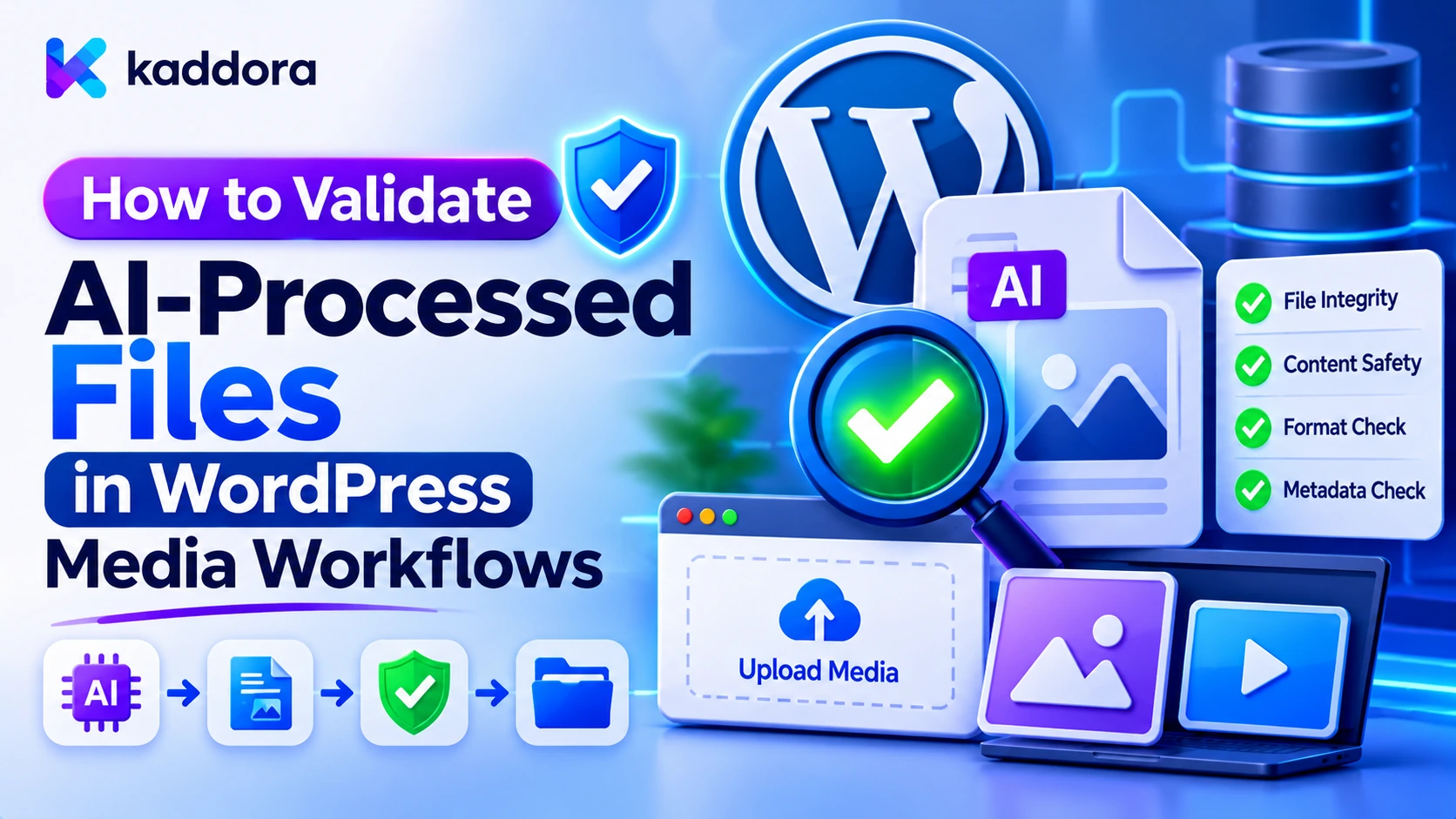
An AI media feature may involve several operations:
A visitor or administrator uploads a file.
WordPress receives and temporarily stores the file.
The plugin validates the uploaded content.
The approved file is sent to an AI provider.
The provider analyzes or transforms the file.
The plugin receives a generated or processed result.
The resulting file is validated again.
The approved output is stored in the Media Library or another appropriate location.
Every transition between these stages is a potential trust boundary.
Common AI File Processing Features
AI feature
File validation requirements
AI image generation
Verify format, size, and image structure
AI image analysis
Validate uploaded image before processing
Image optimization
Verify decoded and converted output
AI document summarization
Restrict formats and validate document structure
PDF extraction
Use safe document parsing and resource limits
AI background removal
Validate source and generated image
AI alt-text generation
Confirm the input is a valid supported image
AI audio transcription
Validate audio format and duration
AI video analysis
Restrict file size, duration, and processing resources
Different formats require different validation policies. A secure image workflow should not automatically accept PDFs, audio files, archives, and arbitrary binary data.
Never Trust File Extensions or MIME Headers Alone
One of the most common file-validation mistakes is relying on the filename extension.
For example:
product-image.jpg
The filename suggests that the file is a JPEG image, but the actual content could be something else.
An attacker may rename an unsupported file to use an allowed extension. Similarly, an external API may return an incorrect Content-Type header.
These values are metadata, not proof of the actual file format.
Validate the Real File Type
WordPress provides wp_check_filetype_and_ext() to check the relationship between a filename, its extension, and the actual file content.
Example:
$file_path = '/path/to/temporary-image.jpg'; $file_check = wp_check_filetype_and_ext( $file_path, 'temporary-image.jpg' ); if ( empty( $file_check['type'] ) ) { return new WP_Error( 'kaddora_ai_invalid_file_type', 'The file type could not be verified.' ); }
For image files, WordPress uses image inspection to help determine the actual MIME type.
However, this function is not a universal malware scanner or complete validator for every document and binary format. Developers must apply additional format-specific checks.
Define Allowed File Types
An AI image-processing feature should accept only the formats it needs.
For example:
$allowed_types = array( 'jpg|jpeg' => 'image/jpeg', 'png' => 'image/png', 'webp' => 'image/webp', );
Avoid enabling SVG, executable files, archives, or other complex formats unless the application has a specific requirement and an appropriate security strategy.
SVG files deserve particular care because they can contain active content. Do not treat them like ordinary raster images or allow arbitrary SVG files into a workflow that assumes passive image data.
Validate File Size Before Processing
File size restrictions are important because AI processing can consume significant server memory, processing time, and external API resources.
An attacker may upload an extremely large file to exhaust WordPress server resources or generate unnecessary AI processing costs.
Define separate limits for different formats.
For example:
File category
Example application limit
Raster image
5 MB
PDF document
10 MB
Audio recording
20 MB
Video file
50 MB
These are illustrative limits, not universal WordPress requirements. Choose values according to hosting capacity, plugin functionality, provider limits, and expected usage.
Check File Size on the Server
function kaddora_ai_validate_file_size( $file_path ) { if ( ! is_string( $file_path ) || ! is_file( $file_path ) || ! is_readable( $file_path ) ) { return new WP_Error( 'kaddora_ai_invalid_file', 'The temporary file is unavailable.' ); } $file_size = filesize( $file_path ); if ( false === $file_size || $file_size <= 0 ) { return new WP_Error( 'kaddora_ai_empty_file', 'The file is empty or unreadable.' ); } $maximum_size = 5 * MB_IN_BYTES; if ( $file_size > $maximum_size ) { return new WP_Error( 'kaddora_ai_file_too_large', 'The file exceeds the permitted size.' ); } return true; }
Perform this check before sending a file to an external AI provider or opening it with a complex processing library.
Also enforce limits at the HTTP upload layer and hosting configuration level. Checking the file after upload does not prevent an oversized request from already consuming network or temporary storage resources.
Validate Image Dimensions and File Signatures
Image dimensions can be just as important as file size.
A compressed image may occupy relatively little disk space while requiring substantial memory when decoded.
For example, an image with extremely large dimensions may consume much more memory during processing than its original file size suggests.
Check Image Dimensions
Use WordPress image functions or suitable PHP image-inspection functions to examine the actual image.
$image_info = getimagesize( $file_path ); if ( false === $image_info ) { return new WP_Error( 'kaddora_ai_invalid_image', 'The uploaded file is not a valid image.' ); } $width = (int) $image_info[0]; $height = (int) $image_info[1]; if ( $width < 1 || $height < 1 || $width > 6000 || $height > 6000 ) { return new WP_Error( 'kaddora_ai_invalid_dimensions', 'The image dimensions are outside the permitted range.' ); } if ( ( $width * $height ) > 25000000 ) { return new WP_Error( 'kaddora_ai_pixel_limit', 'The image contains too many pixels.' ); }
The limits above are examples and should be adjusted to the actual image-processing environment.
File signature inspection and successful image decoding provide additional evidence about the content type. Neither one alone proves that a file is harmless.
Inspect the Actual MIME Type
WordPress provides wp_get_image_mime() to determine an image's real MIME type.
$real_mime = wp_get_image_mime( $file_path ); $allowed_image_mimes = array( 'image/jpeg', 'image/png', 'image/webp', ); if ( false === $real_mime || ! in_array( $real_mime, $allowed_image_mimes, true ) ) { return new WP_Error( 'kaddora_ai_unsupported_image', 'The image format is not supported.' ); }
This helps prevent a file from being accepted solely because its name ends in an allowed image extension.
Validate Files Returned by AI Providers
Developers often focus on validating files uploaded by users but forget that AI-generated files also require validation.
An external provider might return:
A generated image.
A converted document.
An audio file.
A downloadable file URL.
Encoded binary data.
An unexpected response structure.
Do not assume that a file is safe because it came from an established AI service.
Validate the Provider Response
Before processing the output:
Verify the response structure.
Confirm the expected output field exists.
Check that the returned file data is of the expected type.
Validate encoded data before decoding it.
Enforce response-size limits.
Confirm that the actual file format matches the feature requirements.
Reject unexpected URLs and formats.
For encoded image data, decode it strictly and reject malformed input.
A valid Base64 string does not guarantee that the decoded bytes represent a valid image.
Do Not Trust Remote File URLs Automatically
Some AI providers return URLs from which generated files can be downloaded.
These URLs should be treated as untrusted remote destinations.
Validate the URL against the relevant provider's documented hostnames, use safe WordPress HTTP functions, and apply the SSRF controls appropriate to the integration.
Also verify the downloaded response independently rather than relying on the URL or HTTP Content-Type header.
Use Safe Temporary File Storage
Files should not be moved into the public WordPress Media Library before they have passed the required validation stages.
A safer workflow uses temporary storage during processing.
For sensitive documents, temporary storage should be outside publicly accessible web directories where the hosting environment permits it.
Temporary files should have:
Application-controlled filenames.
Restricted filesystem permissions.
A defined expiration period.
Controlled access by processing tasks.
Cleanup after success or failure.
Do not construct temporary paths directly from user-provided filenames.
Use controlled temporary-file creation and avoid allowing the AI provider to determine arbitrary filesystem paths.
For private uploads, do not assume that placing a file in the normal uploads directory makes it private. Standard Media Library files are generally accessible through their URLs unless additional access controls are implemented.
Re-Encode Images Before Publishing Them
An image that passes a MIME check may still contain unwanted metadata, malformed structures, or content that should not be preserved.
For workflows that generate public images, consider decoding and re-encoding approved raster images using a maintained image-processing library.
A safe transformation pipeline should:
Verify that the file is an allowed image.
Check its dimensions and pixel count.
Decode it using an up-to-date image library.
Reject unsupported or malformed content.
Re-encode it into an approved image format.
Apply appropriate metadata-removal settings.
Validate the resulting output again.
For example, an AI image optimizer may convert uploaded images into WebP after validating the original.
Re-encoding can remove some unwanted metadata and embedded content, but it does not guarantee that all malicious content is removed or that the image-processing library itself is immune to vulnerabilities.
Keep image libraries updated and apply memory, dimension, and processing-time limits.
Handle PDFs, Audio, Video, and Archives Separately
Not all files should be processed using image-validation functions.
Each format introduces its own security considerations.
PDF Documents
PDF files may contain complex structures, embedded objects, scripts, links, and other active features.
A document-processing feature should validate the expected PDF format, impose page and size limits, and use maintained document-parsing libraries.
Avoid executing embedded content or automatically retrieving every URL found inside a document.
For confidential documents, consider restricted storage and a secure retrieval mechanism rather than placing them in a public Media Library location.
Audio and Video
Audio and video processing can consume substantial CPU and memory.
Validate the actual media format, duration, file size, and decoding requirements.
Use maintained media-processing tools, restrict processing time, and avoid accepting arbitrary codecs merely because a filename has an approved extension.
Archives
ZIP and other archive formats require additional caution.
An archive may contain nested files, extremely large extracted content, path traversal entries, or unsupported file types.
If archive processing is not essential, do not support it.
If it is necessary, restrict the allowed contents, number of entries, extraction size, nesting depth, and extraction paths. Never extract untrusted archives into arbitrary application directories.
Register Validated Files Using WordPress Media APIs
Once a processed file has passed the required checks, use WordPress media APIs rather than manually inserting attachment records and filenames.
For an existing local temporary file, media_handle_sideload() is useful for adding the file to the Media Library.
It performs WordPress sideload handling and creates an attachment with associated metadata.
Example: Add a Validated Image to the Media Library
function kaddora_ai_register_validated_image( $temp_path, $mime_type, $post_id = 0 ) { if ( ! is_file( $temp_path ) || ! is_readable( $temp_path ) ) { return new WP_Error( 'kaddora_ai_missing_temp_file', 'The processed image is unavailable.' ); } $allowed_extensions = array( 'image/jpeg' => 'jpg', 'image/png' => 'png', 'image/webp' => 'webp', ); if ( ! isset( $allowed_extensions[ $mime_type ] ) ) { return new WP_Error( 'kaddora_ai_unsupported_mime', 'The processed image format is not permitted.' ); } require_once ABSPATH . 'wp-admin/includes/media.php'; require_once ABSPATH . 'wp-admin/includes/file.php'; require_once ABSPATH . 'wp-admin/includes/image.php'; $file = array( 'name' => 'kaddora-ai-' . wp_generate_password( 12, false ) . '.' . $allowed_extensions[ $mime_type ], 'type' => $mime_type, 'tmp_name' => $temp_path, 'error' => 0, 'size' => filesize( $temp_path ), ); return media_handle_sideload( $file, absint( $post_id ), 'AI Processed Image' ); }
This example demonstrates the final registration stage. It assumes that all size, format, image-dimension, content, and processing checks have already succeeded.
The MIME value should come from verified file inspection, not from the AI provider's response or the original filename.
Before calling this function, the plugin must also verify that the file is an authorized output for the requested operation and that the current user is permitted to create the attachment.
media_handle_sideload() applies WordPress's own file-handling and attachment-creation workflow, but it does not replace the full security validation pipeline described in this guide.
Handle Temporary File Cleanup
Temporary files should be deleted when they are no longer needed.
If registration fails, remove the temporary file unless another controlled process needs to retain it for investigation.
If registration succeeds, remember that the file may have been moved into the uploads directory. Do not blindly delete a path that no longer belongs to the temporary-processing stage.
Use a clear lifecycle for temporary and permanent files to avoid accidental deletion or unnecessary storage retention.
Protect Media Metadata and AI-Generated Descriptions
AI media workflows may also generate:
Image alternative text.
Attachment titles.
Image captions.
File descriptions.
Document summaries.
These values should be treated as untrusted text.
Validate the expected data type and length before saving them.
For example:
$alt_text = sanitize_text_field( $ai_alt_text ); $alt_text = mb_substr( $alt_text, 0, 500 ); update_post_meta( $attachment_id, '_wp_attachment_image_alt', $alt_text );
When displaying generated metadata in custom interfaces, use the appropriate WordPress output-escaping function.
Do not insert AI-generated descriptions into HTML attributes or JavaScript without context-specific escaping.
Also ensure that metadata generation does not overwrite existing information without the appropriate user's approval.
Prevent Unauthorized File Access and Processing
File validation is only one part of media security. Developers must also control who can upload, process, retrieve, and modify files.
For example, a public chatbot should not automatically gain access to private documents in the WordPress Media Library.
Before processing an attachment:
Verify that the attachment exists.
Check the current user's capability.
Confirm resource ownership or tenant scope.
Verify that the file is approved for the requested AI feature.
Check that the file has not been deleted or replaced.
Avoid retrieving private files through unrestricted attachment URLs.
For background processing, store the trusted user and resource context with the job and recheck authorization when execution begins.
A valid attachment ID does not automatically establish permission to access the underlying file.
Log File Validation and Processing Results
AI media workflows should maintain useful records of file-processing activity.
A secure processing log can include:
Processing job identifier.
Attachment identifier, when available.
File category.
Verified MIME type.
File size.
Processing status.
Validation result.
AI provider or processing service identifier.
Error category.
Processing duration.
Cleanup status.
Avoid storing unnecessary file contents, API credentials, private document text, or sensitive customer information in logs.
When validation fails, record the reason category rather than exposing detailed server paths or confidential internal information to frontend users.
Audit logs should have appropriate access controls and retention limits.
Test AI-Processed File Validation Before Release
Testing should cover the complete workflow rather than only checking whether a file can be uploaded.
Use a staging WordPress environment and prepare a collection of valid, malformed, oversized, and unexpected files.
Test scenario
Expected result
Valid JPEG image
Accepted after content validation
PNG renamed with a different extension
Rejected or handled using verified type
Invalid image signature
Rejected
Empty file
Rejected
Oversized image
Rejected before AI processing
Excessive image dimensions
Rejected or safely transformed within limits
Malformed PDF
Rejected by document validation
Unsupported archive
Rejected
AI provider returns invalid Base64
Rejected
AI provider returns an unexpected format
Rejected
AI output exceeds response limit
Rejected
User attempts to process another user's private file
Access denied
Failed registration
Temporary file cleaned up
Successful image transformation
Validated output registered as an attachment
Also test processing failures, timeouts, interrupted jobs, storage exhaustion, and repeated submissions.
Verify that an unsuccessful workflow does not leave partially registered attachments, publicly accessible temporary files, or unnecessary copies of sensitive documents.
Common Mistakes to Avoid
Trusting file extensions: A filename ending in .jpg does not prove that the content is a JPEG image.
Trusting MIME headers: The MIME type supplied by a browser or external provider may be incorrect.
Validating only uploaded files: AI-generated and provider-returned files also require validation.
Ignoring image dimensions: A small compressed file may expand into a very large decoded image.
Accepting arbitrary file formats: Support only the formats required by the feature.
Publishing files before validation: Use controlled temporary storage during processing.
Assuming WordPress media handling is a complete malware scanner: Native upload functions provide useful checks, but application-specific validation is still necessary.
Using public storage for confidential files: Normal Media Library URLs should not be treated as private access controls.
Ignoring temporary-file cleanup: Failed AI jobs can leave sensitive files and consume storage.
Trusting AI-generated metadata: Titles, captions, and alt text require validation and safe rendering.
Skipping authorization checks: A valid attachment ID does not establish the user's right to process that file.
Best Practices Checklist
Treat uploaded and AI-generated files as untrusted.
Define allowed file types for each AI feature.
Enforce file-size limits before processing.
Validate MIME types using actual file content.
Use wp_check_filetype_and_ext() where appropriate.
Use wp_get_image_mime() for image verification.
Check image dimensions and total pixel count.
Validate AI provider responses and encoded file data.
Use safe temporary storage.
Re-encode approved raster images where appropriate.
Use separate validation rules for PDFs, audio, video, and archives.
Use WordPress media APIs to register approved files.
Verify attachment ownership and user permissions.
Protect sensitive files from public access.
Validate AI-generated attachment metadata.
Clean up temporary files after success or failure.
Log validation outcomes without exposing sensitive content.
Test malformed files, oversized files, and failed processing workflows.
Why Choose Kaddora?
Kaddora focuses on WordPress development, AI integration, website functionality, and business workflow automation. Reliable media automation requires careful handling of uploaded files, external AI responses, generated images, and document-processing operations. Understanding secure file validation and WordPress media APIs helps developers create AI-powered solutions that manage content more responsibly while maintaining functionality and security.
Conclusion
Validating AI-processed files is an essential part of building secure WordPress media workflows.
AI-powered plugins may receive files from visitors, transfer information to external providers, and store generated outputs in the Media Library. Each stage introduces potential risks involving incorrect MIME types, malformed files, oversized content, unsafe documents, and unauthorized access.
Developers should implement a layered validation process that checks file size, actual content type, image dimensions, supported formats, and processing limits before accepting a file.
WordPress functions such as wp_check_filetype_and_ext(), wp_get_image_mime(), media_handle_sideload(), and related media APIs provide useful building blocks for secure file handling. However, these functions must be combined with application-specific validation, safe temporary storage, authorization checks, and appropriate processing controls.
The most important principle is that neither uploaded files nor AI-generated outputs should be trusted automatically.
By validating every file at the appropriate processing stage, controlling how files are stored, and enforcing access permissions, WordPress developers can build more reliable AI media workflows while reducing file-upload, processing, and data-exposure risks.
Frequently Asked Questions
Why should AI-processed files be validated in WordPress?
AI-processed files may contain unexpected formats, malformed content, oversized data, or unsafe structures. Validation helps prevent malicious or unsuitable files from entering the WordPress Media Library and processing workflows.
How can developers verify the actual file type?
Developers can use functions such as wp_check_filetype_and_ext() and wp_get_image_mime() to inspect file content and compare it with the expected format. Additional format-specific validation may also be necessary.
Is checking a file extension enough to validate an AI-generated image?
No. File extensions can be changed and do not prove the actual content type. Developers should inspect the file's real MIME type, signature, dimensions, and decodability.
How can WordPress developers safely store AI-generated files?
Use controlled temporary storage during processing, validate the resulting file, and register approved outputs through WordPress media APIs such as media_handle_sideload(). Sensitive files may require storage outside publicly accessible uploads directories.
Should AI-generated images be re-encoded before publishing?
Re-encoding through a maintained image-processing library can help normalize image formats and remove some unnecessary metadata. The resulting file must still be validated, and the image-processing library must be kept updated.
How can developers protect private documents during AI processing?
Store sensitive documents in restricted storage, verify user and resource permissions, minimize external data transfers, and use controlled retrieval mechanisms rather than assuming standard Media Library URLs are private.
What happens when AI file validation fails?
The plugin should reject the file, prevent further processing, return a controlled error, clean up temporary data where appropriate, and record the failure without exposing sensitive information.
Why choose ThemeKaddora?
ThemeKaddora provides WordPress plugins, themes, and templates for developers, agencies, and website owners. Its practical approach to digital product development supports building useful WordPress solutions with attention to functionality, reliability, and security.
Comments (0)