
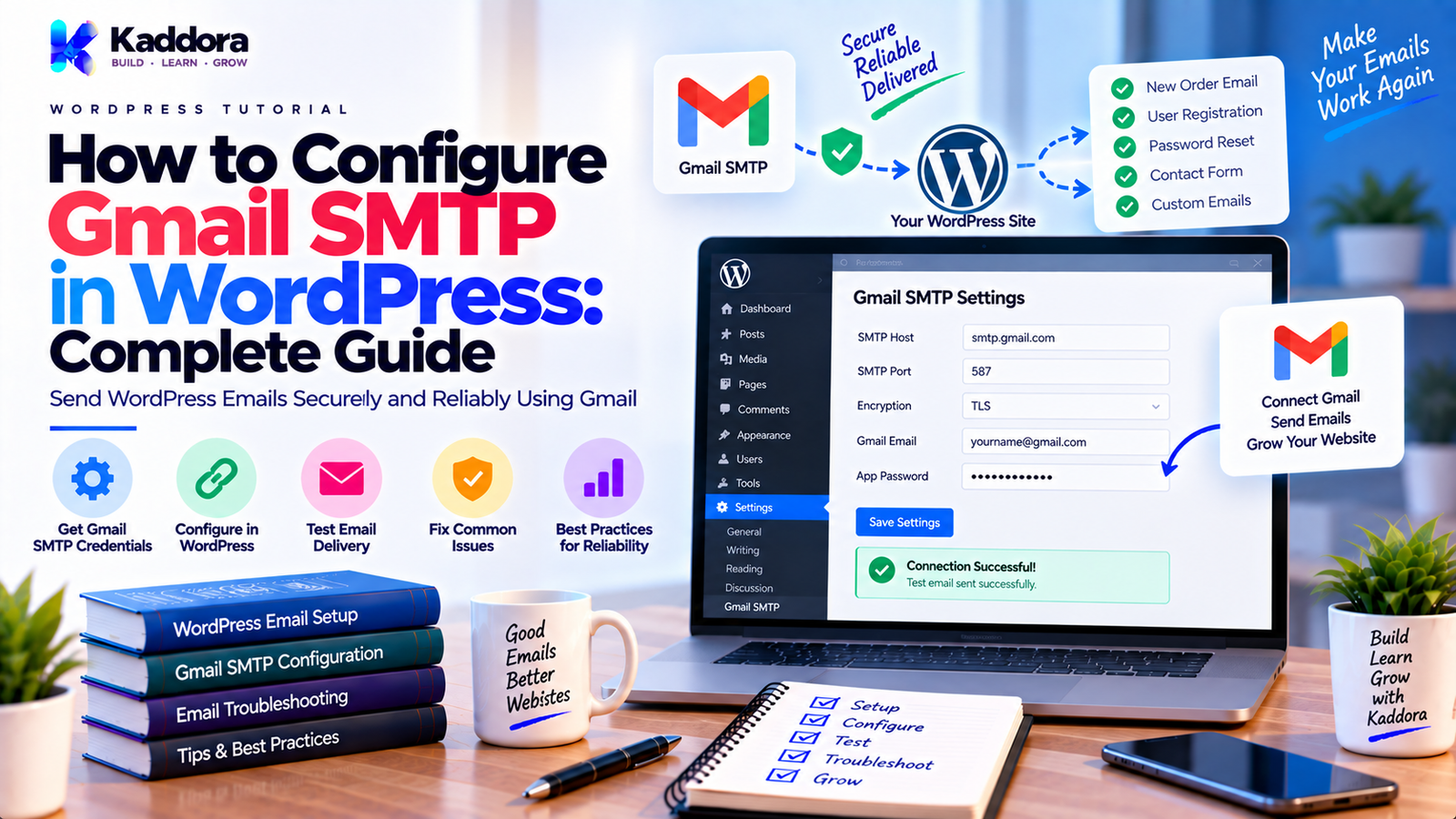
How to Configure Gmail SMTP in WordPress: Complete Guide
Introduction
WordPress sends many types of emails.
These can include:
Password reset emails
New user notifications
Contact form messages
WooCommerce order notifications
Booking confirmations
Account notifications
Newsletter emails
Plugin alerts
Website administration emails
By default, WordPress uses the wp_mail() function for sending email. The function relies on the site's server-side mail configuration rather than providing its own complete mail delivery service.
Because server mail configuration varies between hosting environments, messages may sometimes fail to arrive, be delayed, or have poor sender authentication.
One solution is to configure WordPress to send through Gmail SMTP.
The basic architecture looks like this:
WordPress ↓ wp_mail() ↓ SMTP Configuration ↓ Gmail SMTP Server ↓ Recipient
A common Gmail SMTP configuration uses:
SMTP Host: smtp.gmail.com Port: 465 Encryption: SSL/TLS
or:
SMTP Host: smtp.gmail.com Port: 587 Encryption: TLS / STARTTLS
Google also supports OAuth 2.0 for Gmail SMTP authentication. When an application does not offer Google sign-in, an App Password can be used on eligible accounts with 2-Step Verification enabled.
In this guide, you'll learn how to configure Gmail SMTP in WordPress, how to create a Google App Password, how OAuth works, how to configure a WordPress SMTP plugin, how to test email delivery, how to troubleshoot common errors, and how to build a more reliable WordPress email setup.
What Is Gmail SMTP?
SMTP stands for Simple Mail Transfer Protocol.
It is the protocol used to send email messages from an application or mail client to a mail server.
Gmail provides an SMTP service that applications can connect to using:
smtp.gmail.com
Google documents SMTP access using secure TLS connections and supports OAuth 2.0 authentication.
Instead of WordPress relying entirely on the hosting server's default mail system, the website can hand the message to Gmail's SMTP service.
The flow becomes:
WordPress ↓ Email Request ↓ SMTP Authentication ↓ Gmail ↓ Recipient Mail Server ↓ Inbox
Why Use Gmail SMTP in WordPress?
There are several reasons website owners configure Gmail SMTP.
Better Control Over Sending
Using an authenticated SMTP service provides a defined sender and mail server instead of depending entirely on the hosting environment.
Easier Troubleshooting
A dedicated SMTP configuration makes it easier to identify authentication and connection problems.
Gmail Integration
Businesses and individuals already using Google accounts may prefer to keep outgoing website mail connected to their Google email infrastructure.
Better WordPress Compatibility
SMTP plugins can integrate with WordPress's existing wp_mail() system instead of requiring every plugin to implement its own email delivery logic.
Gmail SMTP Settings for WordPress
The basic settings are:
Setting
Value
SMTP Host
smtp.gmail.com
SMTP Port
465
Encryption
SSL/TLS
Alternative Port
587
Alternative Encryption
TLS / STARTTLS
Authentication
Required
Username
Full Gmail or Google Workspace email address
Google's current documentation identifies smtp.gmail.com and supports port 465 for SSL or 587 for TLS.
For many WordPress SMTP plugins, port 587 with TLS/STARTTLS is a convenient configuration.
Port 465 with SSL/TLS is another supported option.
Gmail SMTP Authentication Options
Authentication is one of the most important parts of the setup.
There are two common approaches.
Option 1 — OAuth 2.0
OAuth allows WordPress to connect to Google without storing your Google account password in the WordPress SMTP settings.
Google's Gmail SMTP documentation supports OAuth 2.0 authentication.
A typical OAuth flow is:
WordPress SMTP Plugin ↓ Google Authorization ↓ User Grants Access ↓ OAuth Tokens ↓ Gmail SMTP
This is generally the preferred approach when the SMTP plugin supports Google sign-in.
Option 2 — Gmail App Password
If the WordPress SMTP plugin does not support Google sign-in and uses traditional SMTP authentication, an App Password may be used on eligible Google accounts.
Google states that App Passwords require 2-Step Verification. They are not available in every account configuration, including some managed organization accounts and certain security configurations.
The App Password should be used instead of your normal Google account password.
Important: Do Not Use Your Normal Gmail Password
One of the most common mistakes is entering the regular Google account password into a WordPress SMTP plugin.
For App Password authentication:
Google Account Password ✕ ↓ Don't use for SMTP plugin
Instead:
Google App Password ↓ Use in SMTP Password Field
Google specifically describes App Passwords as a separate 16-digit credential for apps or devices that cannot use the preferred Google sign-in flow.
Step 1: Enable 2-Step Verification
To create an App Password, your Google account must have 2-Step Verification enabled.
The general process is:
Google Account ↓ Security ↓ 2-Step Verification ↓ Enable
Complete Google's verification process.
After 2-Step Verification is active, eligible accounts can access the App Password section.
Step 2: Create a Google App Password
Open your Google Account security settings and access the App Passwords section.
Then:
Choose App ↓ Choose / Enter Device ↓ Generate ↓ 16-Digit App Password
Google notes that an App Password is a 16-digit passcode and that it is shown for use with the application or device being authorized.
Copy the generated password.
Do not share it publicly.
Step 3: Install a WordPress SMTP Plugin
WordPress does not provide a complete SMTP configuration interface by default.
A dedicated SMTP plugin can connect WordPress email functions to Gmail SMTP or another mail provider.
The plugin generally provides fields such as:
Mailer SMTP Host SMTP Port Encryption Authentication Username Password From Email From Name
The exact interface depends on the plugin.
Choose a maintained SMTP plugin that supports your preferred Gmail authentication method.
Step 4: Configure the SMTP Host
Enter:
smtp.gmail.com
This is Google's documented outgoing SMTP host.
Don't enter:
gmail.com mail.gmail.com smtp.google.com
Use the correct Gmail SMTP hostname:
smtp.gmail.com
Step 5: Configure the SMTP Port
You can generally choose one of these supported secure configurations.
Option A — TLS
Host: smtp.gmail.com Port: 587 Encryption: TLS / STARTTLS
Option B — SSL/TLS
Host: smtp.gmail.com Port: 465 Encryption: SSL/TLS
Google documents both configurations.
If one configuration doesn't work with your hosting environment or SMTP plugin, test the other supported secure configuration.
Step 6: Enable SMTP Authentication
SMTP authentication should be enabled when using authenticated Gmail SMTP.
A typical configuration is:
Authentication: ON Username: your-email@gmail.com Password: App Password
For Google Workspace, the username is generally the complete account email address.
Google's Workspace documentation specifically describes authentication using the full Workspace email address and an App Password for this SMTP configuration.
Step 7: Configure the From Email
Use a sender address that matches the Google account or configured sending identity.
For example:
From Email: yourname@gmail.com
For a Google Workspace account:
From Email: hello@example.com
Using a sender that doesn't align with your authenticated Google account or authorized sending identity can create sender or policy problems.
Google also documents sending from aliases, but the configuration must be authorized correctly.
Step 8: Configure the From Name
Set a recognizable sender name.
For example:
From Name: ThemeKaddora
or:
From Name: Kaddora Support
A consistent sender name makes website emails easier for recipients to identify.
Step 9: Save the SMTP Settings
A typical configuration may look like:
Mailer: SMTP SMTP Host: smtp.gmail.com SMTP Port: 587 Encryption: TLS Authentication: Yes Username: your-email@gmail.com Password: Google App Password From Email: your-email@gmail.com From Name: Your Website
Save the settings.
Step 10: Send a Test Email
Never assume the configuration works just because the settings saved successfully.
Send a test email to an address you control.
For example:
WordPress ↓ SMTP Plugin ↓ Gmail SMTP ↓ Test Recipient
Check:
Inbox
Spam folder
From address
Subject
Message content
Delivery time
SMTP plugin logs
How WordPress Email Sending Works After SMTP Setup
After configuration, plugins generally continue using WordPress's mail functionality.
The architecture becomes:
WordPress Plugin ↓ wp_mail() ↓ SMTP Integration ↓ PHPMailer ↓ Gmail SMTP ↓ Recipient
WordPress documents wp_mail() as its email-sending wrapper, and SMTP plugins can configure the underlying mail transport.
This means existing plugins such as contact forms and WooCommerce notifications can often continue using their normal WordPress email functions.
Gmail SMTP With WordPress Contact Forms
A contact form plugin might call:
wp_mail( $recipient, $subject, $message );
Once the SMTP layer is configured:
Contact Form ↓ wp_mail() ↓ SMTP Configuration ↓ Gmail ↓ Recipient
The contact form doesn't necessarily need its own Gmail SMTP implementation.
The WordPress mail transport handles the connection.
Gmail SMTP With WooCommerce
WooCommerce sends several types of notifications.
Examples include:
New order
Order processing
Order completed
Customer invoice
Password reset
Account emails
After SMTP configuration, these messages can use the configured mail transport.
A simplified flow is:
WooCommerce Event ↓ wp_mail() ↓ Gmail SMTP ↓ Customer
Test important WooCommerce emails after changing mail infrastructure.
Gmail SMTP With WordPress User Emails
WordPress can send:
New account emails
Password reset messages
Administration notifications
Other system messages
SMTP configuration can improve control over how these messages are submitted to the mail server.
Always verify the result with actual test messages.
Gmail SMTP With Email Marketing
Gmail SMTP can be useful for lower-volume website emails, testing, or small-scale communication.
However, a standard Gmail SMTP setup should not automatically be treated as a complete bulk email marketing platform.
Marketing systems often require:
Subscriber management
Unsubscribe processing
Bounce handling
Queue processing
Campaign analytics
Reputation management
Higher-volume delivery infrastructure
For larger campaigns, a dedicated email delivery platform may be more appropriate.
Google also imposes sending limits and filtering policies, so SMTP availability should not be interpreted as unlimited sending capacity.
Gmail SMTP and OAuth 2.0
OAuth is especially useful when your WordPress SMTP plugin supports a native Google connection.
A typical configuration is:
WordPress SMTP Plugin ↓ Connect with Google ↓ Google Authorization ↓ Permission Granted ↓ OAuth Token ↓ Gmail SMTP
This avoids placing a reusable Google account password into the SMTP settings.
Google's Gmail SMTP documentation supports OAuth 2.0 using the XOAUTH2 mechanism.
Gmail SMTP and App Passwords
App Passwords are useful when the connecting software does not provide Google sign-in.
For example:
WordPress SMTP Plugin ↓ SMTP Authentication ↓ Google Account ↓ App Password
Google recommends using Google sign-in where supported and describes App Passwords as a fallback for apps or devices that don't support that authentication method.
Why You May Not See the App Password Option
Some accounts cannot use App Passwords.
Google lists situations that can prevent the option from appearing, including:
Certain organization-managed accounts
Accounts using only security keys for 2-Step Verification
Accounts enrolled in Advanced Protection
If the App Password option isn't available, OAuth or an administrator-approved Google Workspace configuration may be the appropriate path.
Gmail SMTP for Google Workspace
Google Workspace accounts can also use Gmail SMTP.
A Workspace SMTP setup can use:
SMTP Host: smtp.gmail.com Port: 465 SSL or 587 TLS Username: Full Workspace Email Authentication: App Password / Supported Authentication
Google's current Workspace guidance documents smtp.gmail.com, secure ports, and App Password authentication for this connection method.
Organizations can also configure the Google Workspace SMTP relay service using:
smtp-relay.gmail.com
That is a different architecture and is generally managed by Workspace administrators.
Gmail SMTP vs Google Workspace SMTP Relay
These should not be confused.
Gmail SMTP
smtp.gmail.com
Uses account-based authentication.
Workspace SMTP Relay
smtp-relay.gmail.com
Designed for organization-managed relay scenarios.
Google's Workspace documentation recommends SMTP relay for devices and applications in supported organizational environments.
Choose the architecture that matches your account and hosting environment.
Common Gmail SMTP Authentication Errors
One of the most common messages is:
Username and Password not accepted
Possible causes include:
Wrong username
Wrong App Password
2-Step Verification not enabled
App Password unavailable
Wrong authentication method
Google account security restriction
Organization policy
Incorrect OAuth configuration
Don't start changing random SMTP settings.
Check authentication first.
Common SMTP Port Errors
If port 587 does not connect, verify:
Host: smtp.gmail.com Port: 587 Encryption: TLS / STARTTLS
For the alternative configuration:
Host: smtp.gmail.com Port: 465 Encryption: SSL/TLS
Google documents both secure options.
Make sure the encryption mode matches the selected port.
STARTTLS Error
An error may indicate:
Must issue STARTTLS command first
Google documents this SMTP error condition.
Check that:
Port 587 + TLS / STARTTLS
are configured together.
Don't combine a mismatched port and encryption mode.
Gmail SMTP Authentication Failed
Use this troubleshooting sequence:
Check Email Address ↓ Check 2-Step Verification ↓ Check App Password ↓ Check SMTP Host ↓ Check Port ↓ Check Encryption ↓ Send Test
If App Password authentication is being used, do not enter the normal Google account password.
Google Account Password Changes and App Passwords
Google states that App Passwords are revoked when the Google account password is changed.
Therefore, after changing the Google account password:
Google Password Changed ↓ Existing App Password Revoked ↓ WordPress SMTP Fails ↓ Create New App Password ↓ Update WordPress
This is a common reason a previously working SMTP setup suddenly stops authenticating.
Gmail SMTP Test Email Goes to Spam
SMTP authentication does not guarantee inbox placement.
Check:
Sender identity
Domain authentication
Message content
Recipient behavior
Google filtering
Spam folder
Sending reputation
For Google Workspace and custom domains, proper domain authentication such as SPF, DKIM, and DMARC should also be considered as part of broader mail configuration.
Gmail SMTP Works but WordPress Emails Still Fail
If the SMTP test succeeds but a specific plugin's email doesn't work, investigate the plugin itself.
Check:
Plugin ↓ wp_mail() ↓ SMTP
Potential problems include:
Invalid recipient
Incorrect headers
Plugin-specific configuration
Failed template rendering
Empty message
Incorrect sender configuration
WordPress notes that a successful wp_mail() return value does not guarantee that the email was actually received.
Gmail SMTP and the WordPress From Address
A WordPress plugin may attempt to set a sender address different from the authenticated account.
This can create inconsistencies.
For example:
Authenticated Account: support@example.com From Header: random@gmail.com
Before using a different sender, confirm that the sender identity is authorized by your Google account or Workspace configuration.
Google documents supported alias and send-as configurations separately.
Do Not Hard-Code Gmail Credentials in Plugin Code
Avoid:
$username = 'your-email@gmail.com'; $password = 'your-password';
This is unsafe.
Credentials should be handled through secure configuration mechanisms and protected WordPress settings.
For custom plugin development:
Restrict access
Avoid exposing secrets
Sanitize settings
Protect forms with nonces
Check capabilities
Avoid logging passwords
Keep credentials out of public source code
Example SMTP Configuration With PHPMailer
For developers building custom WordPress functionality, SMTP configuration can be connected to WordPress's PHPMailer instance.
A simplified example is:
add_action( 'phpmailer_init', 'kaddora_configure_gmail_smtp' ); function kaddora_configure_gmail_smtp( $phpmailer ) { $phpmailer->isSMTP(); $phpmailer->Host = 'smtp.gmail.com'; $phpmailer->Port = 587; $phpmailer->SMTPSecure = 'tls'; $phpmailer->SMTPAuth = true; $phpmailer->Username = 'your-email@gmail.com'; $phpmailer->Password = 'YOUR_APP_PASSWORD'; }
This example is intentionally simplified.
For a production plugin, credentials should not be hard-coded, and settings should be stored and accessed securely.
Also validate the actual PHPMailer integration and WordPress environment before deploying custom SMTP code.
For most site owners, using a maintained SMTP plugin is simpler than building a custom mail transport.
Using Gmail SMTP Without Coding
For most WordPress site owners, the easiest route is:
Install SMTP Plugin ↓ Choose Gmail / SMTP Mailer ↓ Enter Gmail SMTP Settings ↓ Configure OAuth or App Password ↓ Set From Address ↓ Send Test
This avoids modifying theme or plugin files.
It also reduces the risk of accidentally breaking WordPress email functionality.
Should You Put SMTP Code in Your Theme?
Generally, no.
Email configuration belongs to the site's infrastructure or a dedicated email plugin rather than a theme.
If the theme is replaced, email delivery should not unexpectedly stop.
A better separation is:
Theme ↓ Design SMTP Plugin ↓ Email Infrastructure WordPress ↓ Application
Gmail SMTP and Plugin Conflicts
Multiple plugins may attempt to control PHPMailer.
For example:
Plugin A ↓ SMTP Settings ↓ PHPMailer Plugin B ↓ SMTP Settings ↓ PHPMailer
This can produce unpredictable behavior.
Use one primary SMTP configuration unless you have a deliberate architecture requiring multiple delivery systems.
Gmail SMTP and Transactional Email
Gmail SMTP can be useful for website-generated transactional emails such as:
Password resets
Contact notifications
Account messages
Small-volume order notifications
For larger transactional systems, a dedicated email delivery provider may provide additional delivery monitoring, API capabilities, and scalability.
Choose infrastructure based on actual requirements.
Gmail SMTP and Marketing Email
Marketing email has different operational requirements.
For example:
Subscribers ↓ Campaign ↓ Queue ↓ Bulk Delivery ↓ Analytics
A simple Gmail SMTP connection does not automatically provide all of these capabilities.
For serious email marketing, consider:
Subscriber consent
List management
Unsubscribe handling
Bounce processing
Campaign analytics
Delivery monitoring
Sending limits
Reputation
This distinction is especially important when building a WordPress email marketing plugin.
Gmail SMTP Security Best Practices
Use these practices:
Enable 2-Step Verification when using App Passwords.
Prefer OAuth when supported.
Never expose the Google account password.
Protect SMTP credentials.
Use HTTPS for the WordPress website.
Restrict SMTP configuration to authorized administrators.
Avoid logging SMTP passwords.
Use secure SMTP ports.
Keep WordPress and the SMTP plugin updated.
Test configuration changes after deployment.
Google explicitly recommends Google sign-in over App Passwords when the connecting application supports it.
Gmail SMTP Troubleshooting Checklist
Google Account
Correct Google account
2-Step Verification enabled when using App Password
App Password available
Correct App Password
OAuth authorized when using OAuth
SMTP
Host is smtp.gmail.com
Port is 465 or 587
SSL/TLS matches the port
SMTP authentication enabled
Full email address used as username
WordPress
SMTP plugin enabled
From email configured
From name configured
Test email sent
Email logs reviewed
Deliverability
Inbox checked
Spam checked
Sender identity reviewed
Domain authentication reviewed
Sending volume considered
Gmail SMTP Setup Checklist
Basic Configuration
Gmail or Google Workspace account
SMTP plugin installed
smtp.gmail.com
Port 587 TLS or 465 SSL/TLS
Authentication enabled
Authentication
OAuth configured where available
OR
2-Step Verification enabled
App Password generated
App Password entered instead of account password
Sender
From email configured
From name configured
Sender identity reviewed
Testing
Test email sent
Inbox checked
Spam checked
WordPress plugin email tested
WooCommerce email tested where applicable
How to Configure Gmail SMTP in WordPress Step by Step
Use this complete workflow:
Step 1 Create / Select Google Account ↓ Step 2 Enable 2-Step Verification if using App Password ↓ Step 3 Choose OAuth or App Password ↓ Step 4 Install WordPress SMTP Plugin ↓ Step 5 Set smtp.gmail.com ↓ Step 6 Choose 587 TLS or 465 SSL/TLS ↓ Step 7 Configure Authentication ↓ Step 8 Set From Email ↓ Step 9 Save Settings ↓ Step 10 Send Test Email ↓ Step 11 Test WordPress Notifications ↓ Step 12 Monitor Delivery
This workflow keeps authentication, SMTP configuration, and testing clearly separated.
When Should You Use Gmail SMTP?
Gmail SMTP can be a practical choice when:
A website sends relatively low-volume email
You already use Gmail or Google Workspace
You want straightforward SMTP integration
Your SMTP plugin supports Google's authentication requirements
You need WordPress transactional email delivery
It may be less suitable when you require:
High-volume marketing
Advanced delivery analytics
Large transactional workloads
Complex queue processing
Dedicated sending infrastructure
Advanced suppression and bounce management
The correct solution depends on the website's email requirements.
Gmail SMTP vs Dedicated Email Service
Gmail SMTP
Familiar Google infrastructure
Simple for smaller website email workloads
Supports secure SMTP
Supports OAuth 2.0
Can use App Passwords in eligible scenarios
Dedicated Email Delivery Service
Designed for application email
Better suited to larger volumes
More delivery analytics
API-based sending
Queue and event support
Specialized deliverability features
Neither should be selected purely because one has more features.
Choose according to email volume, technical requirements, integrations, and operational needs.
Common Gmail SMTP Mistakes
Using the Normal Google Password
Use OAuth or an eligible App Password instead.
Using the Wrong Port
Match the port and encryption:
587 → TLS / STARTTLS 465 → SSL/TLS
Using the Wrong SMTP Host
Use:
smtp.gmail.com
Skipping 2-Step Verification
App Password authentication requires 2-Step Verification.
Trying to Use an Unavailable App Password
Some Google account configurations don't offer App Passwords.
Installing Multiple SMTP Plugins
Multiple mail transport configurations can conflict.
Putting Passwords in Theme Files
Never hard-code SMTP credentials into a public theme or plugin.
Assuming Test Success Means Inbox Delivery
A successful SMTP connection doesn't guarantee that the recipient received the message.
Using Gmail SMTP for Large Marketing Campaigns
Consider infrastructure designed for bulk email when volume increases.
Why Choose ThemeKaddora?
At ThemeKaddora, we create WordPress plugins, themes, WooCommerce solutions, AI tools, email marketing systems, analytics products, automation tools, HTML templates, UI kits, SaaS solutions, and business-focused digital products.
Modern WordPress products often depend on reliable email delivery for:
Contact forms
Account notifications
WooCommerce
Booking systems
Email marketing
Automation
Customer communication
SaaS workflows
ThemeKaddora focuses on practical WordPress development patterns that keep email functionality separate from themes and application business logic.
For businesses using WordPress email workflows, Gmail SMTP can be one possible delivery configuration for appropriate use cases.
As email volume and complexity grow, businesses should evaluate whether they need dedicated delivery infrastructure, queue processing, advanced analytics, or specialized transactional email services.
Final Thoughts
Configuring Gmail SMTP in WordPress can be straightforward when the authentication and SMTP settings are configured correctly.
The basic connection is:
WordPress
↓
SMTP Configuration
↓
smtp.gmail.com
↓
Secure TLS/SSL Connection
↓
Google Authentication
↓
Recipient
The most important settings are:
SMTP Host: smtp.gmail.com Port: 587 + TLS / STARTTLS or 465 + SSL/TLS
Google also supports OAuth 2.0 for Gmail SMTP. When the WordPress SMTP plugin does not provide Google sign-in, an eligible account can use an App Password with 2-Step Verification rather than the normal Google password.
The complete setup should be:
Choose Authentication
Configure SMTP
Set Sender
Test Delivery
Check WordPress Notifications
Monitor Deliverability
=
Reliable WordPress Email Setup
Don't use your normal Google password in a WordPress SMTP plugin.
Don't publish SMTP credentials in theme or plugin source code.
Don't confuse Gmail SMTP with a complete bulk-email infrastructure.
And don't assume that a successful SMTP test guarantees inbox delivery.
For small WordPress websites, Gmail SMTP can be a practical option for appropriate email workloads.
For larger email marketing or transactional systems, evaluate dedicated infrastructure based on sending volume, queue requirements, analytics, bounce processing, reputation, and scalability.
The goal is not simply to make WordPress send an email.
The goal is to create a secure, reliable, and maintainable email delivery system.
Frequently Asked Questions
What is Gmail SMTP in WordPress?
Gmail SMTP allows WordPress to send email through Google's SMTP server instead of relying entirely on the website hosting server's default mail configuration.
What is the Gmail SMTP server?
The Gmail SMTP server is:
smtp.gmail.com
Google documents this as the outgoing SMTP server for Gmail connections.
What port does Gmail SMTP use?
Google supports secure SMTP connections using port 465 for SSL or port 587 for TLS.
Which Gmail SMTP port should I use in WordPress?
A common configuration is port 587 with TLS/STARTTLS. Port 465 with SSL/TLS is another supported option.
Can Google Workspace accounts use Gmail SMTP?
Yes. Google documents authenticated SMTP connections for Google Workspace accounts using smtp.gmail.com and secure ports.
Can WooCommerce use Gmail SMTP?
Yes. WooCommerce emails can use WordPress's configured mail transport, provided the SMTP configuration is working correctly.
Can contact forms use Gmail SMTP?
Yes. Contact form plugins that use WordPress email functions can generally send through the configured SMTP transport.
Can WordPress password reset emails use Gmail SMTP?
Yes. WordPress system emails can use the configured mail transport.
Does WordPress store SMTP passwords?
The exact storage mechanism depends on the SMTP plugin. Review the plugin's security documentation and restrict administrative access to SMTP settings.
Should SMTP credentials be logged?
No. Passwords, App Passwords, OAuth secrets, and tokens should not be written to application logs.
Why choose ThemeKaddora?
ThemeKaddora provides WordPress plugins, WooCommerce products, email marketing tools, automation systems, AI solutions, analytics products, themes, templates, UI kits, SaaS solutions, and business-focused digital products designed around practical WordPress requirements.
Comments (0)