
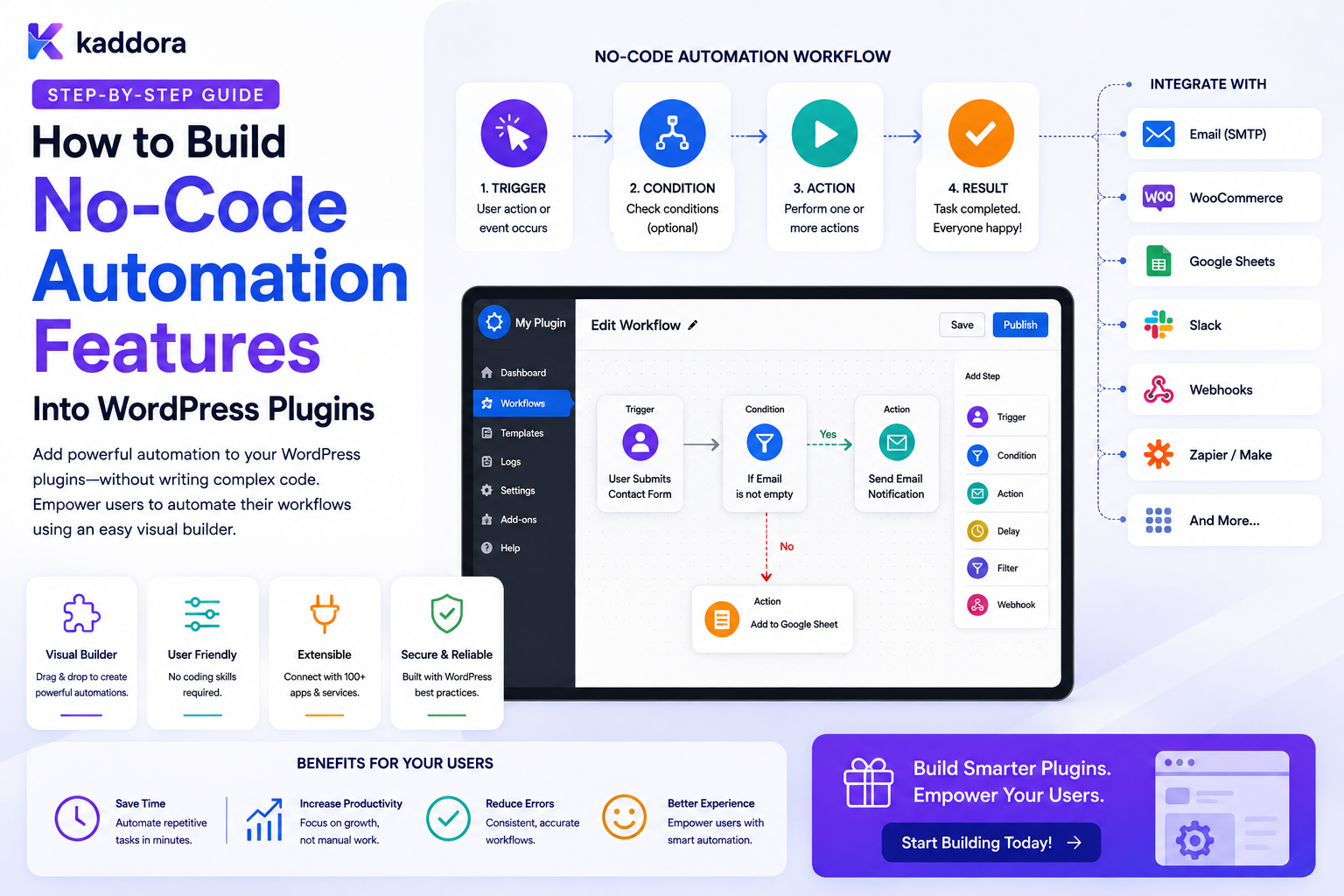
How to Build No-Code Automation Features Into WordPress Plugins
Introduction
Traditional WordPress plugins often require users to configure settings manually.
For example:
Plugin Settings ↓ Enable Feature ↓ Configure Option ↓ Save
This works well for simple functionality.
But business users increasingly expect plugins to automate processes without writing code.
For example:
When a new lead is created ↓ If lead value is high ↓ Assign enterprise sales ↓ Create follow-up task ↓ Notify manager
A no-code automation system lets the user configure this process visually or through structured forms:
[Trigger] ↓ [Condition] ↓ [Action] ↓ [Action]
The user defines what should happen, while the plugin's automation engine handles how it happens.
A modern WordPress plugin can support no-code automation for:
CRM Forms WooCommerce Content Notifications Approvals Customer Onboarding Marketing AI ERP Business Operations
However, adding a visual or no-code layer is much more than building a drag-and-drop interface.
The plugin needs:
Trigger Registry Condition Engine Action Registry Workflow Schema Validation Execution Engine Queues Scheduling Retries Idempotency Permissions Versioning History
The key principle is:
A no-code WordPress automation feature should let users configure structured workflows while keeping execution, authorization, validation, background processing, and security entirely under the plugin's controlled backend architecture.
What Is No-Code Automation in a WordPress Plugin?
No-code automation allows users to create workflows without writing PHP, JavaScript, SQL, or other programming languages.
A simple workflow could be:
Form Submitted ↓ Create CRM Lead
A more advanced workflow:
Form Submitted ↓ Lead Value > 10,000? ├── Yes → Enterprise CRM └── No → Standard CRM
Users configure the rules instead of writing the implementation.
Why Add No-Code Automation to a Plugin?
No-code automation can help plugins:
Serve non-technical users
Reduce repetitive manual configuration
Increase plugin flexibility
Support more business use cases
Reduce the need for custom development
Create reusable workflows
Connect multiple plugin features
No-Code Does Not Mean No Architecture
The interface may look simple:
Trigger ↓ Condition ↓ Action
But the backend may need:
Workflow Definition ↓ Validator ↓ Execution Engine ↓ Queue ↓ Worker ↓ History
The complexity moves from the user's code to the plugin's platform architecture.
Start With a Small Automation Vocabulary
A first version should not attempt to support every possible operation.
A practical foundation can include:
Triggers Conditions Actions Delays Approvals End
Additional capabilities can be added gradually.
Trigger Registry
A plugin can register available triggers:
post.published user.registered form.submitted order.completed lead.created
Each trigger should define:
Name Description Input Schema Permissions Event Type
Action Registry
Actions can include:
send_email create_task update_record create_crm_lead send_webhook add_tag schedule_action
Each action should define:
Configuration Schema Required Permissions Executor Input Fields Output Fields
Condition Engine
Conditions determine workflow paths.
For example:
Lead Value > 10,000
or:
Customer Type = Enterprise
The condition engine should use structured data rather than arbitrary executable code.
No-Code Workflow Model
A workflow can be represented as:
Nodes + Edges + Configuration + Version
For example:
Trigger ↓ Condition ↙ ↘ Action A Action B
Visual Editor
A visual editor can allow:
Drag Trigger ↓ Add Condition ↓ Connect Action
But the visual editor should only create a validated workflow definition.
It should not execute arbitrary browser code.
Form-Based No-Code Builder
Not every plugin needs a visual canvas.
A simpler interface can be:
WHEN: Lead Created IF: Lead Value > 10,000 THEN: Assign to Enterprise Team AND: Create Follow-Up Task
This can be easier for smaller workflows.
Visual vs Form-Based Automation
Visual
Best for:
Complex Branches Long Workflows Multiple Paths Approvals
Form-Based
Best for:
Simple Automation Small Teams Quick Configuration
A plugin can eventually support both.
Trigger Configuration
A trigger may have options:
Trigger: Order Completed Apply To: All Orders Minimum Value: 10,000
The engine should normalize these settings into structured configuration.
Condition Configuration
A condition builder might display:
[Order Total] [Greater Than] [10000]
Another could use:
[Customer Tier] [Equals] [Enterprise]
AND / OR Logic
A no-code builder should support clear groups:
ALL ├── Customer Tier = Enterprise └── Order Total > 10,000
or:
ANY ├── Priority = Critical └── Customer Tier = VIP
Nested Conditions
Advanced workflows may require:
A AND (B OR C)
Use a structured condition tree rather than free-form expressions.
Operator Selection
Operators can include:
Equals Not Equals Contains Starts With Greater Than Less Than In Not In Is Empty Is Not Empty
Only support operators with well-defined semantics.
Typed Condition Values
If the selected field is numeric:
Amount > 10000
the interface should request a number.
If it is a date:
Created Before
the UI should use date-aware input.
Missing Values
The condition engine should define what happens if:
customer.region
does not exist.
Avoid inconsistent behavior caused by implicit conversions.
Variable Picker
A no-code plugin can provide:
Insert Variable ├── Lead │ ├── Name │ ├── Email │ └── Value ├── Customer └── Order
Only approved data paths should be exposed.
Do Not Expose Arbitrary Database Queries
A no-code variable picker should not become a database administration tool.
Avoid allowing users to access:
Passwords API Keys Internal Credentials Private Tables
or arbitrary SQL expressions.
Action Configuration
An action such as:
Send Email
might expose:
Recipient Subject Template
The plugin determines how the email actually gets sent.
Action Output
An action can produce data for later nodes.
For example:
Create CRM Lead ↓ Output: crm_lead_id
A later action can use:
{{crm_lead_id}}
The variable resolver should enforce valid scope.
Scope of Variables
Variables can come from:
Trigger Action Output Workflow Context Current Entity
Define exactly when each variable is available.
Avoid Hidden Side Effects in Conditions
Conditions should evaluate information.
They should not secretly:
Send Email Create Record Delete Data Call External APIs
Side effects belong in actions.
Action Permissions
Sensitive actions should have explicit permissions.
For example:
Delete Customer
should require a higher capability than:
Create Notification
No-Code Does Not Mean No Security
A visual interface can hide dangerous functionality from users, but the backend must still enforce authorization.
A malicious request could attempt to submit:
action = delete_customer
even if the UI never displays such an action.
Server-Side Validation
Every workflow operation should validate:
Node Type Action Configuration Variables Permissions Tenant Workflow State
before execution.
Workflow Drafts
No-code workflows should typically start in:
Draft
rather than becoming immediately active.
The user can then:
Edit ↓ Validate ↓ Test ↓ Publish
Workflow Publishing
Publishing should create an immutable or versioned workflow definition.
For example:
Version 1 Active
Editing then creates:
Draft Version 2
This prevents accidental changes to active executions.
Workflow Versioning
Versioning is important because a workflow might already be running:
Execution: Version 1
while the administrator publishes:
Version 2
The existing execution should remain associated with its intended version when the platform's semantics require that.
Workflow Validation
Before publication, validate:
Trigger Exists Nodes Exist Connections Are Valid Actions Are Registered Required Fields Exist Variables Are Valid Conditions Are Valid Permissions Are Available
Detect Unreachable Nodes
For example:
Trigger ↓ Action A Action B
Action B is unreachable.
The builder should flag it before publishing.
Detect Broken Variables
Suppose:
{{crm_lead_id}}
is referenced, but no earlier action creates that variable.
The workflow should be rejected or clearly marked invalid.
Detect Unsafe Cycles
A workflow could accidentally create:
A → B → C → A
The validator should detect cycles unless intentional loops are explicitly supported.
Publish Validation vs Runtime Validation
Both matter.
Publish-Time
Catch configuration problems.
Runtime
Check:
Current State Permissions Availability External Conditions
because runtime conditions can change after publication.
Simulation Mode
Allow the user to test:
Sample Lead Value: 15,000
and show:
Enterprise Branch Selected CRM Action Would Run Notification Would Run
without executing real effects.
Dry Run
For high-risk actions, dry run can show:
Would Affect: 1,240 Records
without changing them.
This is especially useful for bulk workflows.
Test Data
A simulator should support:
Trigger Data Current Entity State Sample Action Outputs
This makes complex workflows easier to test.
Preview Workflow
A user should be able to view:
Trigger ↓ Condition ↓ Action ↓ Delay ↓ Action
before publishing.
Workflow Templates
No-code plugins can provide templates such as:
New Lead Follow-Up Customer Onboarding High-Priority Support Order Notification Content Review Approval Workflow
Templates should be copied into the user's workflow space rather than unexpectedly changing when a global template is edited.
Workflow Duplication
A user may want:
Existing Workflow ↓ Duplicate ↓ Modify
The copied workflow should get its own IDs and version history.
Workflow Import / Export
Portable workflow definitions can help users move automation between environments.
Exports should include:
Workflow Nodes Edges Configuration Version
but should exclude:
Secrets Passwords Private Tokens OAuth Refresh Tokens
Import Validation
Imported workflows should be checked for:
Unknown Actions Missing Nodes Unsupported Versions Broken Variables Permission Problems
before activation.
Compatibility Handling
A workflow created under plugin Version 1 may need migration:
Definition v1 ↓ Migration ↓ Definition v2
Do not assume every historical workflow can execute unchanged forever.
Trigger Registration
Plugins can provide their own triggers:
WooCommerce: order.completed CRM: lead.created Content: post.published
A central registry makes these available to the no-code builder.
Action Registration
Likewise:
CRM: create_lead WooCommerce: update_order Content: assign_editor
This allows plugin modules to contribute actions without rebuilding the whole automation engine.
Plugin Extension API
A reusable automation framework can expose registration methods:
register_trigger(); register_condition(); register_action();
The exact implementation should enforce schemas and permissions.
Do Not Allow Unrestricted PHP Actions
Avoid creating a no-code action such as:
Execute PHP
where users can enter arbitrary code.
That defeats the security and maintainability benefits of a controlled no-code system.
Safe Custom Actions
For advanced users, provide registered custom actions:
Action: Generate Invoice Configuration: Template Currency Output
The plugin still controls the underlying implementation.
Action Schema
Each action should define:
name label description inputs outputs permissions executor
This makes actions discoverable and consistent.
Action Input Validation
Before execution:
Recipient: valid email Amount: numeric Customer ID: authorized
The backend should validate every input.
Action Execution Isolation
An action should not have unrestricted access to the entire WordPress environment.
Give it the capabilities and services it needs.
This reduces the impact of bugs and misconfiguration.
Queue No-Code Actions
Actions such as:
CRM Sync AI Processing PDF Generation Webhook Email
are often good candidates for background processing.
The visual workflow only defines the action.
The queue executes it later.
Delayed Actions
A no-code workflow can show:
[Wait 24 Hours]
The backend stores:
waiting_until
rather than blocking PHP.
Conditional Delays
For example:
Enterprise → Wait 1 Day Standard → Wait 3 Days
The selected branch determines the delay.
Approval Actions
A plugin can offer:
[Manager Approval]
with outputs:
Approved Rejected Changes Requested
The backend must enforce who is allowed to make the decision.
Human-in-the-Loop Actions
No-code automation is strongest when it can pause for humans:
Automation ↓ Approval ↓ Wait ↓ Human Decision ↓ Continue
This supports controlled business processes.
Notification Actions
Common built-in actions include:
Send Email Send In-App Notification Create Task Send Webhook
The plugin should keep notification delivery state separate from the workflow's business state.
CRM Actions
A plugin might expose:
Create Lead Update Contact Create Task Assign Owner Move Stage
Each action should have specific permissions and validation.
WooCommerce Actions
Possible actions include:
Add Customer Note Update Order Metadata Create Task Notify Team
Financial actions should have stronger controls.
Content Actions
Possible actions:
Publish Post Assign Editor Add Category Create Review Task Schedule Update
Actions that publish or change public content should be permission-controlled.
AI Actions
Potential no-code AI actions:
Classify Summarize Extract Generate Draft Recommend
Outputs should be structured where downstream conditions depend on them.
AI Output Validation
If an AI action claims:
{ "priority": "high" }
validate:
priority ∈ critical, high, normal, low
before using it in a workflow condition.
Don't Let AI Generate Arbitrary Workflow Operations
A safer model is:
AI ↓ Structured Result ↓ Deterministic Condition ↓ Registered Action
rather than:
AI ↓ Execute Anything
Workflow Execution History
Users need to see:
Workflow Started ↓ Condition Matched ↓ CRM Action Completed ↓ Notification Retried ↓ Workflow Completed
This makes no-code automation understandable.
Visual Execution History
A visual interface can highlight:
[Trigger] ✓ ↓ [Condition] ✓ ↓ [CRM] ✓ ↓ [Email] ↻
where ↻ represents retrying.
Error Messages
Use actionable messages:
CRM Sync Failed Reason: CRM authentication expired Action: Reconnect CRM
rather than:
Unknown Error
Retry Management
The engine should distinguish:
Retryable Permanent Manual Review
actions.
Use bounded retries and backoff.
Idempotency
No-code workflows may be triggered repeatedly.
The engine should generate stable operation identities:
execution_id + node_id
and reuse them across retries.
Duplicate Trigger Protection
For event-based workflows:
event_id
should identify the business event.
The same event should not create duplicate workflow executions when uniqueness requires one execution per event.
Workflow Concurrency
The same entity may trigger multiple events.
For example:
Customer Updated Customer Updated Again
Decide whether workflows should:
Run In Parallel Coalesce Queue Sequentially Cancel Older Execution
based on business semantics.
Workflow Concurrency Rules
Examples:
One Active Workflow Per Customer
or:
Allow Multiple Executions
Make this an explicit configuration decision.
Workflow Cancellation
A running automation may become irrelevant.
For example:
Quote Follow-Up ↓ Quote Accepted
The remaining follow-up workflow can be cancelled.
Workflow Pausing
Administrators may need:
Pause Workflow
for maintenance or incident response.
Paused workflows should have clearly defined behavior for:
Queued Jobs Waiting Jobs New Triggers
Workflow Ownership
Every production automation should have:
Owner Team Purpose Status
This prevents orphaned workflows.
Workflow Documentation
Allow a description such as:
Routes high-value leads to the enterprise sales team and schedules a follow-up task.
Documentation makes no-code automation easier to maintain.
Workflow Tags
Tags can organize:
Sales CRM WooCommerce Support Content AI
Search and Filtering
As users create more workflows, support:
Search Status Owner Trigger Tag Last Modified
Workflow Permissions
Different roles may need:
View Create Edit Publish Run Pause Delete
Separate these permissions where necessary.
Publishing Permissions
A user who can create a draft does not necessarily need permission to publish it to production.
This is especially important for business-critical automations.
Approval for Workflow Publishing
High-risk plugins may support:
Draft ↓ Review ↓ Approved ↓ Published
This creates governance around automation changes.
Audit Workflow Changes
Record:
Workflow Created Workflow Edited Workflow Published Workflow Paused Workflow Deleted
with appropriate actor and timestamp information.
Multi-Tenant No-Code Automation
In a SaaS product:
Tenant A ↓ Tenant A Workflows Tenant B ↓ Tenant B Workflows
must remain isolated.
Tenant-Scoped Actions
A workflow from Tenant A should only have access to:
Tenant A CRM Data Credentials Queues History
Never Trust Tenant IDs From Workflow JSON
The workflow definition should not be able to change its own tenant context.
Tenant ownership should be derived from trusted server-side records.
Workflow Data Privacy
No-code tools may expose many customer fields.
Only expose fields that are:
Necessary Authorized Appropriate
for the user's role and the workflow's purpose.
Credential References in Workflows
Use:
CRM Connection: primary
instead of storing:
API Token: secret
inside the workflow.
Workflow Import Security
An imported workflow could contain:
Sensitive Actions External Webhooks Unknown Variables
Validate and restrict imported definitions before activation.
Workflow Export Security
Exports should not contain:
API Keys OAuth Refresh Tokens Passwords Private Credentials
Workflow Templates
Templates should be safe by default.
For example:
New Lead Follow-Up
can use:
CRM: Connection Required
rather than embedding someone else's credential.
Template Variables
Templates can use placeholders:
{{crm_connection}} {{notification_email}}
The user selects their own connection during setup.
Automation Setup Wizard
A plugin can make setup easier:
Choose Trigger ↓ Choose Action ↓ Connect Account ↓ Configure Conditions ↓ Test ↓ Publish
This can dramatically reduce complexity for non-technical users.
No-Code Automation UX
A useful builder should make these questions obvious:
When should it run? What should it check? What should it do? Who owns the result? What happens if it fails?
Don't Hide Important Failure Behavior
Users should be able to understand:
Retry: 3 times After Failure: Notify Administrator
rather than having recovery behavior hidden inside plugin code.
Automation Health
A plugin dashboard can show:
Active Workflows Running Waiting Retrying Failed Completed Today
This turns no-code automation into an operational system rather than just a configuration page.
Automation Metrics
Track:
Executions Success Rate Failure Rate Average Duration Retry Rate Task Completion
Where possible, connect these technical metrics to business outcomes.
Workflow Cost Awareness
Some workflows may consume external resources:
AI Requests ERP API Calls Email Volume Webhook Calls
The plugin can expose usage counters or quotas where appropriate.
Rate Limits and Quotas
A no-code platform can protect:
API Requests AI Calls Email Sends Workflow Executions
with appropriate rate limits and plan-level quotas.
Prevent Automation Abuse
A user should not be able to create:
Infinite Workflow Loop
that consumes unlimited server resources.
Use:
Depth Limits Iteration Limits Execution Limits Rate Limits
Workflow Loops
Some loops may be intentional:
Check ↓ Wait ↓ Check Again
but every loop needs explicit termination semantics.
Subflows
Reusable no-code components can include:
Create Customer Send Notification Create Follow-Up Sync CRM
Main workflows can call these subflows.
Version them carefully.
Workflow Composition
A business workflow could become:
Lead Process ↓ [Qualify Lead Subflow] ↓ [CRM Sync Subflow] ↓ [Follow-Up Subflow]
This improves maintainability.
No-Code Plugin Architecture
A mature architecture can use:
Builder ↓ Workflow Definition ↓ Validator ↓ Version Manager ↓ Execution Engine ↓ Queue ↓ Workers ↓ History
Supporting components:
Trigger Registry Condition Engine Action Registry Scheduler Permission Engine Credential Manager Monitoring
Common No-Code WordPress Plugin Mistakes
Building a Visual Editor Before the Backend Model
The UI becomes disconnected from execution.
Allowing Arbitrary PHP
Destroys the controlled nature of the no-code system.
Trusting Workflow JSON
Attackers can modify API requests.
No Versioning
Live edits affect active executions unexpectedly.
No Simulation
Users cannot safely test workflows.
No Permission Model
Sensitive actions become available to unauthorized users.
Secrets in Workflow Definitions
Exports and logs expose credentials.
No Idempotency
Duplicate events create duplicate business effects.
One Giant Workflow
Maintenance becomes difficult.
No Usage Controls
Automation can consume unlimited resources.
WordPress No-Code Automation Checklist
- [ ] Define automation use cases - [ ] Define trigger registry - [ ] Define action registry - [ ] Build condition engine - [ ] Define workflow schema - [ ] Build builder UI - [ ] Define variable system - [ ] Add server-side validation - [ ] Add draft / publish workflow - [ ] Add versioning - [ ] Add simulation - [ ] Add dry-run mode - [ ] Add queues - [ ] Add scheduling - [ ] Add retries - [ ] Add idempotency - [ ] Add workflow history - [ ] Add permissions - [ ] Protect credentials - [ ] Enforce tenant scope - [ ] Add execution limits - [ ] Add monitoring - [ ] Add workflow templates - [ ] Add import validation
Best Practices for Building No-Code Automation Features
A professional no-code WordPress plugin should:
Start with a clearly defined automation model before designing the UI.
Use registries for triggers, conditions, and actions so features can be extended without rewriting the entire builder.
Store workflows as structured, versioned definitions rather than executable code.
Validate every workflow on the server before publishing or executing it.
Keep conditions declarative and typed.
Expose only approved variables and data paths.
Separate action configuration from sensitive credentials.
Use background queues for slow, external, or retryable actions.
Generate stable workflow execution and action identities for idempotency.
Support drafts, validation, testing, and immutable published versions.
Provide simulation and dry-run capabilities for high-impact workflows.
Enforce action-specific permissions independently from the visual interface.
Prevent runaway loops with depth, iteration, and execution limits.
Give users explicit visibility into retries, failures, waiting states, and cancellation.
Support reusable templates and subflows while preserving version control.
Enforce tenant isolation throughout definitions, execution, data access, credentials, and history.
Add usage limits and rate controls for expensive integrations.
Maintain audit history for workflow changes and sensitive operations.
Measure workflow reliability and business value rather than simply counting executions.
Why choose ThemeKaddora?
ThemeKaddora provides WordPress plugins and digital products designed for website owners, developers, agencies, and businesses.
Its product categories include solutions for:
WooCommerce
AI
Analytics
Marketing
Automation
Productivity
Business growth
ThemeKaddora focuses on practical functionality, modern WordPress development, performance, compatibility, and professional website requirements.
When searching for a WordPress plugin alternative, businesses should evaluate the actual problem first and then choose a solution that provides long-term value.
Conclusion
No-code automation can turn a WordPress plugin from a collection of settings into a flexible business process platform.
A basic plugin might offer:
Enable Feature
A no-code plugin can offer:
[Trigger] ↓ [Condition] ↓ [Action] ↓ [Delay] ↓ [Approval] ↓ [Action]
The first principle is design the automation engine before the interface.
The visual builder is only the user's way of configuring the system.
The second principle is use structured workflows.
Nodes, edges, conditions, variables, and actions should be represented as validated configuration.
The third principle is never execute arbitrary user-provided code.
Registered actions are safer, easier to test, and easier to maintain than unrestricted PHP execution.
The fourth principle is validate everything on the server.
The browser should never be the final authority over:
Actions Permissions Variables Tenants Credentials
The fifth principle is version published workflows.
An active workflow should not unexpectedly change because an administrator edits the configuration.
The sixth principle is provide simulation and dry runs.
Users need to understand what will happen before automation changes real data.
The seventh principle is make automation safe to retry.
Events can be duplicated and workers can fail.
The eighth principle is keep sensitive operations permission-controlled.
No-code does not mean unrestricted.
The ninth principle is make the platform observable.
Users should be able to see:
Running Waiting Retrying Failed Completed
The tenth principle is measure business value.
Automation should improve:
Time Accuracy Responsiveness Scalability Customer Experience
not merely increase the number of automated executions.
For ThemeKaddora, no-code automation can become a reusable platform layer for:
CRM ERP WooCommerce Forms Content Approvals Notifications AI Customer Onboarding Business Automation
The most important principle is:
Make no-code simple for the user while keeping the underlying automation engine structured, validated, permission-aware, versioned, idempotent, and fully controlled by the plugin backend.
A professional no-code WordPress automation platform should be:
No-Code
→ Structured
→ Declarative
→ Validated
→ Versioned
→ Permission-Aware
→ Idempotent
→ Queue-Based
→ Observable
→ Tenant-Aware
→ Scalable
When these principles are applied, a WordPress plugin can provide powerful automation without forcing users to become developers, while still maintaining the security, reliability, and architectural control expected from a serious business application.
Frequently Asked Questions
What is no-code automation in a WordPress plugin?
It allows users to create automated workflows through visual or form-based configuration without writing programming code.
What are the main components of a no-code automation system?
Common components include triggers, conditions, actions, delays, approvals, workflow definitions, an execution engine, queues, scheduling, permissions, and execution history.
Should no-code plugins allow users to execute PHP?
Generally no. Registered actions provide a safer and more maintainable alternative to arbitrary code execution.
How do no-code workflows stay secure?
The backend should validate workflow definitions, enforce permissions, restrict variables, protect credentials, validate actions, and enforce tenant boundaries independently of the UI.
Can no-code workflows use conditions?
Yes. Typed condition builders can support values such as customer type, amount, status, date, region, and other approved data.
Can no-code workflows use AI?
Yes. AI can classify, summarize, extract information, or provide recommendations. Its outputs should be validated before controlling consequential actions.
Can no-code workflows run in the background?
Yes. Slow or external actions can be processed through queues and background workers while the workflow remains responsive.
How can duplicate workflow executions be prevented?
Use event IDs, execution IDs, stable action identities, idempotency keys, uniqueness constraints, and current-state validation.
Why is workflow versioning important?
It prevents changes to a published workflow from unexpectedly altering executions that are already running under an earlier configuration.
Can users test workflows before activation?
Yes. Simulation and dry-run modes can show expected branches and actions without producing real side effects.
Can no-code workflows work with CRM and ERP systems?
Yes. Registered actions and integrations can synchronize leads, customers, orders, invoices, tasks, and other business data through secure APIs and queues.
How should no-code automation work in a multi-tenant SaaS?
Each tenant needs isolated workflows, data, credentials, execution history, queues, and permissions.
Why choose Themekaddora?
Themekaddora provides lightweight, responsive, SEO-friendly WordPress themes with fast performance, WooCommerce compatibility, flexible customization, accessibility-conscious design, modern templates, regular updates, and professional support—providing a strong foundation for businesses building digital products and product-focused websites.
Comments (0)