
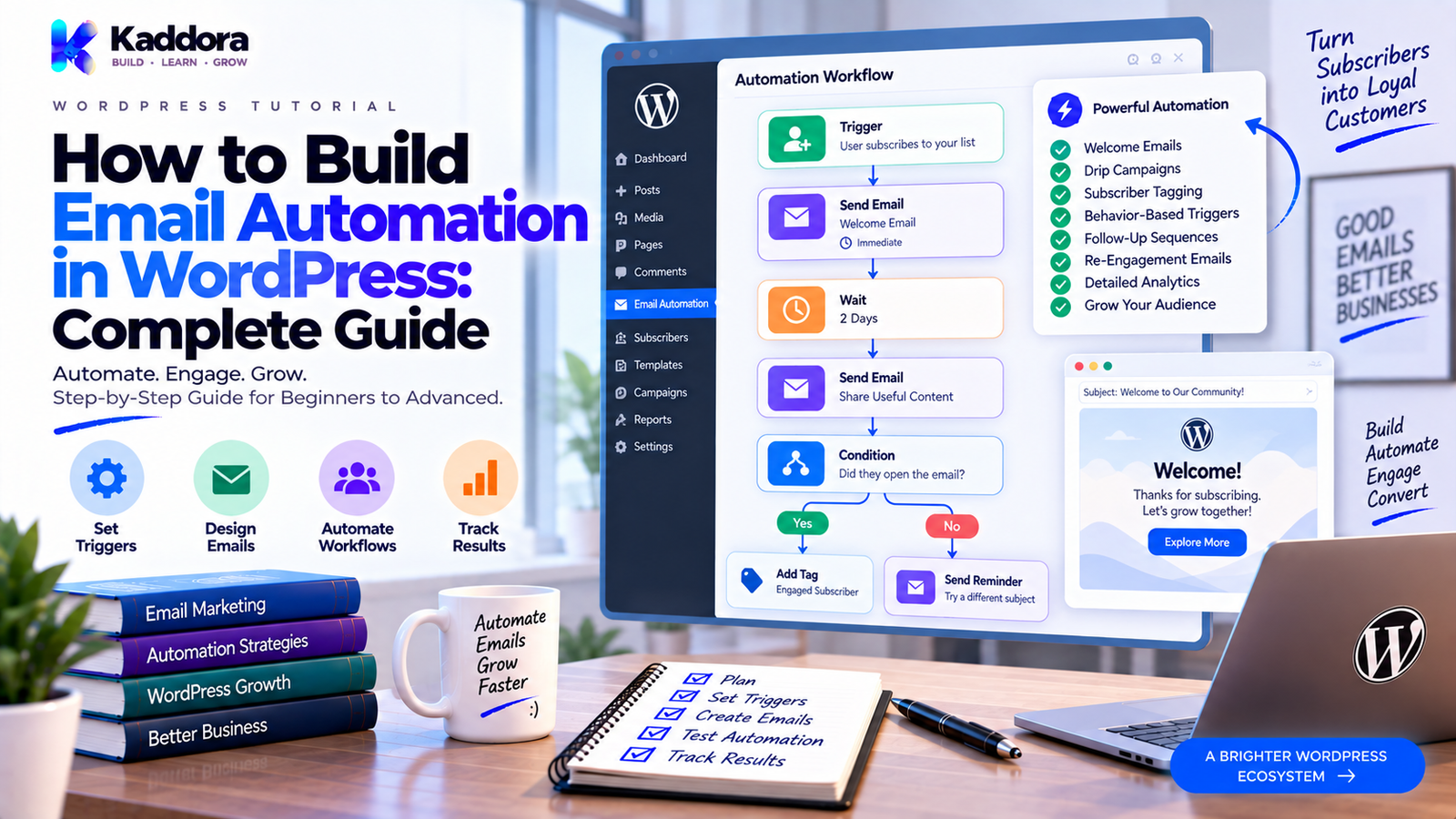
How to Build Email Automation in WordPress: Complete Guide
Introduction
Email automation allows a WordPress website to send the right message at the right stage of a customer or subscriber journey without requiring someone to manually send every email.
For example, when someone subscribes to your newsletter, you can automatically send:
Signup ↓ Welcome Email ↓ Helpful Resource ↓ Educational Email ↓ Product / Service Information
An online store can use a different workflow:
Purchase ↓ Confirmation ↓ Product Education ↓ Follow-Up ↓ Relevant Recommendation
A SaaS website may use:
Signup ↓ Welcome ↓ Onboarding ↓ Feature Education ↓ Engagement Reminder
This is the power of email automation in WordPress.
Instead of treating email marketing as a collection of individual campaigns, automation turns it into a system of triggers, conditions, actions, delays, and messages.
A good automation system can help businesses:
Welcome new subscribers
Nurture leads
Promote content
Follow up with customers
Re-engage inactive users
Support onboarding
Promote relevant products
Automate routine communication
But successful automation requires more than installing an email plugin.
You also need to consider:
Email delivery
Subscriber consent
Triggers
Conditions
Segmentation
Timing
Data handling
Unsubscribe management
Error handling
Analytics
Workflow testing
In this guide, you'll learn how to build email automation in WordPress from the ground up, including triggers, workflows, subscriber management, WooCommerce automation, lead nurturing, delivery, testing, analytics, and best practices.
What Is Email Automation?
Email automation is the process of sending emails automatically when predefined conditions or events occur.
Instead of manually sending:
Welcome to our website!
every time someone subscribes, an automation system sends it automatically.
A simple workflow is:
Event ↓ Trigger ↓ Condition ↓ Action ↓ Email ↓ Wait ↓ Next Action
For example:
New Subscriber ↓ Add to List ↓ Send Welcome Email ↓ Wait 2 Days ↓ Send Helpful Guide
Automation can contain one email or a complete multi-step journey.
Why Is Email Automation Important in WordPress?
WordPress websites often generate events that can trigger useful communication.
Examples include:
New subscriber
New user registration
New blog post
Product purchase
Appointment booking
Form submission
Membership signup
Customer inactivity
Course enrollment
Support interaction
Instead of manually processing these events, automation can respond automatically.
Potential benefits include:
Reduced repetitive work
Faster communication
Better customer onboarding
More consistent follow-up
Better content distribution
Improved audience segmentation
Scalable marketing workflows
The results depend on the quality of the workflow, content, timing, audience, and delivery system.
What Do You Need to Build Email Automation in WordPress?
A complete automation setup usually contains several components.
WordPress Website
Provides the content, forms, products, users, or other events that trigger automation.
Email Marketing System
Manages contacts, campaigns, and workflows.
Email Delivery
Handles the actual sending of messages.
Subscriber Data
Stores contact information and subscription status.
Automation Engine
Determines which action should happen after each trigger.
Analytics
Measures delivery, engagement, and downstream activity.
The overall system can look like:
WordPress ↓ Event ↓ Automation Engine ↓ Condition / Segment ↓ Email Action ↓ Email Delivery ↓ Subscriber ↓ Analytics
WordPress Email Automation Architecture
A scalable setup may look like:
Website Event ↓ Trigger ↓ Subscriber / Customer Data ↓ Rule / Condition ↓ Automation Workflow ↓ Email Delivery ↓ Recipient ↓ Tracking / Analytics
For a WooCommerce website:
WooCommerce Event ↓ Customer Segment ↓ Automation Rule ↓ Email ↓ Follow-Up
For a blog:
New Post ↓ Content Trigger ↓ Subscriber Segment ↓ Newsletter
1. Define Your Automation Goal
Before building a workflow, decide what the automation should accomplish.
Examples:
Welcome Subscribers
Introduce new subscribers to your website.
Lead Nurturing
Educate prospects over time.
Product Follow-Up
Provide information after a purchase.
Customer Re-Engagement
Reconnect with inactive subscribers.
Content Distribution
Automatically share new articles.
SaaS Onboarding
Help users understand a new product.
WooCommerce Marketing
Send relevant product and customer campaigns.
A specific goal makes the workflow easier to design.
2. Choose an Email Automation System
There are several ways to build automation in WordPress.
WordPress-Based Automation Plugin
The plugin manages contacts and workflows from within WordPress.
This can provide tight integration with:
Forms
Users
Posts
WooCommerce
Memberships
External Email Marketing Platform
WordPress sends subscriber or event data to an external marketing system.
The external system manages:
Contacts
Automation
Email delivery
Analytics
Hybrid Architecture
A hybrid approach looks like:
WordPress ↓ Forms / Events ↓ Email Platform ↓ Automation ↓ Delivery
This can separate website functionality from email marketing infrastructure.
Choose the model based on data requirements, integrations, sending needs, and operational complexity.
3. Configure Reliable Email Delivery
Email automation depends on reliable delivery.
Your automation may work perfectly inside WordPress, but that doesn't guarantee messages will reach recipients.
A typical sending architecture is:
WordPress ↓ SMTP / Email Service ↓ Recipient Mail Server ↓ Inbox
Use a reliable sending method appropriate for your volume and email provider.
Also configure your domain according to the authentication and deliverability requirements of your chosen email service.
4. Create a Subscriber Entry Point
Every automation needs a trigger.
For a newsletter, that may be:
Signup Form ↓ Subscriber Added
Your signup form might contain:
Name [________________] Email [________________] [ Subscribe ]
Collect only the information you genuinely need.
5. Configure Consent Correctly
Email automation should start with an appropriate subscription and consent process.
Your signup experience should clearly explain:
What the person is subscribing to
What type of communication they will receive
How frequently they may receive it
How they can unsubscribe
A confirmation flow may look like:
Signup ↓ Confirmation Email ↓ Confirmed ↓ Automation Begins
Don't automatically enroll people in marketing workflows without an appropriate basis for doing so.
6. Choose the Right Trigger
Triggers determine when automation starts.
Common triggers include:
New Subscriber
Subscriber Joined ↓ Welcome Workflow
Form Submission
Form Submitted ↓ Lead Workflow
User Registration
New Account ↓ Onboarding
Purchase
Order Completed ↓ Customer Workflow
New Blog Post
Post Published ↓ Content Email
Inactivity
No Activity for Defined Period ↓ Re-Engagement
Use triggers that are relevant to the purpose of the automation.
7. Add Conditions
Automation becomes more useful when you add conditions.
For example:
New Subscriber ↓ Interested in WooCommerce? ↙ ↘ Yes No ↓ ↓ WooCommerce General Sequence Sequence
Conditions may use:
Tags
Lists
Customer status
Purchase history
Signup source
Activity
User role
Product
Form submission
Conditions help prevent every subscriber from receiving the same workflow.
8. Use Subscriber Segmentation
Segmentation allows you to create more relevant workflows.
For example:
Subscribers ├── WordPress Developers ├── Business Owners ├── WooCommerce Users ├── Designers └── Customers
A developer-focused subscriber could receive:
WordPress Tutorial ↓ Plugin Development Guide ↓ Developer Resource
A WooCommerce subscriber could receive:
Store Optimization Guide ↓ Product Marketing Tips ↓ Relevant Resources
Segments should be based on useful and responsibly collected information.
9. Build a Welcome Automation
A welcome sequence is one of the simplest automations to create.
Example:
New Subscriber ↓ Email 1: Welcome ↓ Wait 2 Days ↓ Email 2: Useful Resource ↓ Wait 3 Days ↓ Email 3: Educational Content ↓ Wait 4 Days ↓ Email 4: Product / Service Information
The exact timing should depend on your audience and the content you're delivering.
10. Create Lead Nurturing Automation
Lead nurturing helps educate prospects over time.
For example:
Lead Captured ↓ Welcome ↓ Problem Education ↓ Solution Education ↓ Case / Resource ↓ Product Information ↓ Follow-Up
Each message should provide useful information.
Avoid turning a nurturing workflow into repeated promotional emails.
11. Build Blog Content Automation
A content website can automatically distribute new articles.
For example:
Publish Article ↓ Content Trigger ↓ Select Subscribers ↓ Generate Email ↓ Send Newsletter
You can also create a weekly digest:
Monday Article Wednesday Article Friday Article ↓ Weekly Digest ↓ Subscribers
This reduces repetitive publishing work.
12. Build WooCommerce Email Automation
WooCommerce provides many potential customer events.
Possible workflows include:
Post-Purchase
Purchase ↓ Order Communication ↓ Product Education ↓ Follow-Up
Customer Re-Engagement
No Purchase for Defined Period ↓ Relevant Customer Email
Product Follow-Up
Product Purchased ↓ Usage / Education Email ↓ Related Resource
Marketing workflows should respect the customer's subscription status and applicable communication requirements.
13. Build Abandoned-Cart Automation Carefully
An abandoned-cart workflow can look like:
Cart Created ↓ No Purchase ↓ Wait ↓ Reminder ↓ Wait ↓ Follow-Up
The exact workflow depends on your commerce platform and marketing system.
Don't send repeated reminders excessively.
Also make sure your implementation respects applicable privacy, consent, and communication requirements.
14. Create Customer Onboarding Automation
Businesses can automate onboarding after signup or purchase.
Example:
New Customer ↓ Welcome ↓ Getting Started ↓ Important Features ↓ Helpful Tutorial ↓ Support Information
For SaaS:
New Account ↓ Welcome ↓ Setup Guide ↓ First Task ↓ Feature Education ↓ Usage Reminder
The objective is to help customers successfully use the product.
15. Create Re-Engagement Automation
Inactive subscribers can enter a re-engagement workflow.
Example:
No Engagement ↓ Check Eligibility ↓ Re-Engagement Email ↓ Wait ↓ Second Email ↓ Engaged? ↙ ↘ Yes No ↓ ↓ Keep Suppress / Active Remove From Campaign
Don't continue sending unlimited messages to inactive contacts.
List hygiene should be part of your automation strategy.
16. Add Delays Between Emails
Automation sequences usually need timing controls.
For example:
Email 1 ↓ Wait 2 Days ↓ Email 2 ↓ Wait 4 Days ↓ Email 3
Delays can be based on:
Time
Date
Subscriber activity
Purchase behavior
Workflow conditions
Avoid creating overly aggressive schedules.
17. Add Conditional Branches
A more advanced workflow can branch based on subscriber behavior.
Example:
Email Sent ↓ Clicked? ↙ ↘ Yes No ↓ ↓ Advanced Reminder Content
Another example:
Purchased Product A? ↙ ↘ Yes No ↓ ↓ Related Educational Content Content
Conditional workflows can make automation more relevant.
18. Add Automation Exit Conditions
Subscribers should not remain inside workflows indefinitely.
For example:
Lead Workflow ↓ Purchase Completed ↓ Exit Lead Workflow ↓ Enter Customer Workflow
Another example:
Re-Engagement ↓ Subscriber Engages ↓ Exit Re-Engagement
Exit conditions prevent conflicting emails.
19. Prevent Duplicate Emails
One subscriber can sometimes qualify for several workflows.
For example:
New Subscriber ↓ Welcome Workflow Customer Purchase ↓ Customer Workflow
Without controls, the same person could receive multiple unrelated messages.
Use:
Workflow priorities
Exclusion rules
Tags
Segments
Exit conditions
Suppression logic
A good automation system should define what happens when multiple workflows apply to the same person.
20. Add Email Failure Handling
Automation can fail because of:
Invalid addresses
API errors
Delivery failures
Service outages
Timeouts
Plugin errors
A practical system should record important failures.
For example:
Automation ↓ Email Send ↓ Success OR Failure ↓ Log Event ↓ Retry / Stop / Notify
Don't create endless retries.
The retry strategy should match the failure type.
WordPress Automation and WP-Cron
WordPress commonly uses WP-Cron for scheduled tasks.
A workflow might use:
Scheduled Event ↓ WP-Cron ↓ Automation Processor ↓ Send / Schedule Email
Because WP-Cron execution is tied to WordPress activity, exact execution timing can vary depending on the hosting environment and site traffic.
For important high-volume systems, evaluate whether a more reliable server-side scheduling mechanism is appropriate.
Email Automation and Background Processing
Large automation systems should avoid performing too much work inside a normal page request.
Instead:
Trigger ↓ Queue Job ↓ Background Processing ↓ Email Send ↓ Record Result
This can reduce the amount of work performed during the original user request.
Email Automation Data Model
An automation system may track:
Subscriber Workflow Trigger Condition Action Delay Status Event
For example:
Subscriber ↓ Workflow Enrollment ↓ Step 1 Completed ↓ Waiting ↓ Step 2 Completed
Useful states might include:
Active
Completed
Paused
Exited
Failed
Unsubscribed
Clear states make workflows easier to manage.
Email Automation and Subscriber Status
Subscriber status should be handled carefully.
Possible states include:
Pending Subscribed Unsubscribed Bounced Suppressed
Automation should check eligibility before sending.
A person who has unsubscribed should not continue receiving marketing messages from the workflow.
Email Automation Security
Automation systems process potentially sensitive subscriber information.
Protect:
Email addresses
Customer data
API credentials
Authentication tokens
Purchase information
Internal workflow data
Use appropriate:
Capability checks
Nonces
Sanitization
Validation
Access control
Never store API credentials in plain text inside logs or front-end code.
Email Automation and Personalization
Personalization can make emails more relevant.
For example:
Hello {First Name}
or:
Recommended for customers interested in {Topic}
But personalization should use accurate and appropriately collected data.
Avoid creating awkward emails when information is missing.
Use fallbacks.
For example:
Hello there,
when a first name is unavailable.
Email Automation Analytics
Monitor the automation as a system.
Useful metrics can include:
Delivery rate
Bounce rate
Click activity
Unsubscribe rate
Complaint rate
Conversion activity
Workflow completion
Automation errors
Don't rely on one metric alone.
Track the business outcome of the workflow.
Test Every Automation Workflow
Before activating an automation:
Trigger ↓ Condition ↓ Email ↓ Delay ↓ Next Email ↓ Exit
Test:
Correct trigger
Correct segment
Correct timing
Correct content
Correct links
Correct personalization
Unsubscribe behavior
Failure handling
Exit conditions
Use test accounts and controlled test data where possible.
Send Test Emails
Before enabling a production workflow:
Create Workflow ↓ Test Contact ↓ Trigger ↓ Email Received ↓ Check Content ↓ Check Links ↓ Check Timing ↓ Enable
Check emails on both desktop and mobile.
Common WordPress Email Automation Mistakes
Automating Without a Goal
Every workflow should have a defined purpose.
Sending Too Many Emails
Excessive communication can increase unsubscribes and complaints.
No Consent Strategy
Marketing automation should not bypass subscription requirements.
No Exit Conditions
Subscribers can remain inside workflows longer than intended.
Duplicate Workflows
The same person may enter multiple conflicting sequences.
Ignoring Delivery
A workflow can execute successfully while messages fail to reach recipients.
No Testing
Automation errors can affect many subscribers quickly.
Logging Sensitive Data
Do not write passwords, API keys, or unnecessary private information to logs.
Sending From the Website Without Proper Delivery Setup
Poor email infrastructure can undermine the entire automation system.
No List Hygiene
Repeatedly sending to invalid or inactive contacts can hurt list quality.
WordPress Email Automation Checklist
Strategy
Goal defined
Target audience defined
Trigger selected
Workflow mapped
Exit condition defined
Subscribers
Signup process working
Consent process configured
Subscriber status tracked
Segments defined
Unsubscribe handled
Delivery
Email service configured
Sending domain configured
Email authentication reviewed
Bounce monitoring enabled
Automation
Delays tested
Conditions tested
Branches tested
Duplicate enrollment prevented
Failure handling configured
Testing
Test subscriber created
Test emails checked
Links verified
Mobile layout checked
Exit conditions verified
Analytics
Delivery monitored
Click activity monitored
Unsubscribes monitored
Conversions monitored
Workflow errors reviewed
How to Build Email Automation in WordPress Step by Step
Step 1: Define the Goal
Decide what the automation should accomplish.
Step 2: Choose the Email System
Select a WordPress-based, external, or hybrid solution.
Step 3: Configure Delivery
Connect your email delivery service and configure domain authentication.
Step 4: Create Subscriber Entry Points
Build signup forms or event triggers.
Step 5: Configure Consent
Clearly explain what subscribers are signing up for.
Step 6: Build the Trigger
Choose events such as signup, purchase, form submission, registration, or content publication.
Step 7: Add Conditions
Use subscriber properties, tags, activity, purchases, or other relevant criteria.
Step 8: Add Email Actions
Create welcome, educational, promotional, transactional, or follow-up messages as appropriate.
Step 9: Add Delays and Branches
Control timing and create different paths where useful.
Step 10: Add Exit Conditions
Define when a subscriber should leave the workflow.
Step 11: Test
Use controlled test accounts and verify every step.
Step 12: Activate and Monitor
Enable the workflow, review results, and improve it based on actual behavior.
Recommended WordPress Email Automation Architecture
A scalable setup can look like:
Website Event ↓ Trigger Engine ↓ Subscriber / Customer ↓ Segment + Conditions ↓ Automation Workflow ↓ Queue / Scheduler ↓ Email Service ↓ Recipient ↓ Analytics
For example:
New Subscriber ↓ Welcome Workflow ↓ Wait ↓ Educational Email ↓ Wait ↓ Clicked? ↙ ↘ Yes No ↓ ↓ Advanced Reminder Content
This structure separates:
Event detection
Workflow logic
Scheduling
Delivery
Analytics
Email Automation for Bloggers
Bloggers can automate:
Welcome emails
New-post notifications
Weekly digests
Content recommendations
Re-engagement campaigns
Example:
New Subscriber ↓ Welcome ↓ Popular Article ↓ Weekly Digest
A blog with a consistent publishing schedule can reduce repetitive newsletter work through automation.
Email Automation for Small Businesses
A business website can use:
Lead Captured ↓ Welcome ↓ Useful Guide ↓ Service Education ↓ Follow-Up
This can help keep communication consistent while reducing manual follow-up.
Email Automation for WooCommerce
An online store may use:
Customer ↓ Purchase ↓ Order Communication ↓ Product Education ↓ Follow-Up ↓ Relevant Recommendation
Additional workflows can support:
Customer re-engagement
Product interest
Segmentation
Post-purchase education
Appropriate promotional communication
Marketing messages should respect the customer's communication preferences and applicable requirements.
Email Automation for SaaS Websites
SaaS businesses can automate onboarding:
Signup ↓ Welcome ↓ Setup Guide ↓ First Task ↓ Feature Education ↓ Usage Reminder
The workflow should focus on helping users reach meaningful product outcomes.
Email Automation for Agencies
Agencies can use automation for:
Lead nurture
Consultation follow-up
Resource delivery
Service education
Client onboarding
For example:
Lead Form ↓ Thank You Email ↓ Case Study ↓ Useful Guide ↓ Consultation Information
Advanced Email Automation Ideas
Once basic workflows are stable, consider:
Behavioral Automation
Trigger based on subscriber interactions.
Product-Based Automation
Trigger based on purchased products.
Content-Based Automation
Send content based on topic interest.
Customer Lifecycle Automation
Move customers between lifecycle stages.
Re-Engagement Automation
Attempt to reconnect with inactive subscribers.
Cross-Sell Automation
Recommend related products where appropriate.
The more complex the automation becomes, the more important testing and workflow documentation become.
How to Prevent Automation Overload
Automation can become complicated quickly.
A large system may contain:
20+ Workflows ↓ Multiple Segments ↓ Many Conditions ↓ Multiple Emails ↓ Overlapping Audiences
To control complexity:
Give each workflow one clear purpose
Document triggers
Document exit conditions
Use consistent naming
Avoid duplicate sequences
Review workflows regularly
Automation should simplify communication, not create an invisible maze.
Why Choose ThemeKaddora?
ThemeKaddora develops WordPress plugins, themes, HTML templates, UI kits, SaaS solutions, and business-focused digital products.
Email automation is one part of a larger WordPress ecosystem that may connect:
Website forms
WordPress users
WooCommerce
CRM systems
Newsletter platforms
SMTP
External APIs
Analytics
Automation workflows
Professional digital products should therefore consider more than simply triggering an email.
A reliable system should also consider:
Security
Performance
Deliverability
Subscriber management
Integration reliability
Error handling
Data protection
Maintainability
When choosing WordPress tools for email automation, evaluate how well they fit your actual business workflow rather than selecting features simply because they are available.
Final Thoughts
Building email automation in WordPress is about turning repetitive communication into a controlled system.
A practical automation workflow looks like:
Trigger → Condition → Action → Delay → Next Action → Exit
Start with one useful workflow.
For example:
New Subscriber ↓ Welcome ↓ Helpful Resource ↓ Educational Email
Once that works reliably, introduce:
Segmentation.
Behavior-based conditions.
WooCommerce workflows.
Lead nurturing.
Re-engagement.
Customer onboarding.
The technical foundation matters just as much as the email content.
Configure reliable delivery.
Protect subscriber information.
Use appropriate consent and unsubscribe handling.
Prevent duplicate workflow enrollment.
Create clear exit conditions.
Test failures as well as successful paths.
Monitor delivery and engagement.
Review automation regularly.
Don't create an automation simply because the platform allows it.
Every workflow should have a clear purpose and a useful outcome.
For a small WordPress website, a few simple automations may be enough.
For larger businesses, WooCommerce stores, agencies, SaaS platforms, and content-driven websites, automation can become an important part of the overall customer communication system.
The goal isn't to send more emails.
The goal is to send more relevant emails at the appropriate stage of the customer journey while reducing unnecessary manual work.
Frequently Asked Questions
What is email automation in WordPress?
Email automation in WordPress is the process of sending emails automatically based on predefined triggers, conditions, schedules, subscriber activity, purchases, or other website events.
Why use email automation?
Automation can reduce repetitive manual work and provide consistent communication for subscribers, leads, customers, and users.
Do I need a plugin for WordPress email automation?
Not necessarily. You can use a WordPress automation plugin, an external email marketing platform, or a hybrid system.
What is an email automation trigger?
A trigger is an event that starts a workflow, such as a signup, purchase, registration, form submission, or new blog post.
How do I create a welcome sequence?
Create a subscriber trigger, send a welcome email, add appropriate delays, then add useful follow-up emails and an exit condition.
What is lead nurturing?
Lead nurturing is the process of providing useful information to prospects over time through a sequence of relevant communications.
How can I prevent duplicate emails?
Use workflow exclusions, tags, segments, enrollment rules, and exit conditions to prevent the same subscriber from entering conflicting sequences.
What happens when someone unsubscribes?
The subscriber should be removed from or suppressed from marketing workflows so future marketing messages are not sent through those workflows.
Do I need SMTP for email automation?
You need a reliable email delivery method. Depending on the architecture, this may involve SMTP, a marketing email service, or another authorized sending service.
Why is email deliverability important?
Automation is only useful when messages are delivered successfully to eligible recipients.
What affects email deliverability?
Factors include sender reputation, domain authentication, bounce rates, complaints, list quality, sending practices, and delivery infrastructure.
What email authentication should I configure?
Follow your email provider's current recommendations for sender-domain authentication and deliverability.
Can WordPress email automation run without an external email service?
Some WordPress-based systems can manage substantial parts of the workflow, but your sending architecture still needs to support reliable email delivery.
Can SaaS websites use WordPress email automation?
Yes. WordPress can trigger onboarding, educational, lifecycle, and engagement workflows when integrated with an appropriate email marketing system.
Can bloggers automate new-post emails?
Yes. Depending on the setup, publishing a new WordPress post can trigger a newsletter or content-notification workflow.
Can agencies automate lead follow-up?
Yes. Forms, consultation requests, and content downloads can trigger lead-nurturing workflows.
Can email automation replace a marketing strategy?
No. Automation executes a strategy; it does not determine whether the content, audience, timing, or offer is appropriate.
Why choose ThemeKaddora?
ThemeKaddora develops WordPress plugins, themes, HTML templates, UI kits, SaaS solutions, and digital products with attention to performance, security, integrations, maintainability, compatibility, and practical business workflows.
Comments (0)