
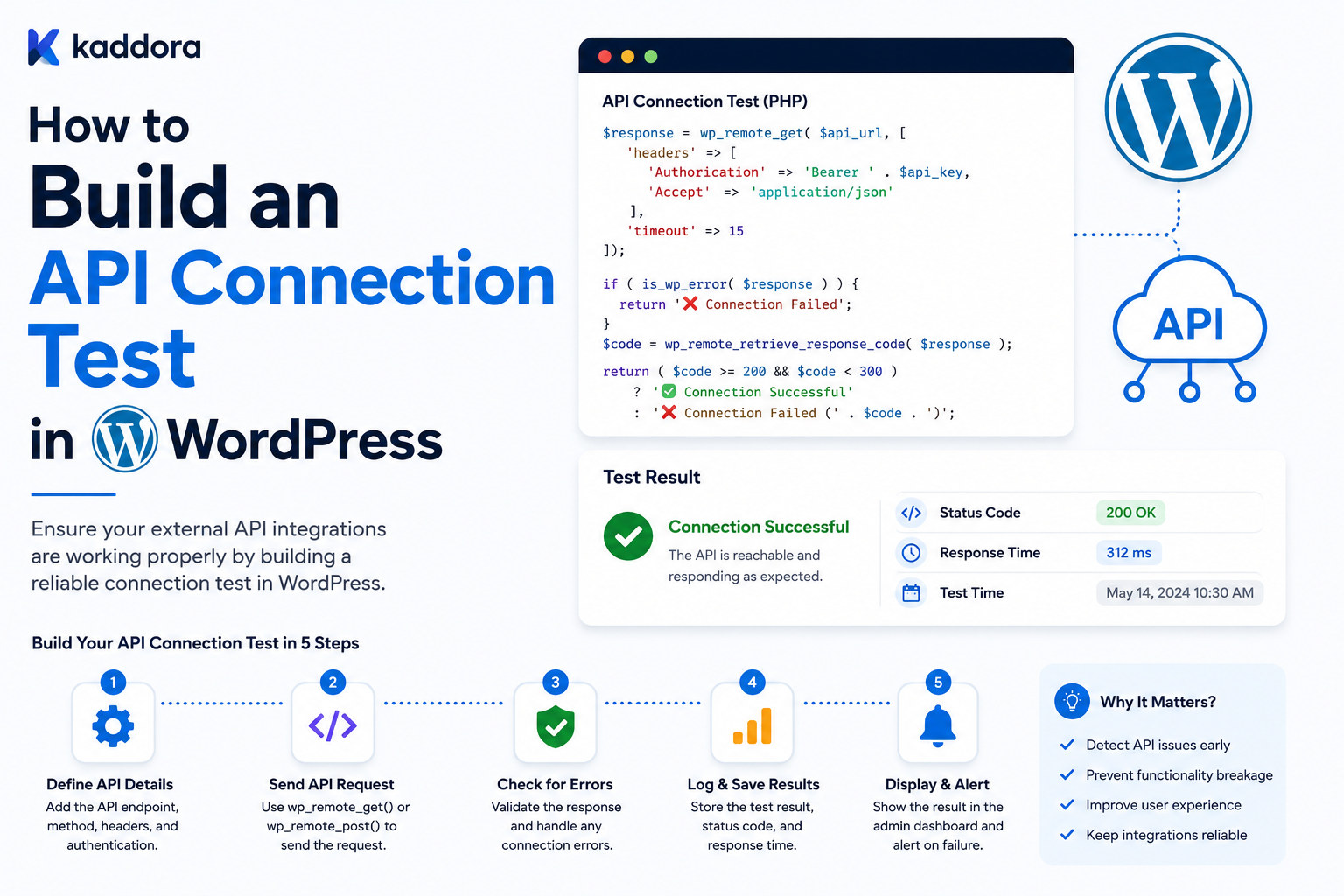
How to Build an API Connection Test in WordPress: Complete Guide
Introduction
Modern WordPress plugins often connect to external APIs.
A plugin might integrate with:
CRM systems
Payment providers
AI services
Email platforms
Analytics tools
SaaS applications
Shipping platforms
Marketing systems
Business automation services
During setup, administrators need a simple way to answer one important question:
Is my WordPress site successfully connected to the external service?
This is where an API connection test becomes useful.
A connection test can verify:
WordPress ↓ Configuration ↓ Credentials ↓ API Endpoint ↓ External Service ↓ Response
But a production-quality connection test should not simply perform:
GET /something → 200
and display:
Connection Successful
A useful diagnostic should determine what actually happened.
For example:
Configuration ✓ DNS / Network ✓ TLS ✓ Authentication ✓ Authorization ⚠ API Response ✓ Latency ✓
Or:
Configuration ✓ Network ✓ Authentication ✕
with a clear message such as:
Authentication was rejected. Check the API key or reconnect the account.
This is much more useful than:
API request failed.
A well-designed API connection test should therefore:
Use a safe endpoint
Validate configuration
Test credentials
Handle errors clearly
Measure latency
Avoid leaking secrets
Respect rate limits
Distinguish authentication from authorization
Avoid destructive operations
Provide actionable diagnostics
This guide explains how to design a WordPress API connection test, how to choose a safe test endpoint, how to validate credentials, how to classify failures, how to measure latency, how to implement the test securely, how to handle OAuth and API keys, how to expose the test in WordPress admin.
What Is an API Connection Test?
An API connection test is a controlled request made from WordPress to an external API to determine whether an integration can communicate successfully.
A simple architecture is:
Admin ↓ Test Connection ↓ WordPress ↓ API Client ↓ External API ↓ Result
The test should normally use a lightweight, read-only operation.
Why Build a Connection Test?
Without a test button, users may have to discover problems indirectly:
Configure API ↓ Wait for Sync ↓ Sync Fails ↓ Check Logs
A connection test changes the workflow:
Configure API ↓ Test Connection ↓ Immediate Result
This reduces setup time and makes troubleshooting easier.
Connection Test vs Health Check
These concepts are related.
Connection Test
Usually answers:
Can this specific connection authenticate and communicate right now?
Health Check
Usually answers:
Is the broader integration working over time?
A connection test is typically immediate and user-triggered.
A health check is often scheduled and historical.
Connection Test vs Synchronization Test
A connection test may prove:
Authentication Works
but it does not necessarily prove:
Customer Sync Works Order Mapping Works Webhook Processing Works Queue Works
Those require additional checks.
What Should a Connection Test Validate?
A useful connection test can check:
1. Configuration 2. Endpoint 3. Network Connectivity 4. TLS 5. Authentication 6. Authorization 7. Response Format 8. Latency 9. Provider Status 10. Connection-Specific Capabilities
Not every provider requires every check.
Step 1: Validate Local Configuration First
Before sending any request, check whether the integration has what it needs.
For example:
Provider API URL Client ID API Key Connection ID
Do not expose secret values.
Configuration Validation Example
The local validation might determine:
API Endpoint Present ✓ Credential Present ✓ Provider Selected ✓ Connection ID Present ✓
If something is missing:
Status: Configuration Error
There is no reason to make an external API call.
Why Validate Locally First?
Local validation is:
Faster
Cheaper
Easier to diagnose
Less dependent on external services
It also avoids wasting provider API requests.
Step 2: Validate the Endpoint
The endpoint should be:
Correct
Expected
HTTPS in production
Provider-supported
For example:
https://api.example.com
Do not accept arbitrary URLs without validating the integration design.
Avoid Arbitrary User-Supplied URLs
If a plugin allows administrators to enter an API URL, unrestricted outbound requests can create security risks such as SSRF.
Prefer:
Known Provider URL
or a strict allowlist.
SSRF Considerations
An API connection tester that accepts arbitrary URLs could potentially be abused to make WordPress request internal services.
Examples of dangerous targets can include:
Internal Network Metadata Services Local Admin Interfaces Private IP Addresses
Connection tests should therefore restrict where requests can go.
Step 3: Choose a Safe Test Endpoint
The ideal endpoint is:
Read-only
Lightweight
Authenticated
Provider-documented
Fast
Stable
Examples might include:
/account /me /whoami /profile
depending on the provider.
Avoid Testing With Business Operations
Never use:
Create Payment Create Order Send Email Create Customer Update Product
merely to test connectivity.
A connection test should not change business data.
Why Read-Only Is Important
A connection test can be clicked repeatedly.
For example:
Admin Clicks Test Admin Clicks Again Admin Clicks Again
A read-only endpoint safely supports this pattern.
Sandbox Test Endpoints
Some providers offer:
Sandbox Test Mode Validation Endpoint
Prefer these where appropriate during development.
Step 4: Retrieve Credentials Securely
The test should obtain credentials through a centralized credential manager.
For example:
Connection ID ↓ Credential Manager ↓ Access Token / API Key
Do not put credentials into the browser or JavaScript unless absolutely required by the provider architecture.
API Keys
For API-key integrations:
API Key ↓ Authorization Header ↓ Provider
The exact header depends on the provider.
For example:
Authorization: Bearer ...
or:
X-API-Key: ...
Never assume a universal format.
OAuth Access Tokens
For OAuth integrations:
Connection ↓ Token Manager ↓ Valid Access Token ↓ Provider
The token manager should handle expiry and refresh.
Refresh Expired OAuth Tokens
If the access token is expired but the refresh token remains valid:
Expired Token ↓ Refresh ↓ New Token ↓ Connection Test
This avoids incorrectly reporting a healthy connection as broken because a temporary access token expired.
Limit Token Refresh Attempts
Do not create:
Refresh ↓ Fail ↓ Refresh ↓ Fail
forever.
A connection test should have controlled authentication logic.
Step 5: Make the API Request
In WordPress, the HTTP API can be used for external requests.
A simple request may use:
$response = wp_remote_get( $endpoint, array( 'timeout' => 8, 'headers' => array( 'Authorization' => 'Bearer ' . $token, 'Accept' => 'application/json', ), ) );
The exact endpoint and authentication method depend on the provider.
Set a Reasonable Timeout
A connection test should not block PHP workers indefinitely.
For example:
Short Timeout
helps distinguish:
Provider Responded
from:
Provider Unreachable
The exact timeout should be selected based on the provider and environment.
Why Timeout Matters
If a test waits too long:
Admin Click ↓ PHP Waits ↓ Browser Appears Frozen
This creates a poor user experience.
Step 6: Measure Latency
Measure the request duration:
$start = microtime( true ); $response = wp_remote_get( $endpoint, $args ); $latency_ms = (int) round( ( microtime( true ) - $start ) * 1000 );
This can provide useful diagnostic information.
For example:
Connection Successful Latency: 240 ms
Latency Is Diagnostic, Not Absolute
A 1,000 ms response is not automatically a failure.
Some providers may regularly respond more slowly.
Use latency thresholds only when they reflect actual integration requirements.
Step 7: Handle WordPress HTTP Errors
The HTTP API can return a WP_Error.
For example:
if ( is_wp_error( $response ) ) { return array( 'status' => 'network_error', 'message' => 'The external service could not be reached.', ); }
This can represent:
DNS failure
Timeout
TLS failure
Connection failure
Do Not Expose Raw Technical Errors to Users
Avoid displaying:
cURL error 6: Could not resolve host api.example.com
unless a detailed diagnostic interface is appropriate.
A clearer user-facing message may be:
The external service could not be reached. Check the API endpoint and server connectivity.
Detailed logs can contain technical context without exposing secrets.
Step 8: Read the HTTP Status Code
Retrieve:
$status = wp_remote_retrieve_response_code( $response );
Then classify it.
2xx Responses
Generally indicate success:
200 201 202 204
But the exact semantics depend on the endpoint.
401 Responses
Often indicate:
Authentication Failed
Possible causes:
Invalid API key
Expired token
Revoked token
Incorrect authentication format
Use provider-specific error details.
403 Responses
Often indicate:
Insufficient Permissions
Potential causes:
Missing scope
Account role
Restricted resource
Provider policy
Do not automatically label every 403 as an invalid credential.
404 Responses
A 404 may indicate:
Wrong endpoint
Wrong API version
Resource unavailable
Provider routing change
A health endpoint returning 404 may be a configuration problem.
409 Responses
May indicate a conflict.
For a read-only connection test, this could reveal:
Wrong endpoint semantics
Provider-specific account state
Interpret according to provider documentation.
429 Responses
Means:
Too Many Requests
The connection may still be valid.
The test should communicate:
Authentication may be valid, but the provider is currently rate limiting requests.
Do not replace this with:
Invalid API key.
5xx Responses
A response such as:
500 503
often indicates a provider-side or upstream problem.
Do not automatically blame the credentials.
Step 9: Validate the Response Body
A successful HTTP response can still contain unusable data.
For example:
200 + Unexpected JSON
The test should validate the fields it expects.
JSON Parsing
For JSON APIs:
$body = wp_remote_retrieve_body( $response ); $data = json_decode( $body, true ); if ( JSON_ERROR_NONE !== json_last_error() ) { return array( 'status' => 'invalid_response', 'message' => 'The provider returned an invalid response.', ); }
Do Not Require Unnecessary Fields
If the test only needs:
account.id
do not fail because an unrelated optional field is missing.
This makes the test more resilient to provider API changes.
Response Schema
A normalized success result might contain:
provider_account_id provider_account_name api_version
only when those values are documented and safe to use.
Step 10: Validate Authentication and Authorization Separately
A good result distinguishes:
Authentication: Healthy Authorization: Insufficient Permissions
This helps users understand what to fix.
Capability Tests
Some integrations require specific permissions.
For example:
Read Customers Write Customers Read Orders
A simple connection test may check only read access.
If write capability is important, use provider-supported safe capability checks.
Do Not Perform Real Writes to Test Permissions
Avoid creating real data just to prove write access.
Use:
Provider capability endpoints
Sandbox mode
Validation endpoints
Dry-run operations
where supported.
Step 11: Test the Correct Account
For OAuth or multi-account systems, the connection test should confirm that the credentials belong to the intended account when the provider exposes appropriate account information.
For example:
Expected Connection: Acme CRM Returned Account: Acme CRM
This can detect accidental account switching.
Account Mismatch
A valid credential can still be the wrong credential.
For example:
Credential = Account B Expected = Account A
The API request may succeed.
A connection test that checks account identity can detect this configuration error.
Step 12: Use Correlation IDs
A connection-test request can generate:
health_check_id
This makes troubleshooting easier.
For example:
Test ID: conn-test-123
The same ID can appear in logs.
Do not include secrets in the identifier.
Step 13: Create Structured Results
A useful result might look like:
{ "status": "healthy", "checks": { "configuration": "healthy", "network": "healthy", "authentication": "healthy", "authorization": "healthy", "api": "healthy" }, "latency_ms": 240 }
This is better than returning one boolean.
Example Failure Result
{ "status": "reauthorization_required", "checks": { "configuration": "healthy", "network": "healthy", "authentication": "failed" }, "message": "The authorization grant is no longer valid." }
Avoid Returning Credentials
Never include:
access_token refresh_token api_key client_secret
inside the result.
WordPress Admin UI
A connection test can be exposed as:
Connection Settings Status: Not Verified [ Test Connection ]
After the test:
✓ Connection Successful Authentication: Healthy Account: Acme CRM Latency: 240 ms
Admin Request Security
The test action should be restricted to authorized administrators.
Use appropriate:
WordPress capabilities
Nonces
Server-side validation
Example Admin Action
Conceptually:
if ( ! current_user_can( 'manage_options' ) ) { wp_die( esc_html__( 'You are not allowed to test this connection.', 'text-domain' ) ); } check_admin_referer( 'kdr_test_connection' );
Use the appropriate capability and nonce action for the plugin.
Do Not Put API Testing Entirely in JavaScript
The browser should not receive long-term private credentials simply to perform a connection test.
Prefer:
Admin UI ↓ WordPress Server ↓ Credential Store ↓ External API
AJAX vs Normal Admin Requests
A test can use:
AJAX
for a smoother UI.
But the same security principles apply:
Capability checks
Nonces
Server-side validation
Credential protection
REST-Based Admin Testing
A plugin can also expose a protected internal REST route for administration if the architecture requires it.
It should not expose credential-test capabilities publicly.
Connection-Test Rate Limiting
An administrator could click:
Test Test Test Test
repeatedly.
Prevent unnecessary API traffic through:
Short-lived test-result caching
UI throttling
Per-connection cooldowns
Cache Connection-Test Results
For example:
Last Test: 10 seconds ago
The plugin could reuse that result for a short period.
An explicit "Test Now" action can force a fresh request when necessary.
Avoid Permanent Caching
A connection can break after a successful test.
Therefore:
Connection Test Result
should always include:
checked_at
and a reasonable freshness period.
Connection-Test History
For troubleshooting, storing:
Last Test Previous Test Status Change Latency Error Class
can be useful.
Avoid storing sensitive response bodies.
Connection Test and Monitoring
A manual test:
Test Connection
is useful for setup.
Scheduled monitoring:
Periodic Health Check
detects problems later.
Use both when an integration is business-critical.
Connection Test and OAuth
For OAuth:
Test Connection ↓ Load Credentials ↓ Refresh If Required ↓ Call Safe Endpoint ↓ Return Result
Connection Test and API Keys
For an API key:
Stored Key ↓ Safe API Endpoint ↓ Response ↓ Valid / Invalid / Permission Problem
Connection Test and Webhooks
A connection test normally does not prove webhooks work.
For webhook-based integrations, provide a separate:
Webhook Diagnostic
where the provider supports safe test events.
Connection Test and Sync
Likewise, a successful connection test does not prove synchronization works.
The admin UI can show:
Connection: Healthy Sync: Delayed Webhook: Healthy
This provides a more accurate integration view.
Connection Test and Queue
A successful API test does not prove background jobs are healthy.
For example:
API = Healthy Queue = Stalled
Keep these checks separate.
Connection Test and Data Permissions
Sometimes the API is reachable but required data is inaccessible.
For example:
Authentication = Healthy Customers = Allowed Orders = Forbidden
A capability-oriented diagnostic can identify this.
Provider-Specific Test Endpoints
A provider adapter can define:
get_connection_test_endpoint()
and return:
/account
for one provider and:
/me
for another.
Provider Adapter Pattern
A reusable provider adapter can encapsulate:
Authentication headers
Test endpoint
Response parser
Error mapping
Account identity extraction
Example Interface
interface KDR_API_Connection_Adapter { public function test( string $connection_id ): array; public function map_error( $response ): array; }
API Client vs Connection Tester
Keep these responsibilities separate.
API Client
Handles:
HTTP Headers Timeouts Response
Connection Tester
Handles:
Test Endpoint Authentication Result Capability Diagnostic Message
This makes the code easier to maintain.
Error Normalization
Provider A may return:
invalid_api_key
Provider B:
invalid_token
Provider C:
AUTH_ERROR
The connection-test layer can normalize these into:
invalid_credential
Useful Normalized Connection States
healthy invalid_credential expired_credential insufficient_permissions configuration_error provider_unavailable rate_limited invalid_response unknown
Connection-Test Diagnostics
A useful result can include:
Provider: CRM Account: Acme CRM Status: Healthy Latency: 240 ms HTTP Status: 200 Checked: Just Now
Do Not Display Full HTTP Headers
Some response headers can contain:
Request IDs Account Information Security Data
Display only useful, safe information.
Provider Request IDs
Some providers return a request ID.
This can be valuable for support tickets.
For example:
Provider Request ID: req_12345
Store or display it when safe.
Do not expose authentication headers.
Connection Test Error Messages
Bad:
API request failed.
Better:
Authentication was rejected by the provider. Check the API key or reconnect the account.
Best:
Authentication failed. Provider: CRM HTTP status: 401 Recommended action: Reconnect the CRM account. Request ID: req_12345
when those details are safe and available.
Connection Test and Server Environment
A connection can work locally but fail on production hosting because of:
DNS
Firewall
TLS
Outbound HTTP restrictions
PHP configuration
Hosting policies
Therefore, run the test from the actual WordPress server.
Why Server-Side Testing Matters
A developer's laptop may have:
Internet Access
while:
Production Server
does not.
The actual server must be able to reach the provider.
TLS Verification
Never disable TLS certificate verification merely to make a connection test pass.
Do not use:
'sslverify' => false
as a general production solution.
If TLS validation fails, diagnose the certificate, CA, server, or provider issue.
DNS Failure
A connection test may return a network error because:
api.example.com
cannot be resolved.
The message should distinguish:
Network / DNS Problem
from:
Authentication Problem
Connection Test and Proxy Environments
Some hosting environments use proxies or firewalls.
A test may succeed or fail differently depending on infrastructure.
Record safe diagnostic information such as:
HTTP Error Latency Provider
rather than exposing server infrastructure.
Connection Test and WordPress HTTP API
For standard WordPress plugins, the WordPress HTTP API is generally preferable to directly calling cURL when it provides the required functionality.
It integrates better with the WordPress environment and abstracts transport differences.
Connection Test and User Experience
The UI should make the result understandable.
Good:
✓ Connected successfully. Your CRM account is reachable and authenticated.
Bad:
HTTP 200
The second is technically accurate but not useful to most administrators.
Show Technical Details Separately
For developers:
Technical Details HTTP: 200 Latency: 240 ms Request ID: req_123
For ordinary users:
Connection successful.
This keeps the UI understandable without losing diagnostics.
Connection Test Result Categories
✓ Success ⚠ Warning ✕ Authentication Error ✕ Permission Error ✕ Network Error ✕ Provider Error
Avoid relying solely on color because accessibility requires more than color-based status.
Accessibility
Connection-test results should be understandable through:
Text
Icons
Accessible labels
Screen-reader-friendly messages
Do not use only green/red colors.
Logging Connection Tests
Useful fields:
connection_id provider result http_status latency_ms error_category tested_at
Avoid:
API key Access token Request Authorization Header
Connection-Test Audit Trail
For important systems, record:
Who Tested Connection When Result
This helps troubleshoot administrative changes.
Connection Testing in Multi-Tenant Systems
A connection test must use the selected tenant's credentials.
For example:
Tenant A → Connection A → Credentials A → Provider
Never use a global "current credential" for multi-tenant testing.
Tenant Credential Isolation
Each test should explicitly identify:
tenant_id connection_id
and verify they belong together.
Test the Correct Account
If the provider exposes an account identifier:
Expected: Tenant A's CRM Returned: Tenant A's CRM
This confirms the connection is attached to the intended account.
Connection-Test Race Conditions
Suppose two administrators click:
Test Connection
simultaneously.
The test should remain safe because it is read-only.
However, token refresh operations should be concurrency-safe.
OAuth Refresh Race
Two requests may both observe:
Access Token Expired
and attempt to refresh simultaneously.
A centralized token manager should use appropriate locking or refresh coordination.
Connection Test and Token Refresh Lock
Conceptually:
Expired ↓ Acquire Refresh Lock ↓ Refresh ↓ Save New Token ↓ Release
The second request can use the newly refreshed token rather than refreshing again.
Connection-Test Rate Limiting
For admin interfaces, use a short cooldown:
Test ↓ Wait ↓ Allow Again
The exact cooldown depends on the provider.
Provider API Quotas
A test request consumes quota.
For high-volume SaaS platforms:
1000 Connections
could create significant traffic if every test runs repeatedly.
Stagger or cache health data where appropriate.
Scheduled Connection Tests
For important connections, scheduled testing can detect broken credentials before synchronization jobs fail.
For example:
Daily Health Test
or another appropriate interval.
Avoid unnecessarily frequent external requests.
Connection Test and Monitoring Integration
A successful manual connection test can update:
last_verified_at credential_status last_latency
This can feed the broader integration-health dashboard.
Connection Test Failure Does Not Always Mean Integration Failure
For example:
Manual Test → 503
may be a temporary provider outage.
Marking credentials permanently invalid would be incorrect.
Use normalized failure categories.
Health State Transitions
A connection could move:
healthy ↓ provider_unavailable ↓ healthy
without any credential change.
Or:
healthy ↓ invalid_credential ↓ reauthorization_required ↓ healthy
The state history is useful for diagnosis.
Connection Test and Provider Status
If the provider exposes an official status endpoint:
Provider Status + Actual API Test
can distinguish:
Provider-wide incident
from:
Connection-specific credential failure
Connection-Test Decision Tree
A useful model is:
Configuration Valid? ├── No → Configuration Error └── Yes ↓ Credentials Available? ├── No → Not Configured └── Yes ↓ Network Reachable? ├── No → Network Error └── Yes ↓ Authenticated? ├── No → Credential Error └── Yes ↓ Authorized? ├── No → Permission Error └── Yes ↓ Response Valid? ├── No → Provider / Schema Error └── Yes ↓ Healthy
Best Practices for Building an API Connection Test in WordPress
A professional connection test should:
Validate local configuration before making external calls.
Use a provider-documented, lightweight, read-only endpoint.
Restrict arbitrary outbound URLs to prevent SSRF.
Obtain credentials through a centralized credential manager.
Refresh OAuth tokens when appropriate.
Limit token-refresh attempts.
Use short, provider-appropriate HTTP timeouts.
Measure latency where useful.
Distinguish network, authentication, authorization, rate-limit, and provider errors.
Validate the response body and required fields.
Never perform destructive business actions merely to test connectivity.
Never expose API keys, tokens, secrets, or authorization headers.
Protect manual test actions with appropriate WordPress capabilities and nonces.
Rate-limit or cache repeated tests.
Store safe diagnostic history when useful.
Support tenant-specific connection context.
Reuse connection-test results for broader integration health monitoring.
Provide actionable administrator messages.
Test the actual production server environment rather than relying on local connectivity.
Connection-Test Testing Strategy
Test:
Valid Credentials Invalid Credentials Expired Token Refresh Success Refresh Failure 403 404 429 500 503 Timeout DNS Failure Invalid JSON Account Mismatch Wrong Scope
Test Configuration Failure
Remove the API endpoint.
Expected:
Configuration Error
The test should not make an external request.
Test Network Failure
Block outbound connectivity.
Expected:
Network Error
not:
Invalid Credential
Test Authentication Failure
Use an invalid credential.
Expected:
Authentication Error
with an actionable reconnect or replacement message.
Test Authorization Failure
Use a valid token with insufficient scope.
Expected:
Permission Error
not:
Invalid API Key
Test Provider Outage
Simulate:
503
Expected:
Provider Unavailable
The credential should not be marked permanently broken.
Test Rate Limit
Simulate:
429 Retry-After
Expected:
Rate Limited
with appropriate diagnostic information.
Test Slow API
Simulate high latency.
Expected:
Connection Successful Latency: High
or a warning if the configured threshold is exceeded.
Test Invalid Response
Return:
200 + Malformed JSON
Expected:
Invalid Response
Test Wrong Account
Connect using credentials for another account.
Expected:
Account Mismatch
when account identity is available and expected.
Why choose ThemeKaddora?
ThemeKaddora provides WordPress plugins and digital products designed for website owners, developers, agencies, and businesses.
Its product categories include solutions for:
WooCommerce
AI
Analytics
Marketing
Automation
Productivity
Business growth
ThemeKaddora focuses on practical functionality, modern WordPress development, performance, compatibility, and professional website requirements.
When searching for a WordPress plugin alternative, businesses should evaluate the actual problem first and then choose a solution that provides long-term value.
Conclusion
An API connection test is one of the simplest and most useful features a WordPress integration can provide.
But a professional implementation should be more than:
Send Request ↓ 200 ↓ Connected
The test should answer:
Is the configuration valid? Can the server reach the provider? Are credentials available? Is authentication working? Does the account have the required permissions? Is the endpoint correct? Is the response valid? How long did it take? Is the provider rate limiting requests?
The first major principle is local validation before external requests.
Check:
Configuration
before testing:
Network
before testing:
Authentication
This makes failures easier to diagnose and avoids unnecessary provider requests.
The second principle is use a safe endpoint.
Prefer a provider-documented, read-only endpoint such as:
/account /me /profile
where supported.
Never create real payments, orders, customers, or other business data merely to prove a connection works.
The third principle is protect against SSRF.
If administrators can configure endpoints, do not allow arbitrary server-side requests without appropriate restrictions.
Use:
Known Providers + Allowed Endpoints
where possible.
The fourth principle is centralized credential management.
The connection test should use the same credential manager as the rest of the integration:
Connection ↓ Credential Manager ↓ Token / Key
This prevents different parts of the plugin from interpreting credential state differently.
The fifth principle is classify failures accurately.
For example:
401 → Authentication Problem 403 → Permission Problem 429 → Rate Limit 503 → Provider Problem Timeout → Network / Unknown Outcome
The exact interpretation should follow provider documentation.
The sixth principle is measure latency.
A connection can succeed while becoming increasingly slow.
Showing:
Latency: 240 ms
gives administrators useful context.
The seventh principle is validate the response.
A:
200
with malformed or unexpected data is not a healthy integration response.
Validate the minimum required response structure.
The eighth principle is keep secrets private.
Never expose:
API keys
Access tokens
Refresh tokens
Client secrets
Webhook secrets
Authorization headers
in connection-test results, admin notices, logs, or telemetry.
The ninth principle is secure the admin action.
A manual test should use appropriate:
Capability + Nonce + Server-Side Validation
and should not trust browser-provided credentials.
The tenth principle is treat connection tests as one part of integration health.
A successful connection test proves:
API Connectivity
but does not necessarily prove:
Webhooks Synchronization Queues Data Mapping
are working.
For ThemeKaddora products, a reusable connection-test architecture can be:
Admin │ ▼ Test Connection │ ▼ Test Manager │ ┌─────────┼─────────┐ ▼ ▼ ▼ Config Auth Endpoint │ │ │ └─────────┼─────────┘ ▼ API Client │ ▼ Provider │ ▼ Response Mapper │ ▼ Diagnostic Result
This framework can support:
CRM
ERP
WooCommerce
AI
SaaS
Payments
Analytics
Marketing
The most important principle is:
A connection test should prove the specific integration path is working without changing business data, exposing credentials, or generating unnecessary provider traffic.
A professional WordPress API connection test should be:
Safe
→ Read-Only
→ Provider-Aware
→ Secure
→ Actionable
→ Fast
→ Rate-Limit-Aware
→ Credential-Aware
→ Tenant-Aware
→ Integrated With Monitoring
When these principles are followed, administrators can identify connection problems quickly and understand whether the issue is configuration, networking, authentication, authorization, provider availability, or response handling.
Frequently Asked Questions
What is a WordPress API connection test?
It is a controlled server-side request that verifies whether a WordPress integration can communicate with an external API using its current configuration and credentials.
What endpoint should I use for a connection test?
Use a lightweight, read-only, provider-documented endpoint such as an account, profile, or current-user endpoint when available.
Should a connection test create real data?
No. Avoid creating real payments, customers, orders, messages, or other business records merely to test connectivity.
Should I test the API from JavaScript?
For integrations involving private credentials, perform the actual API request server-side so secrets remain protected.
How do I test an OAuth connection?
Load the connection's credentials through a central token manager, refresh an expired access token when appropriate, call a safe authenticated endpoint, and classify the provider response.
What does a 401 mean during a connection test?
It commonly indicates that authentication was rejected, but the exact cause can include an expired token, invalid API key, revoked token, or malformed authentication depending on the provider.
What does a 403 mean?
It often indicates insufficient permissions or scopes. A valid credential can still receive 403 for an operation it is not authorized to perform.
What should I do with a 429 response?
Report that the provider is currently rate limiting requests and respect the provider's retry guidance. A 429 does not necessarily indicate a broken credential.
Should a connection test measure latency?
Yes. Latency can provide useful diagnostic information, although the threshold for a "slow" connection should be based on the provider and business requirements.
Why choose Themekaddora?
Themekaddora provides lightweight, responsive, SEO-friendly WordPress themes with fast performance, WooCommerce compatibility, flexible customization, accessibility-conscious design, modern templates, regular updates, and professional support—providing a strong foundation for businesses building digital products and product-focused websites.
Comments (0)