
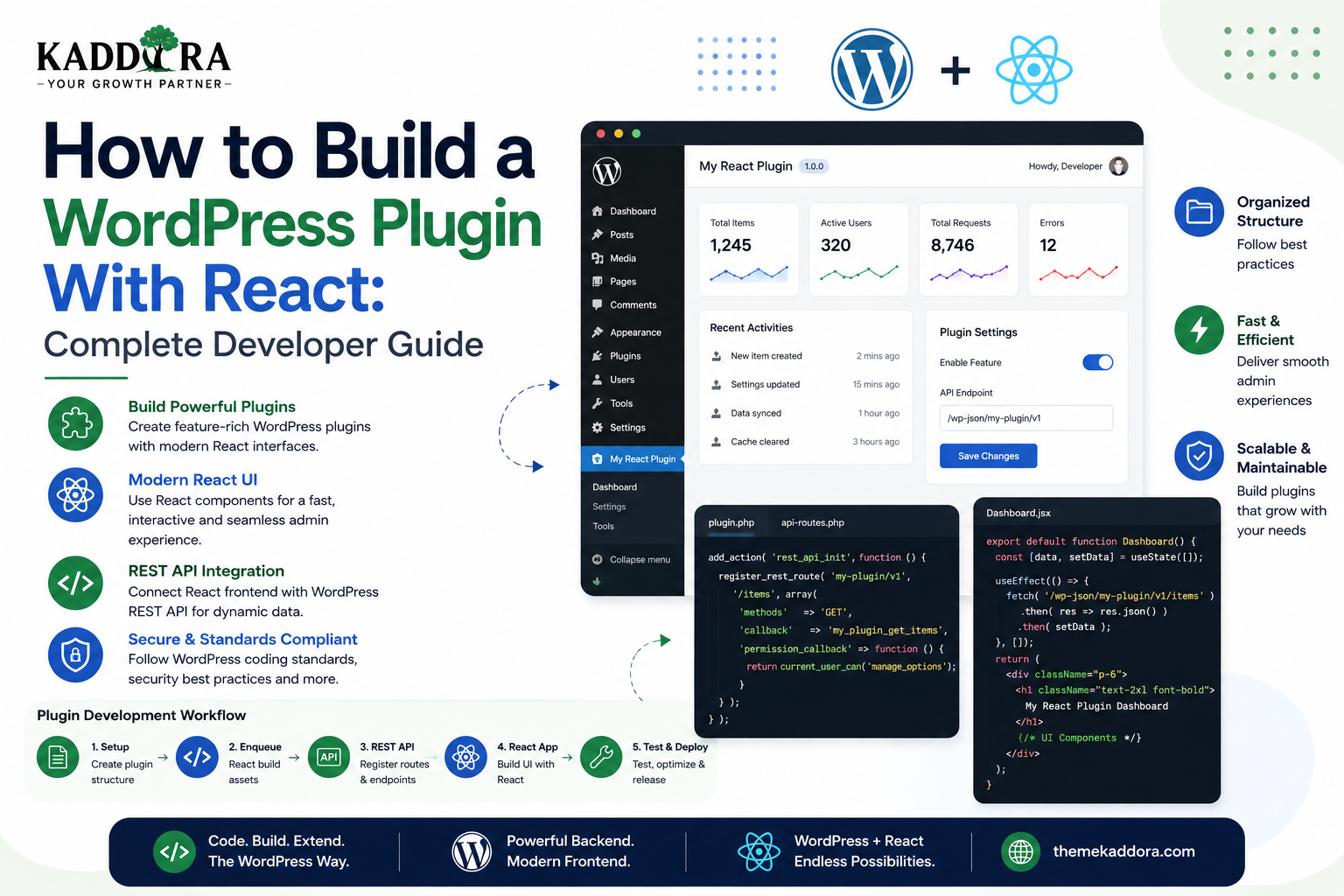
How to Build a WordPress Plugin With React: Complete Developer Guide
Introduction
WordPress plugins have traditionally been built primarily with PHP, HTML, CSS, and JavaScript.
That approach still works well for many plugins.
However, some modern plugins require more sophisticated interfaces than a traditional server-rendered admin page can conveniently provide.
Examples include:
Analytics dashboards
AI assistants
Automation builders
Advanced reporting tools
Product management interfaces
Interactive settings screens
SaaS-style applications
For these projects, React can provide a component-based frontend architecture inside the WordPress plugin.
A typical architecture looks like:
WordPress Plugin ↓ PHP Backend ↓ REST API ↓ React Application ↓ Admin Interface
WordPress remains responsible for backend operations, permissions, database access, plugin hooks, and APIs, while React manages the interactive user interface.
In this guide, you'll learn how to plan a React-powered WordPress plugin, structure the files, create an admin page, load React correctly, connect it to the WordPress REST API, secure requests, manage permissions, handle settings, optimize performance, and prepare the plugin for production.
Why Build a WordPress Plugin With React?
React is particularly useful when a plugin contains complex interaction.
A conventional settings page might look like:
Label Input Select Checkbox Save
A React-powered application can provide:
Dashboard ├── Charts ├── Filters ├── Tables ├── Modals ├── Search ├── Pagination └── Dynamic Settings
React becomes valuable when the interface starts behaving more like an application than a simple form.
When React Is a Good Choice
Consider React when your plugin needs:
Dynamic dashboards
Complex state
Interactive tables
Advanced filtering
Multiple views
Real-time-like interface updates
Reusable UI components
Rich forms
Drag-and-drop workflows
Application-style navigation
For a plugin with one simple settings page, React may introduce unnecessary complexity.
WordPress Plugin With React Architecture
A professional plugin can separate responsibilities like this:
React → UI → Components → Client State → User Interaction WordPress PHP → Database → Business Logic → Authentication → Authorization → REST API → WordPress Hooks
The React application should not become a second backend.
Recommended Plugin Structure
A larger React-based plugin might use:
my-plugin/ │ ├── src/ │ ├── components/ │ ├── pages/ │ ├── hooks/ │ ├── services/ │ ├── store/ │ └── app/ │ ├── build/ │ ├── includes/ │ ├── class-admin.php │ ├── class-rest-api.php │ ├── class-permissions.php │ └── class-plugin.php │ ├── assets/ │ ├── languages/ │ └── my-plugin.php
The src directory contains development source files while build contains production-ready frontend assets.
Start With a Clear Plugin Boundary
Before writing React code, identify which parts should remain PHP.
For example:
PHP ├── Register Plugin ├── Register Admin Menu ├── Register REST Routes ├── Check Capabilities ├── Database Queries ├── Save Settings └── Business Rules React ├── Dashboard ├── Tables ├── Forms ├── Filters └── UI Interactions
This separation avoids putting sensitive operations into browser code.
Creating the Main Plugin File
A plugin still needs a standard WordPress plugin entry file.
For example:
<?php /** * Plugin Name: My React Plugin * Description: A React-powered WordPress plugin. * Version: 1.0.0 * Author: Kaddora * Text Domain: my-react-plugin */ defined( 'ABSPATH' ) || exit;
From this entry point, the plugin can load its classes and initialize functionality.
Registering an Admin Menu
A React application needs somewhere to render.
Create an admin page:
add_action( 'admin_menu', 'my_plugin_register_menu' ); function my_plugin_register_menu() { add_menu_page( __( 'My React Plugin', 'my-react-plugin' ), __( 'My React Plugin', 'my-react-plugin' ), 'manage_options', 'my-react-plugin', 'my_plugin_render_app', 'dashicons-admin-generic' ); }
The callback can provide the mounting element.
Creating the React Mount Point
The PHP callback can output:
function my_plugin_render_app() { if ( ! current_user_can( 'manage_options' ) ) { wp_die( esc_html__( 'You do not have permission to access this page.', 'my-react-plugin' ) ); } echo '<div id="my-react-plugin-root"></div>'; }
React can then mount into:
<div id="my-react-plugin-root"></div>
Enqueue the React Application
WordPress should manage the JavaScript asset through its enqueue system.
For example:
add_action( 'admin_enqueue_scripts', 'my_plugin_enqueue_assets' ); function my_plugin_enqueue_assets( $hook_suffix ) { if ( 'toplevel_page_my-react-plugin' !== $hook_suffix ) { return; } wp_enqueue_script( 'my-react-plugin-app', plugins_url( 'build/app.js', __FILE__ ), array(), '1.0.0', true ); }
For production plugins, use an asset metadata file when generated by the build process so dependencies and versioning can be handled correctly.
Why Assets Should Be Loaded Only on Your Plugin Page
Don't load a large React application on every WordPress admin screen.
Avoid:
Every Admin Page ↓ React Bundle ↓ Application Dependencies
Prefer:
Your Plugin Page ↓ React Bundle
This reduces unnecessary JavaScript loading and lowers the chance of admin-side conflicts.
React Entry Point
A React application can have an entry file such as:
import { createRoot } from 'react-dom/client'; import App from './App'; const rootElement = document.getElementById( 'my-react-plugin-root' ); if (rootElement) { createRoot(rootElement).render( <App /> ); }
This mounts the React application inside the WordPress admin page.
Creating the App Component
A simple application might begin with:
export default function App() { return ( <div> <h1> My React Plugin </h1> <p> Welcome to the plugin dashboard. </p> </div> ); }
From here, the application can be split into reusable components.
Creating Reusable Components
For example:
components/ ├── Header.jsx ├── Card.jsx ├── DataTable.jsx ├── Notice.jsx ├── Modal.jsx └── Pagination.jsx
A dashboard can then combine these components:
App ├── Header ├── Statistics ├── DataTable └── Activity
This is easier to maintain than one large React file.
React Components and WordPress UI
A WordPress admin plugin should feel like part of WordPress.
Where appropriate, developers can use WordPress-provided JavaScript components through packages such as:
@wordpress/components
These can provide common controls such as:
Buttons
Inputs
Notices
Modals
Panels
Select controls
Tabs
Using WordPress-native components can improve consistency.
Connecting React to the WordPress REST API
React needs a communication layer to interact with WordPress.
WordPress provides:
/wp-json/
A plugin can also create custom endpoints.
For example:
register_rest_route( 'my-plugin/v1', '/dashboard', array( 'methods' => 'GET', 'callback' => 'my_plugin_get_dashboard', 'permission_callback' => function() { return current_user_can( 'manage_options' ); }, ) );
React can then request:
/wp-json/my-plugin/v1/dashboard
Why Use Custom REST Endpoints?
WordPress's standard endpoints are excellent for common content types.
Plugin-specific business features often need custom endpoints.
Examples:
Analytics Customers Reports Automation Recommendations Integrations
A custom REST API keeps the plugin's business logic in PHP while React focuses on the interface.
Using @wordpress/api-fetch
Inside a WordPress-based React application, @wordpress/api-fetch is often convenient.
Example:
import apiFetch from '@wordpress/api-fetch'; apiFetch({ path: '/my-plugin/v1/dashboard', }) .then((data) => { console.log(data); }) .catch((error) => { console.error(error); });
This integrates naturally with the WordPress JavaScript ecosystem.
REST API Authentication in the Admin
For a React application running inside the WordPress admin, authenticated REST requests can use the WordPress REST API nonce mechanism.
A plugin can configure the API client appropriately for the current WordPress session.
The important architecture is:
Logged-In User ↓ WordPress Session ↓ REST Request ↓ Nonce ↓ Authentication ↓ Capability Check
A nonce does not replace server-side authorization.
Capability Checks Are Essential
The PHP endpoint must enforce permissions.
For example:
'permission_callback' => function() { return current_user_can( 'my_plugin_view_reports' ); },
This prevents someone from bypassing the React interface and directly calling the API endpoint.
Never Trust React for Authorization
Avoid:
React → If Admin → Show Delete Button → Delete Data
The server must still verify:
Request ↓ Authenticated User ↓ Capability Check ↓ Validation ↓ Delete
The frontend is a convenience layer, not a security boundary.
Passing Data From PHP to React
Sometimes the React application needs basic configuration from PHP.
For example:
wp_localize_script( 'my-react-plugin-app', 'MyReactPlugin', array( 'restUrl' => esc_url_raw( rest_url( 'my-plugin/v1/' ) ), 'nonce' => wp_create_nonce( 'wp_rest' ), ) );
React can then access the data through the localized global.
Keep this data limited to information that is safe to expose to the browser.
Never pass secrets just because React needs configuration.
React Settings Interfaces
A React application can provide a modern settings experience.
For example:
General ├── Enable Plugin ├── Mode └── Notifications API ├── Provider ├── Endpoint └── Connection Test Advanced ├── Logging └── Performance
The browser sends settings to a protected REST endpoint, and PHP validates and stores them.
Saving Plugin Settings
A secure settings flow is:
React Form ↓ POST Request ↓ Nonce ↓ Capability Check ↓ Validation ↓ Sanitization ↓ Options API ↓ Database
React should not directly access the database.
Example Settings Endpoint
A plugin may create an endpoint such as:
register_rest_route( 'my-plugin/v1', '/settings', array( 'methods' => 'POST', 'callback' => 'my_plugin_save_settings', 'permission_callback' => function() { return current_user_can( 'manage_options' ); }, ) );
Inside the callback:
Validate request data.
Sanitize values.
Enforce allowed values.
Save through the Options API.
Return a safe response.
Don't Return Secrets to React
Suppose a plugin stores an API key.
Avoid returning:
{ "api_key": "complete-secret-value" }
A better approach may be:
{ "api_key_configured": true }
Then provide a field allowing the administrator to replace the credential without exposing the stored secret.
React Dashboards
React is particularly useful for dashboards.
A dashboard might contain:
┌─────────────┐ ┌─────────────┐ │ Customers │ │ Orders │ │ 1,250 │ │ 864 │ └─────────────┘ └─────────────┘ ┌──────────────────────────────┐ │ Revenue Chart │ └──────────────────────────────┘ Recent Activity
Data can be loaded through WordPress REST endpoints.
React Data Tables
For large data sets, use:
Pagination
Server-side search
Sorting
Filtering
Loading states
Empty states
Error handling
Avoid loading thousands of records into the browser simply to filter them locally.
Server-Side Filtering
A better flow is:
React ↓ Filter: Status = Active ↓ REST API ↓ WordPress Query ↓ Filtered Results ↓ React
This reduces network usage and browser memory.
Bulk Actions in React
A React dashboard can provide bulk operations:
☑ Customer A ☑ Customer B ☑ Customer C [Assign] [Export] [Delete]
But bulk actions still need server-side:
Capability checks
Nonces where appropriate
Input validation
Record validation
Business rules
The React checkbox only represents the user's selection.
React Forms
Complex plugin interfaces may contain:
Multi-step forms
Conditional fields
Dynamic sections
Validation
File uploads
Repeatable fields
React can manage the interactive state while WordPress handles the secure server-side processing.
Handling Loading States
Every API-driven React interface should provide clear feedback.
Example:
Loading dashboard...
Instead of showing an empty screen.
Loading states are especially important when API requests may take longer than expected.
Handling Empty States
An API may return no data.
For example:
No customers found. [Add Customer]
An empty state should explain what happened and provide an appropriate next step.
Handling API Errors
API failures should be treated as expected application states.
For example:
Unable to load reports. [Retry]
Detailed technical information can be logged securely while the user sees a useful message.
React and Error Boundaries
An application may contain multiple independent sections.
For example:
Dashboard ├── Stats ├── Reports ├── Customers └── Notifications
Error-handling boundaries can prevent one component failure from breaking the entire dashboard.
The exact strategy depends on the React version and application architecture.
React Internationalization
WordPress plugins should remain translation-ready.
For WordPress-native React development, use the appropriate JavaScript internationalization tooling.
For example:
import { __ } from '@wordpress/i18n'; const label = __( 'Save Settings', 'my-react-plugin' );
Avoid hardcoding user-facing strings throughout the application.
React Accessibility
A React application should support:
Keyboard navigation
Focus management
Accessible labels
Semantic HTML
Error announcements
Screen readers
Sufficient contrast
A custom dashboard is not complete if users can only operate it with a mouse.
Building a React Plugin With TypeScript
TypeScript can be useful for larger plugin applications.
For example:
React + TypeScript ↓ Typed Components Typed API Data Typed State
It can help catch certain classes of mistakes during development.
However, TypeScript adds build complexity and should be adopted when the project benefits from stronger type safety.
React Build Process
A typical development workflow looks like:
Source Code ↓ React / JSX ↓ Build Tool ↓ JavaScript Bundle ↓ WordPress Plugin
The production output should contain optimized assets rather than development-only files.
Use Production Builds
Do not deploy a development React bundle to production unnecessarily.
Production builds should generally provide:
Minified JavaScript
Optimized assets
Appropriate source maps strategy
Correct dependency handling
The exact build setup depends on the project.
Code Splitting
A large plugin may contain several screens:
Dashboard Reports Customers Settings Automation
Loading all code immediately may increase the initial bundle.
Code splitting can allow certain features to load when needed.
This is especially useful for large plugin applications.
React Plugin Performance
Monitor:
Initial JavaScript size
API requests
Component rendering
State updates
Images
Third-party libraries
Database query times
A React interface can still be slow if the backend returns data inefficiently.
Performance must be evaluated across the entire stack.
WordPress Database Performance
React doesn't make database queries directly.
The WordPress backend should handle queries efficiently.
For example:
React ↓ REST API ↓ PHP ↓ Database Query ↓ JSON ↓ React
If the query is slow, the React interface will still feel slow.
Optimize the backend rather than trying to solve every problem in the frontend.
Custom Database Tables
A React plugin may manage high-volume data such as:
Analytics events
Activity logs
Transactions
Queue records
Large datasets
The WordPress options or metadata systems may not always be appropriate.
In those cases, carefully designed custom tables may be more suitable.
React does not determine the database architecture.
React Plugin Security Architecture
A secure React-based plugin should follow:
Browser ↓ REST Request ↓ Authentication ↓ Capability Check ↓ Nonce Verification Where Applicable ↓ Input Validation ↓ Sanitization ↓ Business Logic ↓ Database
Security belongs primarily on the backend.
Don't Trust Client-Side Input
The browser can send unexpected data.
For example:
{ "price": -5000, "status": "super-admin", "user_id": 999999 }
The backend should validate everything before processing.
Never assume the React form guarantees valid input.
React Plugin and File Uploads
If your plugin allows file uploads, the backend should validate:
File type
File size
User permissions
File contents where relevant
Destination
Filename handling
Don't rely solely on frontend validation.
React Plugin and Third-Party APIs
Suppose a plugin connects to an AI provider:
React ↓ WordPress REST API ↓ PHP Service ↓ AI Provider ↓ Response ↓ React
Keep API credentials on the server.
Don't make direct browser-to-provider requests when they would expose privileged credentials.
React Plugin for WooCommerce
A React-powered WooCommerce plugin could provide:
Commerce Dashboard ├── Sales ├── Customers ├── Products ├── Recommendations ├── Returns └── Reports
The backend should integrate with supported WooCommerce APIs and permission systems.
The React layer can provide the interactive user experience.
React Plugin for CRM
A CRM plugin can use React for:
Customer lists
Lead pipelines
Deal boards
Search
Filters
Reports
Tasks
For example:
Leads ├── New ├── Contacted ├── Qualified ├── Proposal └── Won
A drag-and-drop interface can make CRM workflows much easier to use.
React Plugin for AI
An AI plugin could have:
AI Assistant ├── Chat ├── Content ├── Prompts ├── Usage └── Settings
React can make the interface responsive and interactive while PHP communicates securely with AI providers.
React Plugin for Analytics
Analytics dashboards are another strong use case.
A React application can provide:
Charts
Date filters
Data tables
Comparison controls
Export actions
Real-time-like updates
WordPress can handle the underlying data APIs.
Plugin Activation and React
React should not be required for plugin activation itself.
Your PHP plugin bootstrap should be able to initialize safely even if:
JavaScript fails
Assets fail to load
React bundle is missing
Browser blocks JavaScript
The admin page may become unavailable, but the entire WordPress installation should not fail simply because a frontend bundle has a problem.
Graceful Failure
A professional application should provide a useful fallback.
For example:
React Loaded → Full Dashboard React Failed → Clear Error Message → Troubleshooting Guidance
Avoid blank screens with no explanation.
Testing a React WordPress Plugin
Before release, test:
PHP
Plugin activation
Hooks
Database logic
REST endpoints
React
Components
Forms
State
Navigation
Errors
API
Authentication
Permissions
Validation
Pagination
Security
Unauthorized requests
Direct API calls
Input manipulation
Credential exposure
Compatibility
Supported WordPress versions
PHP versions
Common themes
Related plugins
WooCommerce where applicable
Performance
Large datasets
Slow APIs
Bundle size
Rendering
Accessibility
Keyboard
Screen readers
Focus
Contrast
Common Mistakes When Building React WordPress Plugins
Putting Business Logic in React
Sensitive logic belongs on the server.
Exposing API Credentials
Never ship privileged secrets to the browser.
No REST Authorization
Every protected endpoint requires server-side permission checks.
Loading React Everywhere
Only load assets where needed.
Huge Bundles
Use code splitting where appropriate.
No Loading State
Users should understand when data is being fetched.
No Error Handling
API failures should produce useful feedback.
Ignoring WordPress APIs
Use WordPress's existing infrastructure instead of rebuilding everything.
Ignoring Accessibility
Interactive applications must remain usable for diverse users.
Best Practices for React WordPress Plugins
Professional developers should:
Keep backend and frontend responsibilities separate.
Use WordPress REST APIs appropriately.
Use unique namespaces and prefixes.
Enqueue scripts correctly.
Load assets only on relevant screens.
Use WordPress packages where appropriate.
Enforce capabilities server-side.
Validate and sanitize all input.
Protect state-changing operations.
Keep credentials server-side.
Use reusable React components.
Handle loading, empty, and error states.
Implement pagination for large datasets.
Optimize production builds.
Support internationalization.
Follow accessibility practices.
Test plugin conflicts.
Maintain backward compatibility.
A Complete React WordPress Plugin Architecture
A mature architecture might look like:
WordPress Plugin │ ├── PHP Backend │ ├── Plugin Bootstrap │ ├── Admin Menu │ ├── REST API │ ├── Permissions │ ├── Database │ └── Services │ ├── React Frontend │ ├── Components │ ├── Pages │ ├── State │ ├── API Client │ └── UI │ ├── Build │ └── Production Assets │ └── Languages
This creates a clear boundary between the two layers.
Why choose ThemeKaddora?
ThemeKaddora provides WordPress plugins and digital products designed for website owners, developers, agencies, and businesses.
Its product categories include solutions for:
WooCommerce
AI
Analytics
Marketing
Automation
Productivity
Business growth
ThemeKaddora focuses on practical functionality, modern WordPress development, performance, compatibility, and professional website requirements.
When searching for a WordPress plugin alternative, businesses should evaluate the actual problem first and then choose a solution that provides long-term value.
Conclusion
Building a WordPress plugin with React combines WordPress's powerful backend ecosystem with a modern component-based user interface.
The most important architectural principle is separation:
WordPress/PHP
→ Database
→ Business Logic
→ Authentication
→ Authorization
→ REST API
and
React
→ Components
→ State
→ Interaction
→ User Experience
React is especially useful for complex plugin dashboards, CRM systems, analytics, AI tools, WooCommerce extensions, automation interfaces, and SaaS-style applications.
However, a React-powered plugin is not automatically better than a traditional WordPress plugin.
Use React when the interface genuinely benefits from component-based interactivity, and keep the backend responsible for security and business logic.
A well-designed React WordPress plugin should be secure, performant, accessible, maintainable, compatible, and easy to extend.
Frequently Asked Questions
Can I build a WordPress plugin using React?
Yes. React can power the frontend of a WordPress plugin while PHP remains responsible for WordPress integration, business logic, database operations, permissions, and REST API endpoints.
Does a React WordPress plugin still need PHP?
Yes. WordPress plugins still need a PHP backend to integrate with WordPress hooks, APIs, permissions, and server-side functionality.
How does React communicate with a WordPress plugin?
React commonly communicates with the plugin through custom REST API endpoints or other WordPress APIs.
Can React be used for WordPress admin dashboards?
Yes. React is well suited to complex admin dashboards containing charts, tables, filters, dynamic forms, and interactive workflows.
Should I put plugin business logic in React?
No. Sensitive business logic and authorization should remain on the WordPress server. React should primarily manage the interface and client-side state.
Can React plugins use the WordPress REST API?
Yes. The REST API is one of the most common ways for React applications to communicate with WordPress.
Can I use @wordpress/components in a React plugin?
Yes. WordPress provides JavaScript packages that can be useful for building interfaces consistent with the WordPress admin experience.
Should React assets load on every WordPress admin page?
Usually not. Plugin assets should generally be loaded only on the screens where the React application is required.
Can a React WordPress plugin use custom database tables?
Yes. The React frontend does not determine the storage model. High-volume or specialized plugin data may require custom database tables on the PHP backend.
How should I secure a React WordPress plugin?
Use server-side capability checks, appropriate nonce or authentication mechanisms, input validation, sanitization, secure credential handling, and protected REST endpoints.
Can React be used in WooCommerce plugins?
Yes. React can provide interactive WooCommerce analytics, product-management tools, dashboards, recommendations, reports, and other advanced interfaces.
Can React be used for AI WordPress plugins?
Yes. React can provide chat interfaces, AI dashboards, configuration screens, content tools, and other interactive experiences while the WordPress backend securely communicates with AI providers.
Why choose Themekaddora?
Themekaddora provides lightweight, responsive, SEO-friendly WordPress themes with fast performance, WooCommerce compatibility, flexible customization, accessibility-conscious design, modern templates, regular updates, and professional support—providing a strong foundation for businesses building digital products and product-focused websites.
Comments (0)