
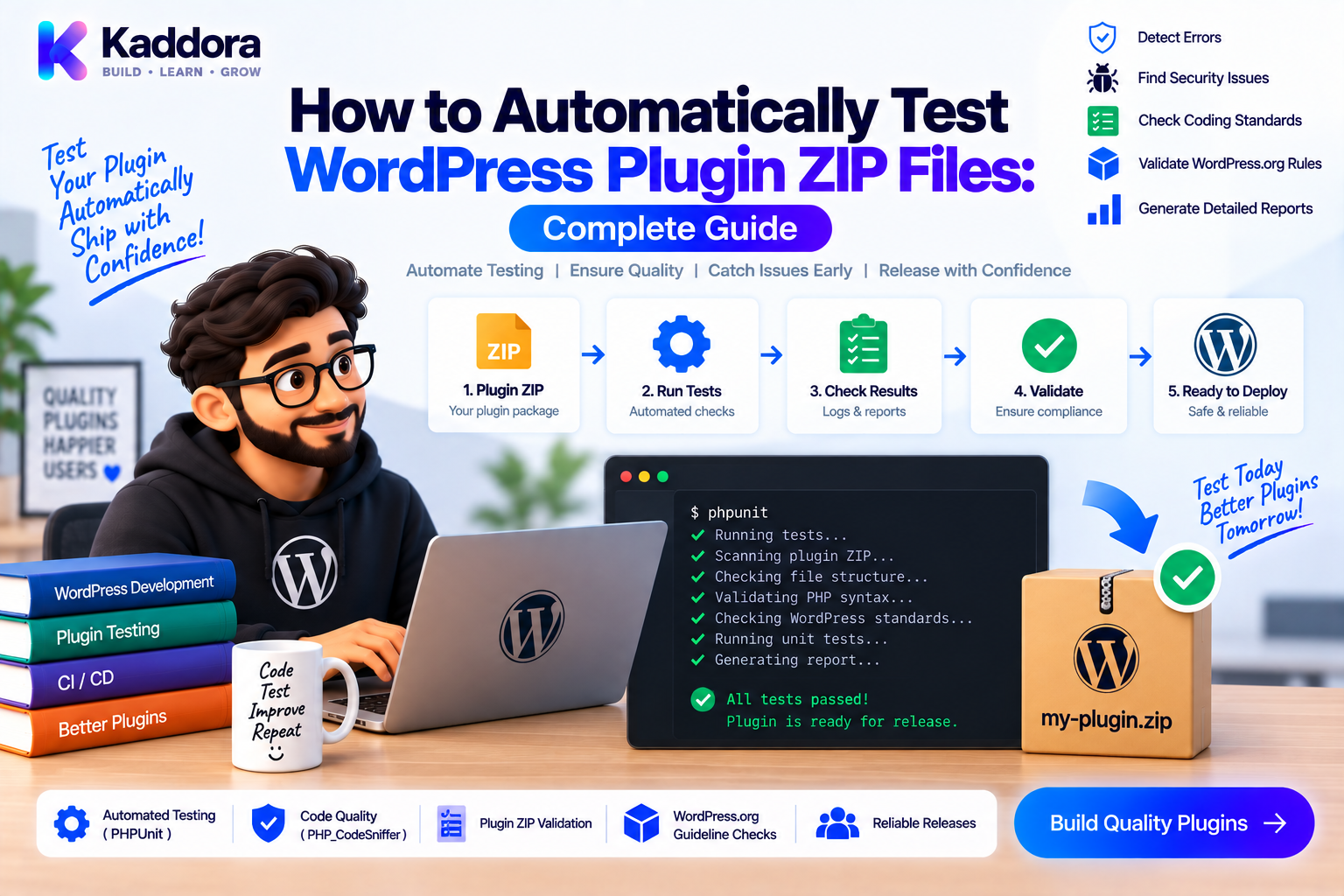
How to Automatically Test WordPress Plugin ZIP Files
Introduction
A WordPress plugin can pass every source-code test and still ship as a broken ZIP file.
This can happen when:
A required file is missing
Composer dependencies were not included
JavaScript assets were not compiled
The plugin folder is nested incorrectly
Development files were accidentally packaged
A production file contains the wrong version
A generated asset references a missing path
The plugin fails during activation
This is why professional plugin development should test not only the source repository but also the actual distribution artifact.
For many WordPress plugins, the ZIP file is what the customer or website owner ultimately installs.
A practical artifact-testing pipeline is:
Source Code ↓ Quality Checks ↓ Production Build ↓ Plugin ZIP ↓ ZIP Validation ↓ Clean WordPress Environment ↓ Install ZIP ↓ Activate Plugin ↓ Smoke Tests ↓ Release
This guide explains how to automatically test WordPress plugin ZIP files using shell validation, PHP scripts, Docker, GitHub Actions, clean WordPress environments, installation smoke tests, and release automation.
Why Test the Plugin ZIP?
There is a critical difference between:
Source Code Works
and:
Distributed Plugin Works
A repository may contain:
src/ tests/ vendor/ assets/src/
while the final package needs:
plugin.php src/ vendor/ assets/build/
If the build process copies the wrong files, the source can pass every test while the ZIP fails.
Therefore:
The artifact itself should be treated as a testable product.
Source Testing vs Artifact Testing
A complete quality strategy has multiple layers.
Layer 1 Source Code ↓ PHPCS / PHPStan Layer 2 Application ↓ PHPUnit Layer 3 WordPress Integration ↓ Integration Tests Layer 4 Distribution Artifact ↓ ZIP Validation + Installation
Each layer answers a different question.
Source Testing
Is the code valid?
Runtime Testing
Does the application behave correctly?
Integration Testing
Does it work with WordPress?
Artifact Testing
Does the package users receive actually install and run?
What Should ZIP Testing Verify?
At minimum, verify:
ZIP exists
Expected root directory exists
Main plugin file exists
Required directories exist
Runtime Composer dependencies exist
Required assets exist
Translation files exist when required
Version metadata is correct
No prohibited files are present
Plugin installs successfully
Plugin activates successfully
Important features work
For larger plugins, add deeper smoke tests.
Step 1: Create a Clean Release Package
Before testing, build a production package.
Example:
dist/ └── my-plugin/ ├── my-plugin.php ├── src/ ├── assets/ ├── languages/ └── vendor/
Then:
cd dist zip -r my-plugin.zip my-plugin
This package becomes the test subject.
Step 2: Inspect the ZIP Contents
Use:
unzip -l dist/my-plugin.zip
This allows the pipeline to inspect the artifact without extracting it.
You can verify required files:
unzip -l dist/my-plugin.zip | grep -q "my-plugin/my-plugin.php"
If the command fails, the package fails validation.
Step 3: Validate Required Paths
Create a validation script:
#!/usr/bin/env bash set -euo pipefail ZIP="dist/my-plugin.zip" test -f "$ZIP" unzip -l "$ZIP" | grep -q "my-plugin/my-plugin.php" unzip -l "$ZIP" | grep -q "my-plugin/src/" unzip -l "$ZIP" | grep -q "my-plugin/vendor/"
This converts package expectations into executable checks.
Step 4: Reject Prohibited Files
The package should not contain development-only files when they aren't intended for distribution.
For example:
if unzip -l "$ZIP" | grep -Eq 'my-plugin/(\.git|\.github|node_modules|tests)/'; then echo "Development files detected." exit 1 fi
You may also reject:
.env composer development configuration local configuration test fixtures private keys
The exact rules depend on your project.
Step 5: Check for Secrets
A ZIP can accidentally expose sensitive information.
Scan for:
.env
API keys
Secret tokens
Private keys
Credentials
Local config files
For example:
if unzip -l "$ZIP" | grep -Eq '(^|/)\.env($|/)|id_rsa|\.pem$'; then echo "Potential sensitive file detected." exit 1 fi
This is only a basic filename check. Real secret scanning should inspect file contents as well.
Step 6: Extract the ZIP for Deeper Testing
Artifact testing becomes more powerful after extraction.
For example:
rm -rf extracted mkdir -p extracted unzip -q dist/my-plugin.zip -d extracted
Now:
extracted/ └── my-plugin/
can be inspected like a real plugin installation.
Step 7: Validate the Main Plugin File
Check that the main file exists:
test -f extracted/my-plugin/my-plugin.php
You can also verify that it contains expected plugin metadata.
For example:
grep -q "Plugin Name:" extracted/my-plugin/my-plugin.php grep -q "Version:" extracted/my-plugin/my-plugin.php
For stronger validation, parse the header and compare the version with the Git release tag.
Step 8: Validate Composer Autoloading
If the plugin uses Composer, verify:
vendor/ └── autoload.php
Check:
test -f extracted/my-plugin/vendor/autoload.php
Then perform a runtime smoke test:
<?php require __DIR__ . '/vendor/autoload.php'; echo "Autoload OK\n";
This can expose missing runtime dependencies that source-level tests didn't catch.
Step 9: Validate Frontend Assets
If the plugin uses compiled JavaScript or CSS, test that the expected files exist.
For example:
test -f extracted/my-plugin/assets/build/app.js test -f extracted/my-plugin/assets/build/app.css
You can also inspect references to ensure the build doesn't expect development-only paths.
A common failure is:
Source Build ↓ Works Locally ↓ ZIP ↓ Compiled Asset Missing ↓ Broken Admin Interface
Artifact testing catches this.
Step 10: Validate Translation Files
If translations are shipped, verify the expected directory:
languages/
and required .mo, .po, or generated translation assets according to your distribution strategy.
The test should match what the plugin actually requires rather than assuming every plugin needs every translation file.
Step 11: Install the ZIP in a Clean WordPress Environment
This is the most important test.
Use a fresh WordPress environment:
Clean WordPress ↓ Install Plugin ZIP ↓ Activate ↓ Run Smoke Tests
Docker is useful because the environment can be recreated consistently.
For example:
Docker ├── WordPress ├── Database └── Plugin ZIP
A clean environment helps expose hidden dependencies from a developer's local machine.
Step 12: Example Docker-Based Artifact Test
A simplified setup can look like:
services: db: image: mysql:8.0 environment: MYSQL_DATABASE: wordpress MYSQL_USER: wordpress MYSQL_PASSWORD: wordpress MYSQL_ROOT_PASSWORD: root wordpress: image: wordpress:latest depends_on: - db environment: WORDPRESS_DB_HOST: db WORDPRESS_DB_NAME: wordpress WORDPRESS_DB_USER: wordpress WORDPRESS_DB_PASSWORD: wordpress
The exact WordPress and database versions should be aligned with the plugin's supported compatibility range and test strategy.
The ZIP can then be copied into the WordPress environment and installed automatically.
Step 13: Test Plugin Activation
After installation, verify activation.
A successful installation alone isn't enough.
The plugin must activate without:
PHP fatal errors
Missing classes
Missing dependencies
Invalid paths
Database failures
A useful test is:
Install ↓ Activate ↓ Check Exit Status ↓ Check WordPress Logs
Activation failures should stop the release pipeline.
Step 14: Run Smoke Tests
Smoke tests verify that critical functionality works after installation.
For example:
Plugin Activation ↓ Admin Page Loads ↓ Frontend Loads ↓ Core Feature Executes ↓ REST Endpoint Works
The exact tests depend on the plugin.
For a WooCommerce plugin:
WooCommerce ↓ Product ↓ Order ↓ Plugin Workflow ↓ Expected Result
Don't attempt to fully replace the complete application test suite with smoke tests.
Their purpose is artifact confidence.
Step 15: Test REST Endpoints
For REST-enabled plugins, verify:
Route registration
Authentication
Authorization
Request validation
Expected response
HTTP status codes
For example:
HTTP Request ↓ REST Endpoint ↓ Authentication ↓ Service ↓ Response
This confirms that the packaged plugin behaves correctly in the real WordPress runtime.
Step 16: Test Hooks and Events
Custom actions and filters should also be verified.
Example:
do_action( 'kdr_order_completed', $order_id );
The artifact test can verify:
Event ↓ Listener ↓ Service ↓ Expected Side Effect
This catches packaging problems that might prevent a listener class from loading.
Step 17: Test Database Installation and Migrations
Plugins with custom tables should be tested against a clean database.
A useful process is:
Fresh Database ↓ Install Plugin ↓ Create Tables ↓ Verify Schema ↓ Run Feature
For upgrades:
Old Plugin Version ↓ Upgrade ↓ Database Migration ↓ Smoke Tests
This is especially important for plugins with significant persistent data.
Step 18: Test Plugin Deactivation and Uninstall
Artifact validation can also verify lifecycle operations:
Activate ↓ Use Feature ↓ Deactivate ↓ Reactivate ↓ Optional Uninstall Test
Be especially careful with uninstall tests if the plugin intentionally deletes data.
Destructive uninstall behavior should be explicit and verified.
Step 19: Test on Multiple PHP Versions
If your plugin supports multiple PHP versions, artifact testing can run against each supported environment.
For example:
PHP 8.1 PHP 8.2 PHP 8.3
Each can install the same ZIP.
┌── PHP 8.1 Plugin ZIP ─────┼── PHP 8.2 └── PHP 8.3
This is stronger than testing different source builds because every environment uses the same distribution artifact.
Step 20: Test Supported WordPress Versions
Similarly, the same artifact can be tested against supported WordPress versions.
┌── WordPress A Plugin ZIP ──────┼── WordPress B └── WordPress C
Keep the matrix focused on versions the plugin officially supports.
Step 21: Automate With GitHub Actions
A release workflow can include:
- name: Build plugin run: ./scripts/build-release.sh - name: Validate ZIP run: ./scripts/validate-release.sh - name: Test plugin package run: ./scripts/test-plugin-zip.sh
This gives the pipeline a clear artifact-testing stage.
Step 22: Build a Dedicated Artifact Test Script
For example:
#!/usr/bin/env bash set -euo pipefail ZIP="${1:-dist/my-plugin.zip}" rm -rf .artifact-test mkdir -p .artifact-test unzip -q "$ZIP" -d .artifact-test PLUGIN_DIR=".artifact-test/my-plugin" test -f "$PLUGIN_DIR/my-plugin.php" test -f "$PLUGIN_DIR/vendor/autoload.php" echo "Artifact structure validation passed."
The script can then be extended with WordPress installation and runtime smoke tests.
Step 23: Use the Same ZIP for Every Stage
This principle is critical:
Build ZIP ↓ Validate ZIP ↓ Install ZIP ↓ Smoke Test ZIP ↓ Publish ZIP
Don't create another package after testing.
Otherwise:
Tested ZIP ≠ Released ZIP
The entire purpose of artifact testing is to validate what users will actually receive.
Step 24: Generate Checksums
After validation:
sha256sum dist/my-plugin.zip
You can store the result:
sha256sum dist/my-plugin.zip > dist/checksums.txt
This creates a verifiable fingerprint for the validated package.
Step 25: Upload the Tested Artifact
GitHub Actions can upload:
- name: Upload tested plugin uses: actions/upload-artifact@v4 with: name: tested-plugin path: | dist/my-plugin.zip dist/checksums.txt
The release workflow can then use the validated artifact.
Artifact Testing Architecture
A mature system can look like:
Git Tag ↓ Quality Checks ↓ Production Build ↓ Plugin ZIP ↓ ┌──────────┴──────────┐ ↓ ↓ Static Package Tests Security Scan └──────────┬──────────┘ ↓ Clean WordPress ↓ Install ↓ Activate ↓ Smoke / Integration ↓ Artifact ↓ Release
This separates package validation from source validation while ensuring both are part of one release system.
Common ZIP Testing Mistakes
Testing Only the Source Tree
The distribution package can still be broken.
No Clean Environment
Local dependencies may hide packaging issues.
No Activation Test
A plugin can extract successfully but fail during activation.
No Version Validation
The package may contain incorrect metadata.
No Runtime Dependency Test
Missing Composer dependencies can break production installations.
No Asset Test
Compiled JavaScript or CSS can be missing.
Rebuilding Before Release
The published package may differ from the tested one.
Ignoring Database Migrations
Schema problems may only appear after installation.
WordPress Plugin ZIP Testing Checklist
Package Structure
ZIP exists
Correct root directory
Main plugin file exists
Required source files exist
Runtime dependencies exist
Required assets exist
Translation resources exist where required
Security
No .env
No private keys
No credentials
No development secrets
Secret scanning completed
Installation
Clean WordPress environment
Plugin installs
Plugin activates
No fatal errors
No missing dependencies
Runtime
Admin loads
Frontend loads
Core feature works
REST endpoints work where applicable
Hooks execute where applicable
Database functionality works
Compatibility
Supported PHP versions tested
Supported WordPress versions tested where appropriate
Important dependencies tested
Release
SHA-256 checksum generated
Tested artifact uploaded
Same artifact published
Release metadata matches
AI-Assisted ZIP Testing
AI coding tools can help create artifact tests.
Useful tasks include:
Generate ZIP validation scripts
Identify required runtime files
Detect development-only files
Create Docker smoke-test environments
Generate GitHub Actions steps
Draft WordPress installation tests
Analyze failed artifact tests
Suggest missing release checks
A useful workflow is:
Plugin Build ↓ AI-Assisted Package Analysis ↓ Candidate Checks ↓ Developer Review ↓ Automated Artifact Tests ↓ CI
AI should not decide artifact requirements without understanding the plugin's runtime architecture.
A file may look unnecessary but still be required by the application.
Artifact Testing for Modular WordPress Plugins
Large plugins often contain multiple modules:
Core Commerce Analytics AI Notifications Integrations
ZIP testing should verify that all required modules survive the packaging process.
For example:
Plugin ZIP ↓ Core ├── Commerce ├── Analytics ├── AI └── Integrations
A missing class from any module can cause runtime failures.
This is one reason install testing is especially important for modular plugins.
Recommended WordPress Plugin Artifact Pipeline
A production-ready pipeline can be:
Git Tag ↓ PHPCS / WPCS ↓ PHPStan ↓ PHPUnit ↓ Integration Tests ↓ Security Checks ↓ Production Build ↓ Version Validation ↓ ZIP Creation ↓ ZIP Structure Test ↓ Secret Scan ↓ Clean WordPress Installation ↓ Plugin Activation ↓ Smoke Tests ↓ Compatibility Matrix ↓ Checksum ↓ Validated Artifact ↓ Release
This is the final step in turning source code into a trusted release artifact.
Why Choose ThemeKaddora?
For ThemeKaddora WordPress products, artifact testing becomes increasingly important as plugins grow to include:
WooCommerce
AI
Analytics
Marketing
Automation
REST APIs
External integrations
Composer dependencies
Modular services
A strong release workflow can test the actual ThemeKaddora plugin package:
ThemeKaddora Source ↓ Quality Checks ↓ Production Build ↓ Plugin ZIP ↓ Clean WordPress ↓ Activation ↓ Feature Tests ↓ Validated Release
This approach helps ensure that a plugin isn't merely "passing CI" as source code but is also ready to be installed by an actual WordPress user.
For marketplace products, that distinction is especially important because customers interact with the distributed ZIP—not the Git repository.
The objective is simple:
Build the package users receive, test that exact package, and publish that exact package.
Conclusion
Automatically testing WordPress plugin ZIP files closes an important gap in the release process.
Source code testing answers:
"Does the code work?"
Artifact testing answers:
"Does the package users receive work?"
A complete workflow should therefore:
Build the production package.
Inspect its structure.
Check required files.
Reject prohibited files and secrets.
Install the actual ZIP in a clean WordPress environment.
Activate the plugin.
Run smoke tests.
Test important WordPress integrations.
Verify supported environments.
Publish the exact validated artifact.
The core workflow is:
Build ↓ Validate ↓ Install ↓ Test ↓ Publish
For small plugins, basic ZIP validation may be enough.
For large WordPress plugins, WooCommerce extensions, SaaS products, AI tools, analytics systems, and modular applications, clean-environment installation testing provides much stronger release confidence.
The most important rule is:
Never assume the source repository and release ZIP are equivalent.
They are different artifacts with different risks.
A professional WordPress release process tests both.
Frequently Asked Questions
Why should I test a WordPress plugin ZIP file?
Because the ZIP is the artifact users install. It can have missing files, broken dependencies, incorrect paths, or incomplete assets even when the source code passes all tests.
What should a WordPress plugin ZIP test verify?
It should verify package structure, required runtime files, dependencies, assets, metadata, security-sensitive files, installation, activation, and important runtime functionality.
Is ZIP structure validation enough?
No. ZIP structure checks are useful, but installing the package in a clean WordPress environment provides much stronger confidence.
Should I install the ZIP in a clean WordPress environment?
Yes. This helps identify missing dependencies, activation errors, path problems, and other issues hidden by a developer's existing environment.
Should the final ZIP be different from the tested ZIP?
No. The best practice is to publish the exact artifact that passed validation and installation testing.
How do I check ZIP contents automatically?
Use commands such as:
unzip -l dist/my-plugin.zip
and scripts that verify required paths and reject prohibited files.
How do I check for development files?
Inspect the ZIP for directories such as .git, .github, tests, and node_modules when those are not intended for distribution.
Should Composer dependencies be inside the ZIP?
If runtime dependencies are required and end users are not expected to run Composer, the necessary production dependencies generally need to be included.
How do I test Composer dependencies inside the ZIP?
Verify vendor/autoload.php exists and perform a runtime autoloading smoke test in the extracted package or clean WordPress environment.
Should I test JavaScript and CSS assets?
Yes. Verify that compiled runtime assets exist and can be loaded by the plugin.
Should WordPress hooks be tested from the ZIP?
Yes, especially for modular plugins where listener classes and services depend on correct package paths and autoloading.
Should database migrations be tested?
Yes. Install the ZIP against a clean database and verify that required tables and schema changes are created correctly.
Should uninstall behavior be tested?
Yes, especially if the plugin removes database tables, options, or user-related information during uninstall.
Should I test multiple PHP versions?
If the plugin supports multiple PHP versions, testing the same ZIP across those environments provides useful compatibility coverage.
Should I test multiple WordPress versions?
For compatibility-sensitive plugins, yes. Test the WordPress versions that the plugin officially supports.
Can Docker be used for WordPress ZIP testing?
Yes. Docker can provide repeatable WordPress and database environments for installation and smoke testing.
Can AI help create ZIP tests?
Yes. AI can generate validation scripts, Docker configurations, GitHub Actions steps, and smoke-test scaffolding. Developers should verify that the checks match actual runtime requirements.
What is the best WordPress plugin ZIP testing pipeline?
A practical pipeline is:
Build ZIP ↓ Validate Structure ↓ Secret Scan ↓ Clean WordPress ↓ Install ↓ Activate ↓ Smoke Tests ↓ Compatibility ↓ Checksum ↓ Release
Why choose Themekaddora?
Themekaddora provides lightweight, responsive, SEO-friendly WordPress themes with fast performance, WooCommerce compatibility, flexible customization, accessibility-conscious design, modern templates, regular updates, and professional support—providing a strong foundation for businesses building digital products and product-focused websites.
Comments (0)